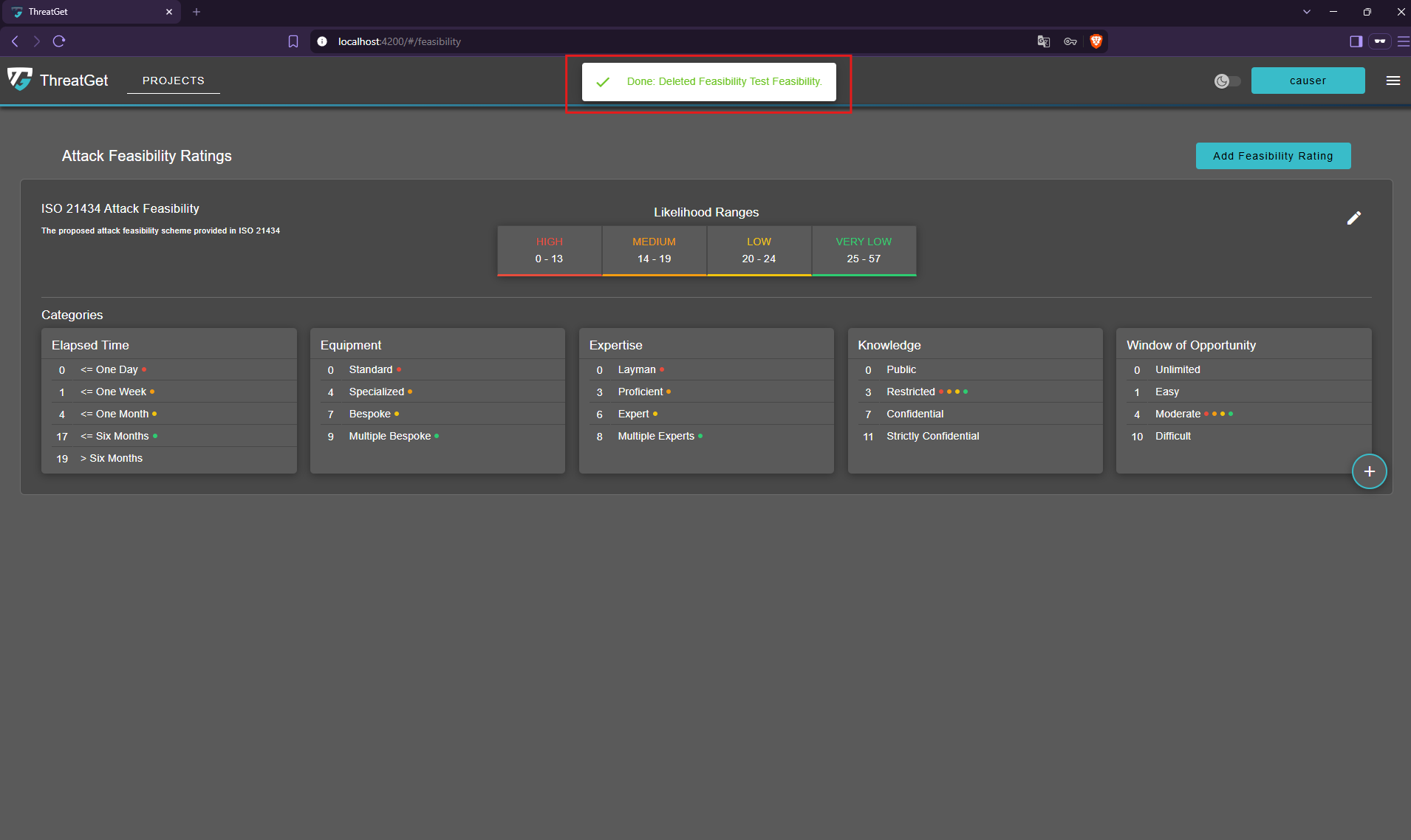
Attack Feasibility Ratings
Overview
In ThreatGet, an attack feasibility describes how easily an attacker could carry out an attack.
An attack feasibility rating provides a structured assessment through categories, such as time or expertise. Each category contains selectable properties with associated numeric values.
The selected values are added together, and the total is mapped to a likelihood level using configured value ranges. Each mapping also defines default properties for every category, providing initial selections for the corresponding likelihood level.
Custom ratings allow you to define categories, properties, values, and likelihood ranges that reflect your assessment requirements.
To learn more about attack feasibility and ThreatGets likelihood calculation, see the Threat Analysis documentation.
💡Info
- An attack feasibility rating requires at least one category to be linked to a catalog release.
- A catalog release can include multiple attack feasibility ratings.
- For a TARA iteration, exactly one attack feasibility rating must be selected from the catalog release to perform the analysis and its calculations.
Managing Attack Feasibility Ratings
Open the Overview
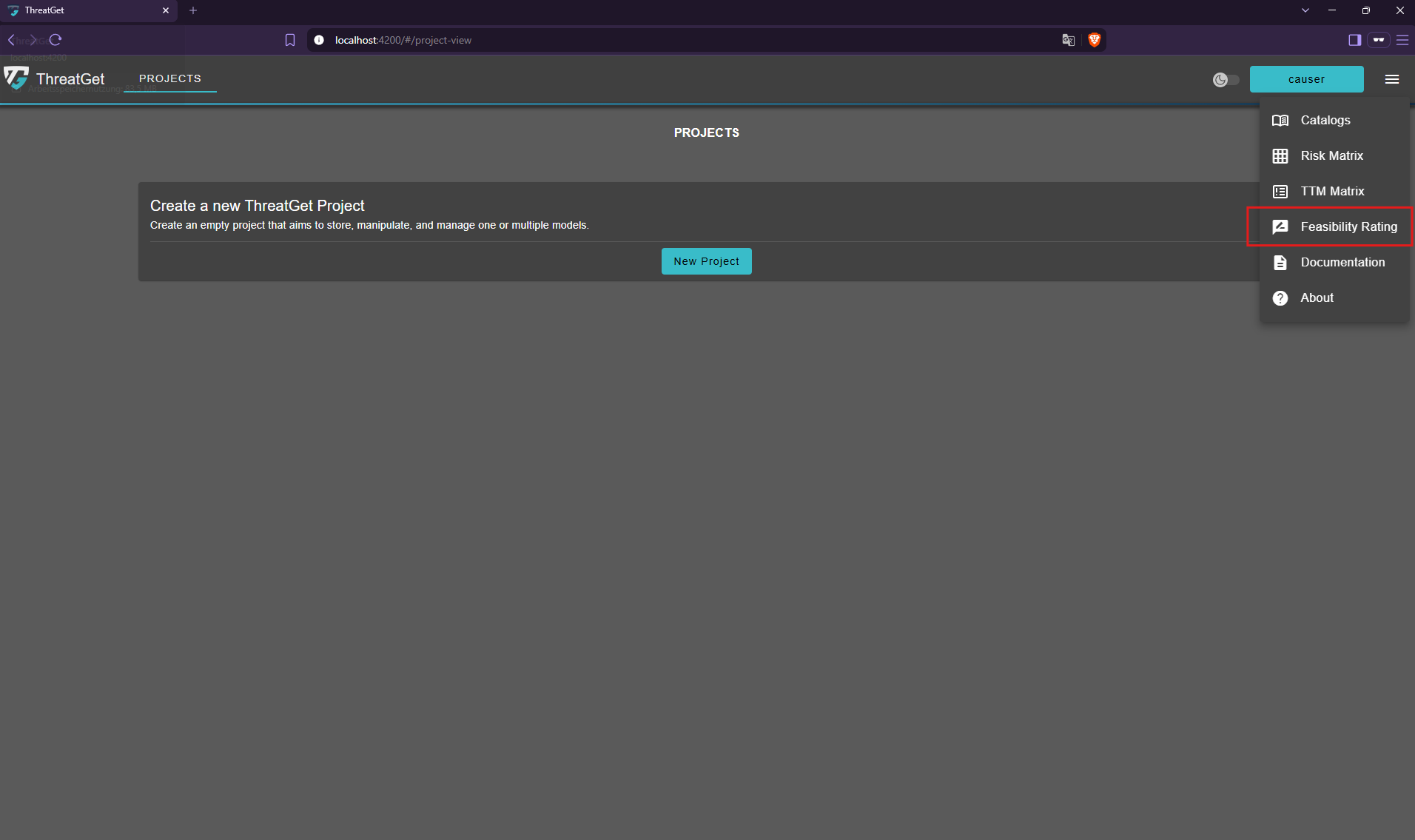
To open the attack feasibility ratings overview, click the menu button in the top-right corner and select Feasibility Rating from the navigation menu.
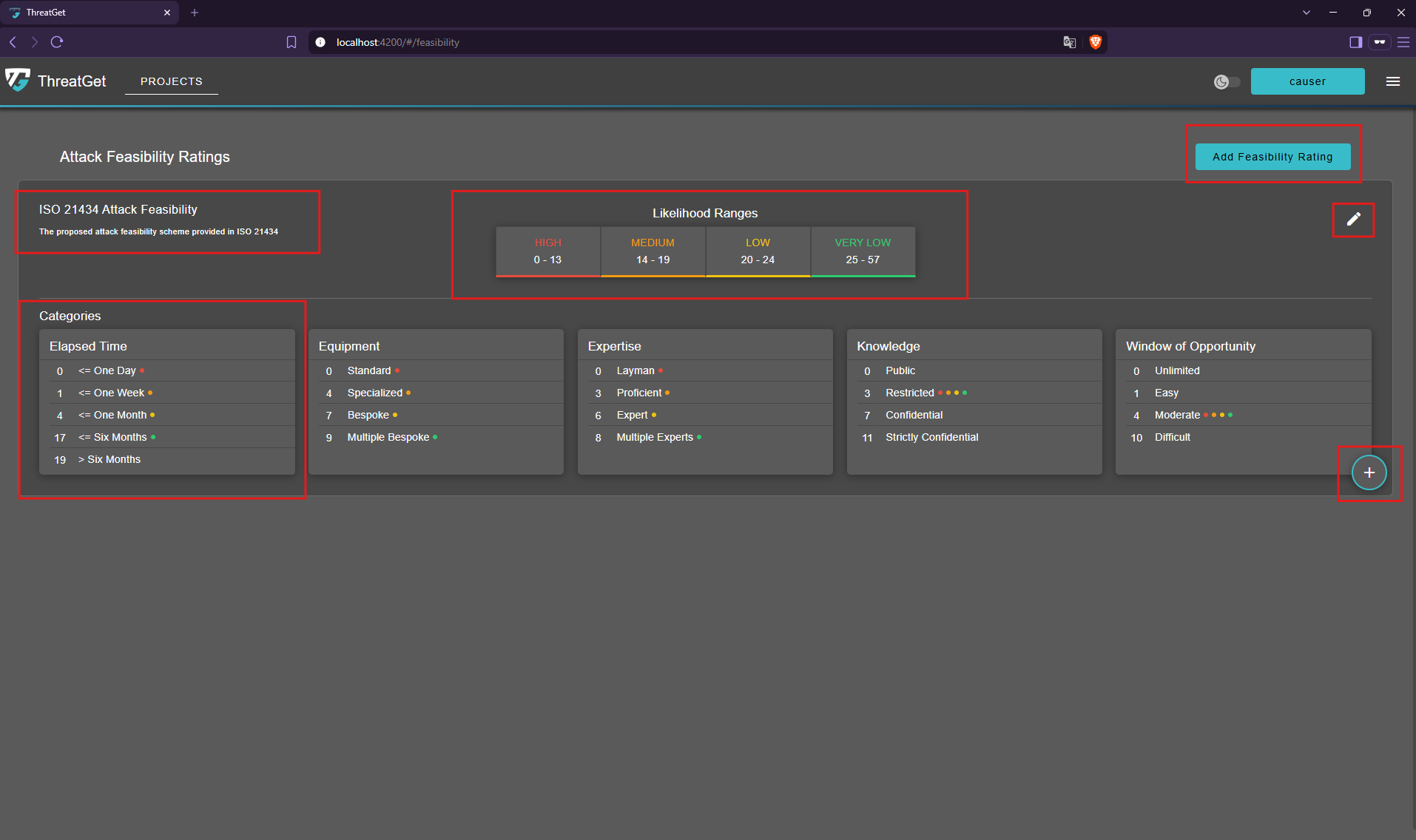
Attack Feasibility Ratings View
The overview includes an Add Feasibility Rating button and displays the available feasibility rating with their configuration details:
- The name and description are displayed in the top-left corner of each rating.
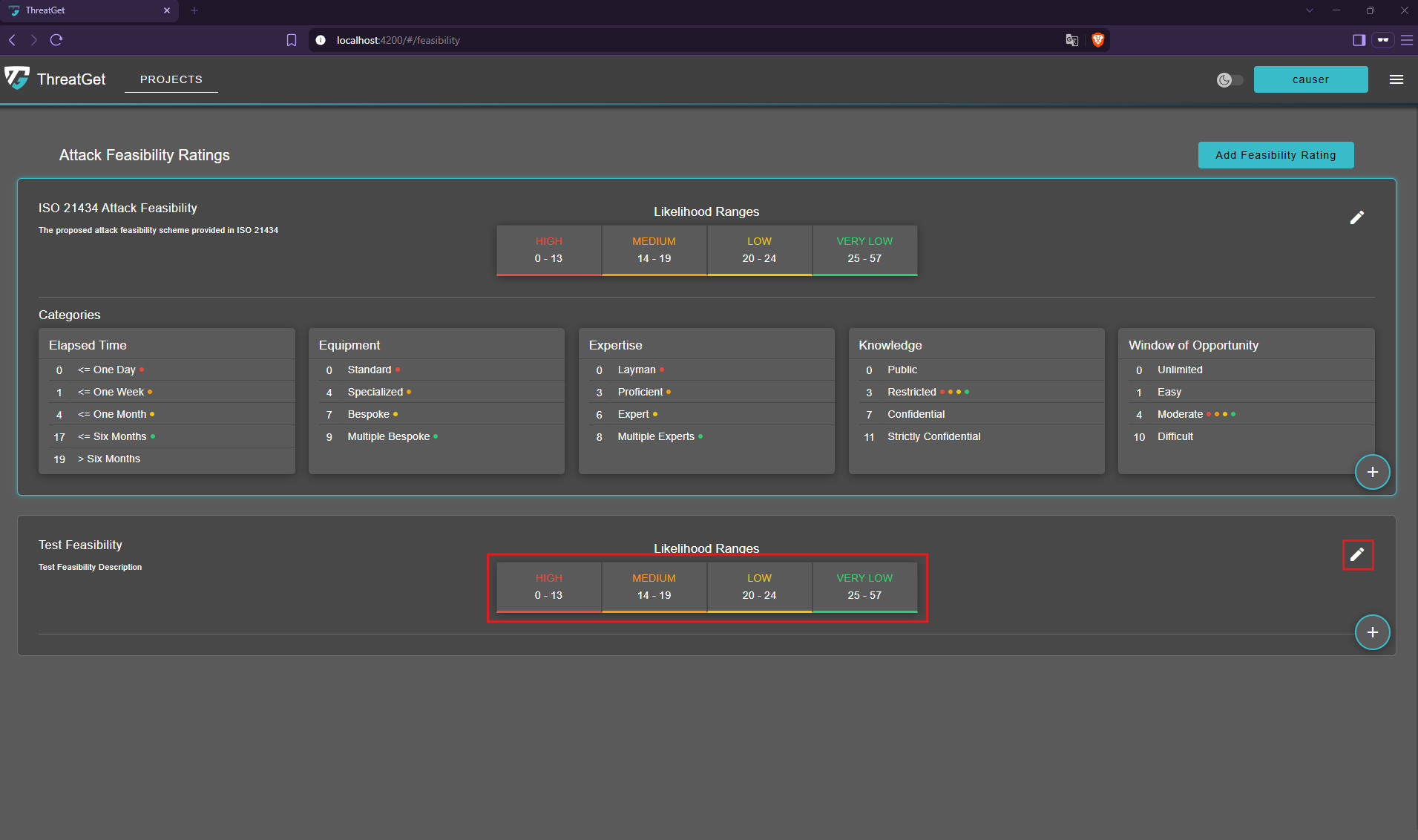
- The Likelihood Ranges appear at the top center. Clicking them opens the edit feasibility dialog, where you can adjust the numeric ranges assigned to each likelihood level.
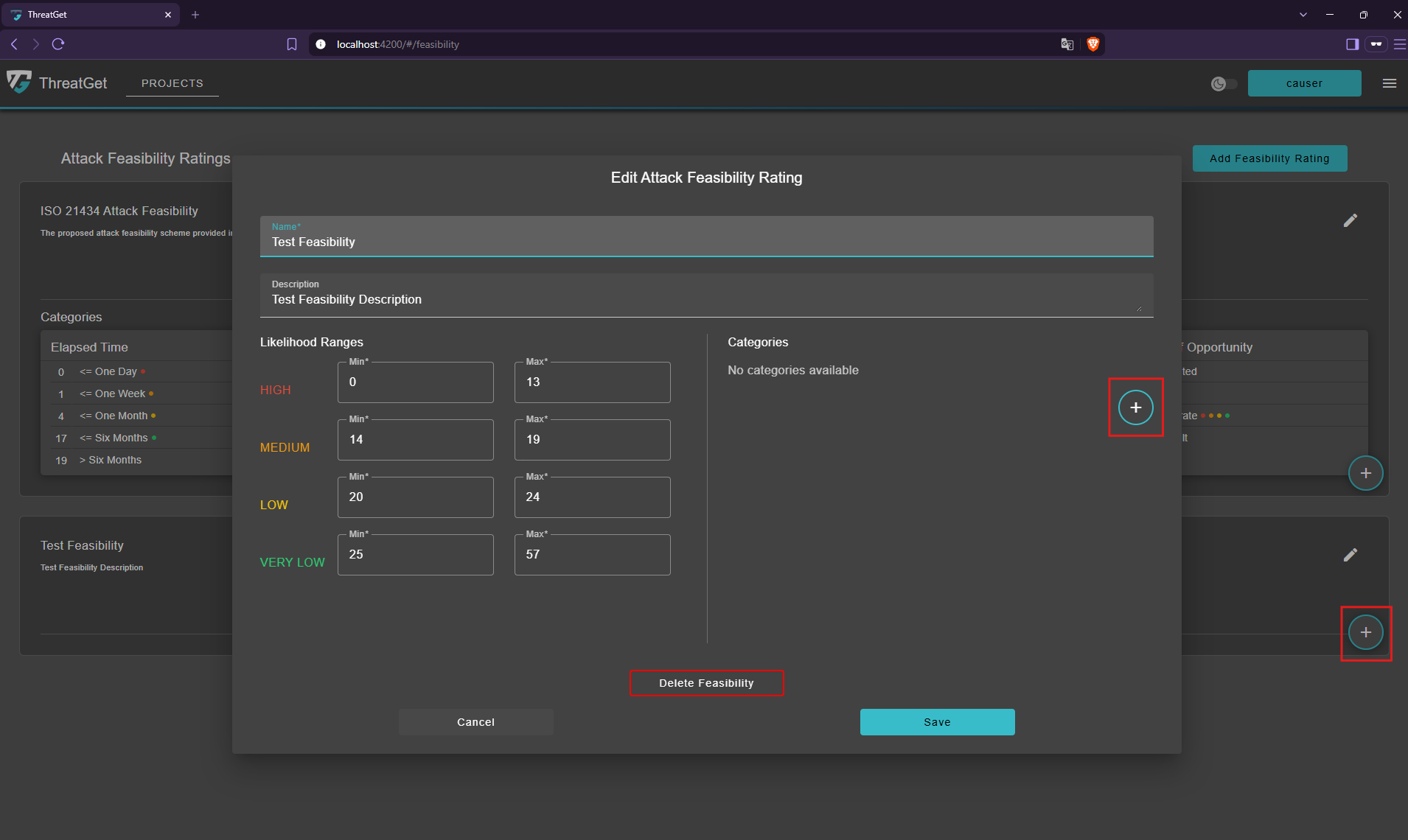
- Clicking the "pencil" icon on the right also opens the edit feasibility dialog. Here, you can update the name, description, and likelihood ranges, view existing categories, add new categories, or delete the feasibility rating.
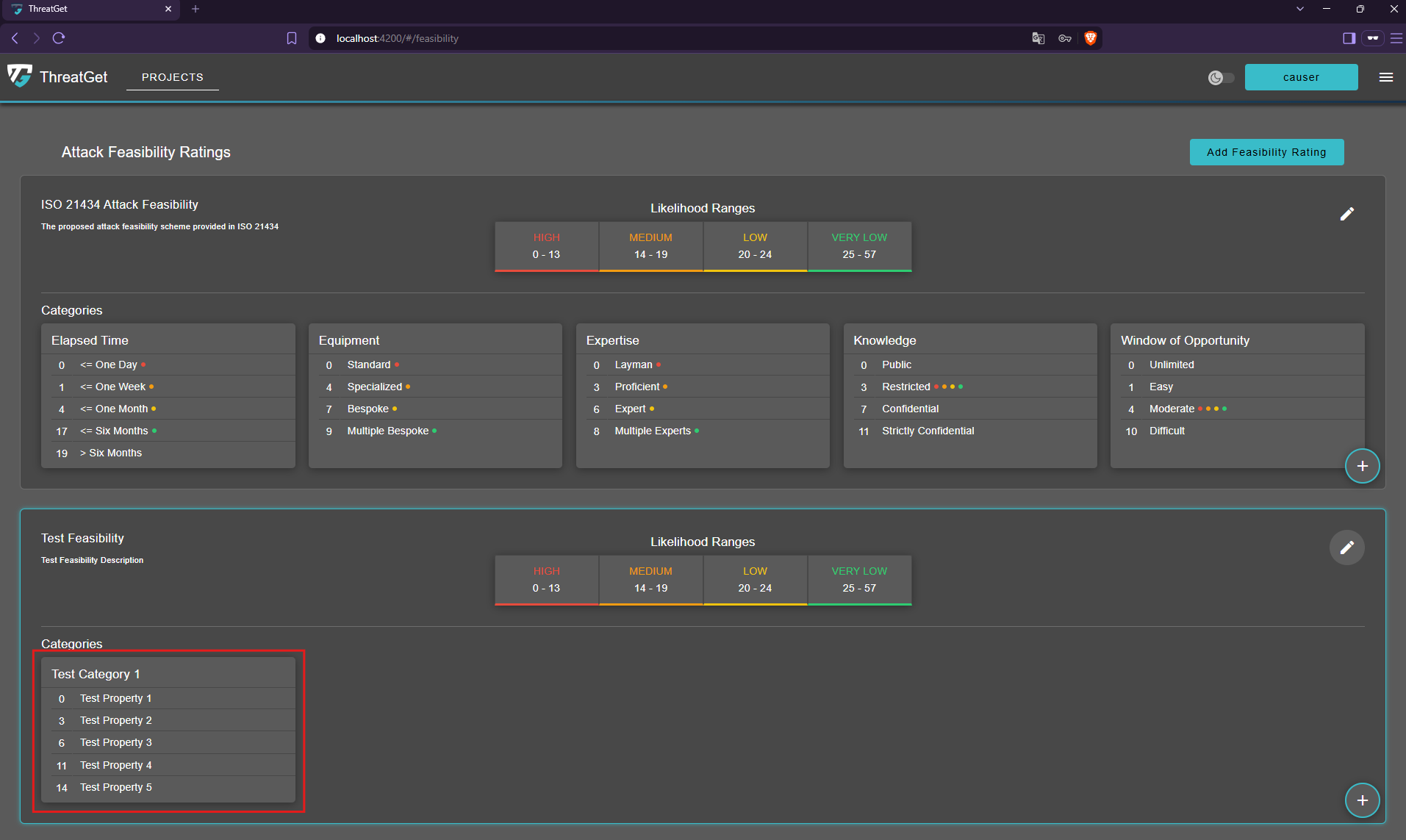
- The categories, together with their selectable properties and numeric values, are displayed in the lower half of each rating. The colored indicators identify the default property mapping for each likelihood level.
- Clicking the "+" icon in the bottom-right corner opens the add category dialog, where you can define an additional assessment category.
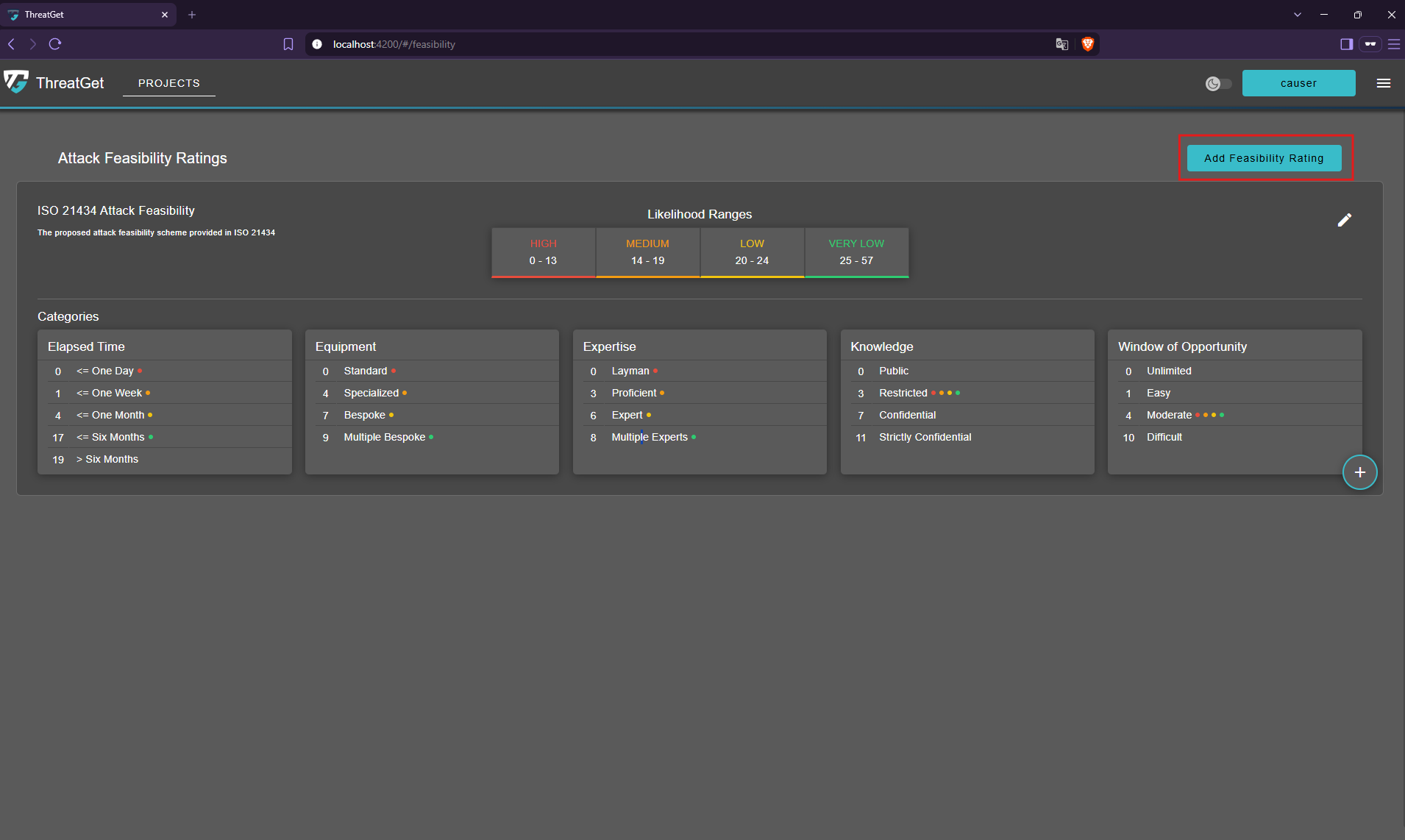
Create an Attack Feasibility Rating
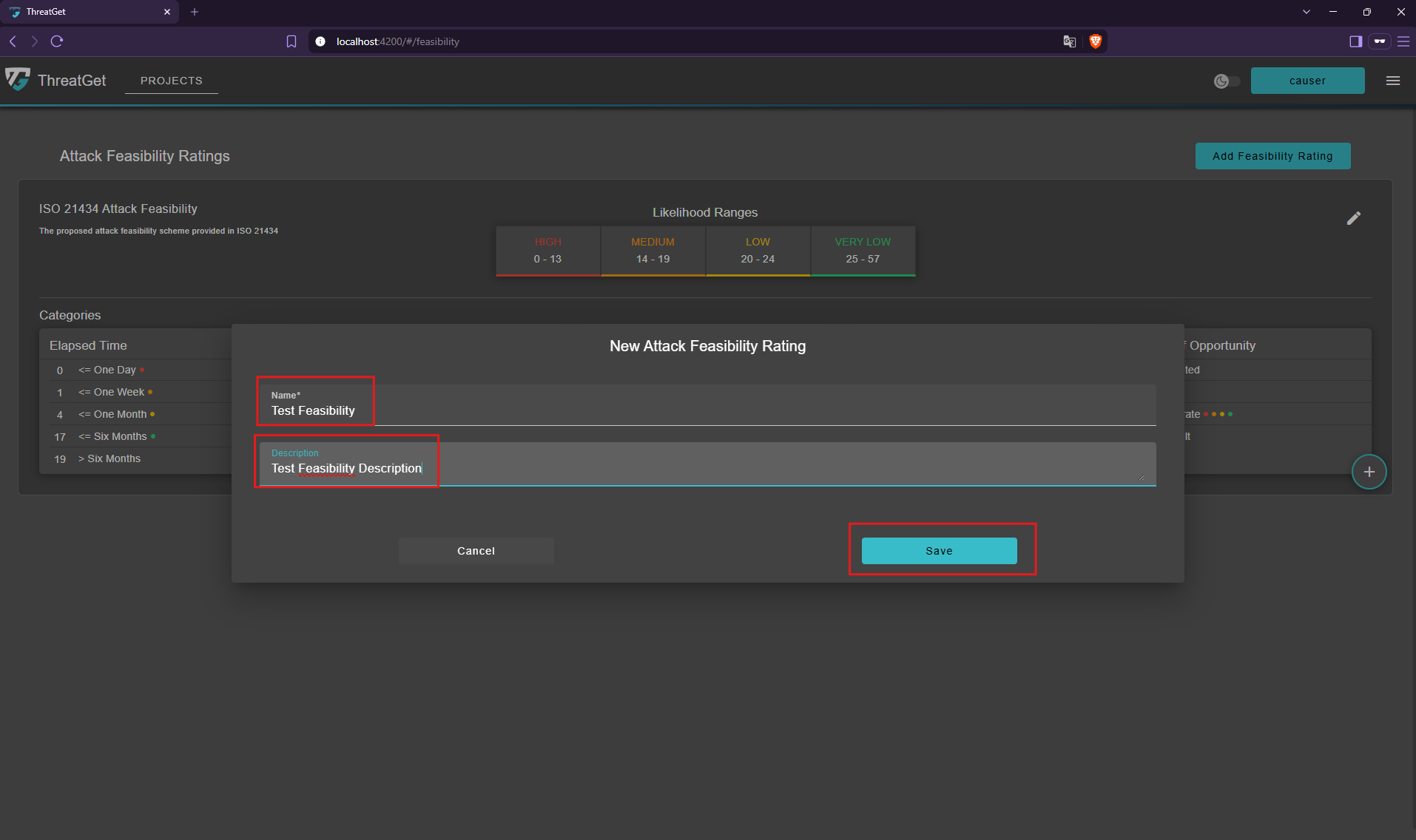
Click the Add Feasibility Rating button to open the creation dialog.
Enter a name that identifies the rating and a description explaining its intended use. Click the "Save" button to create the rating.
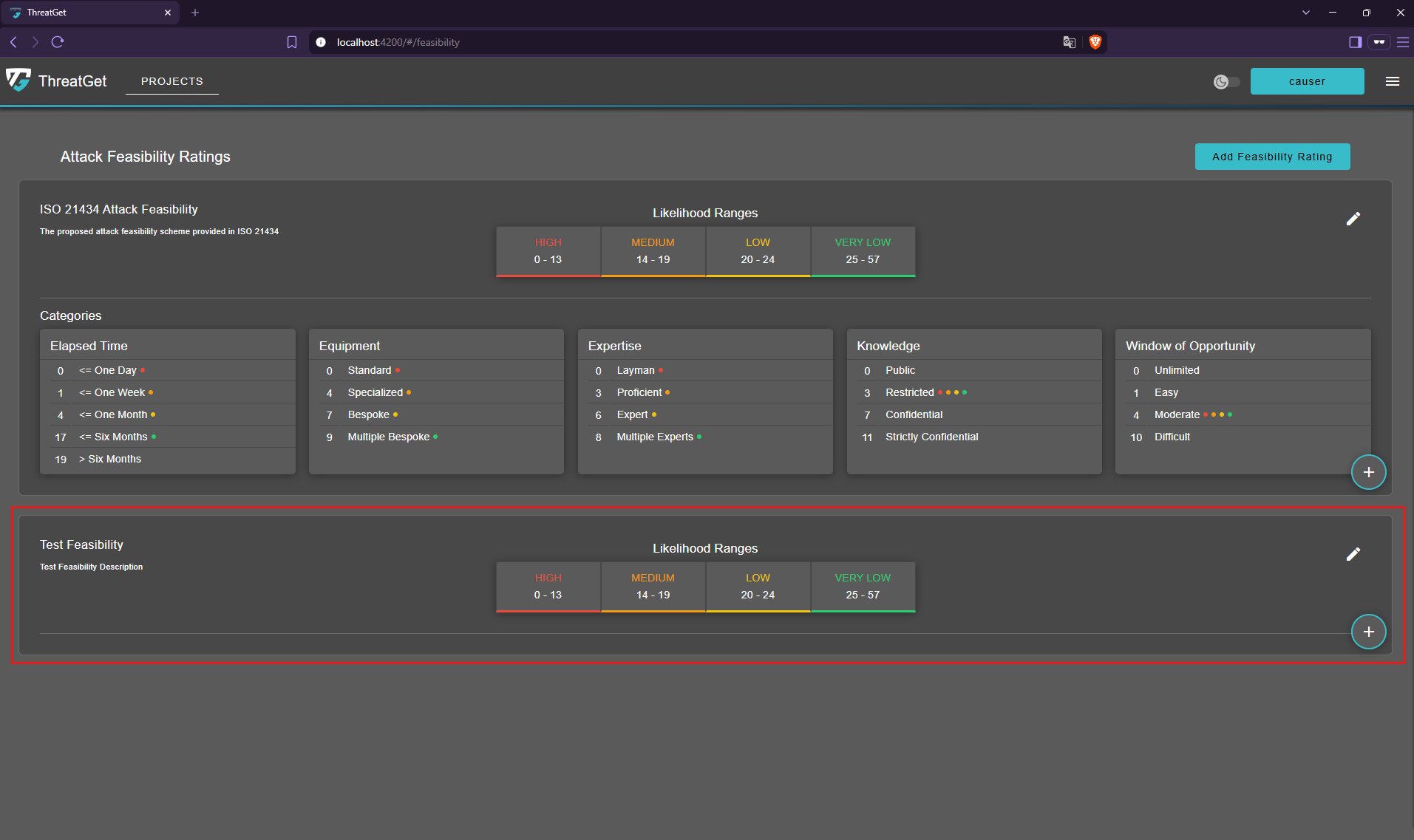
The new custom attack feasibility rating is displayed in the overview. Each custom rating includes pre-configured likelihood ranges, which you can adjust to suit your assessment approach.
Categories are not added automatically and must be created individually. Add the required categories, configure their properties and numeric values, and define the default property mappings for each likelihood level to complete the rating.
Edit an Attack Feasibility Rating
You can update the feasibility rating by clicking the Likelihood Ranges at the top center or the pencil icon on the far right.
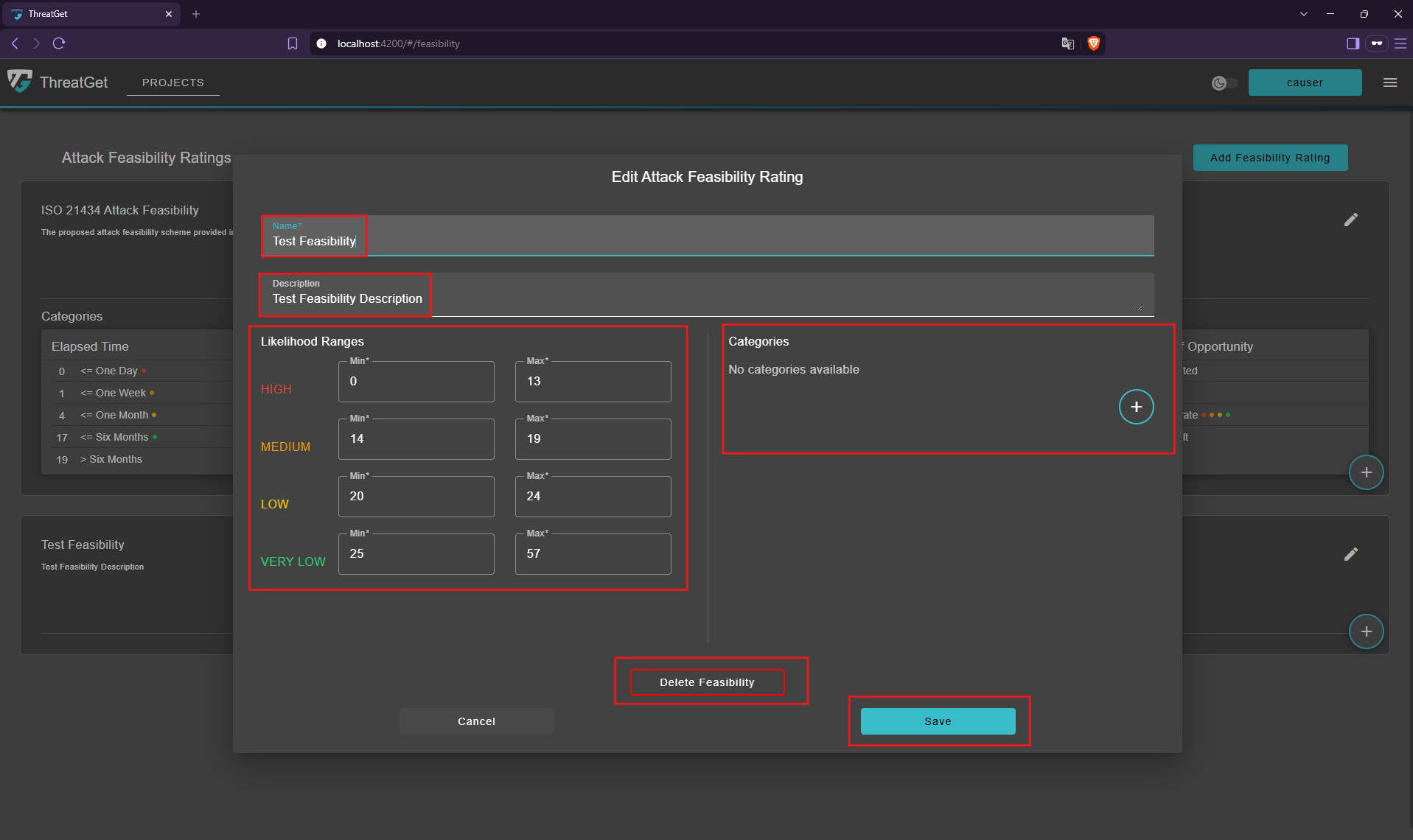
In the Edit Dialog, you can update the following settings:
- Name and description: Edit the rating’s name and description.
- Likelihood Ranges: Adjust the lower and upper bounds for each likelihood level.
- Categories: Existing categories are displayed and can be deleted by clicking the trash bin icon next to the respective category.
- Click the "+" icon to open the create category dialog.
- Click the Delete Feasibility button to delete the selected attack feasibility rating.
- Click the Save button to confirm your changes.
💡Info
Ensure the following criteria are met when configuring likelihood ranges:
- At least one range must start at 0.
- Negative values are not allowed.
- Ranges must not overlap or leave gaps between likelihood levels.
- The highest upper bound must not exceed the sum of the highest property value in each category.
Create an Attack Feasibility Category
Click the "+" icon to add a new category to the selected attack feasibility rating.
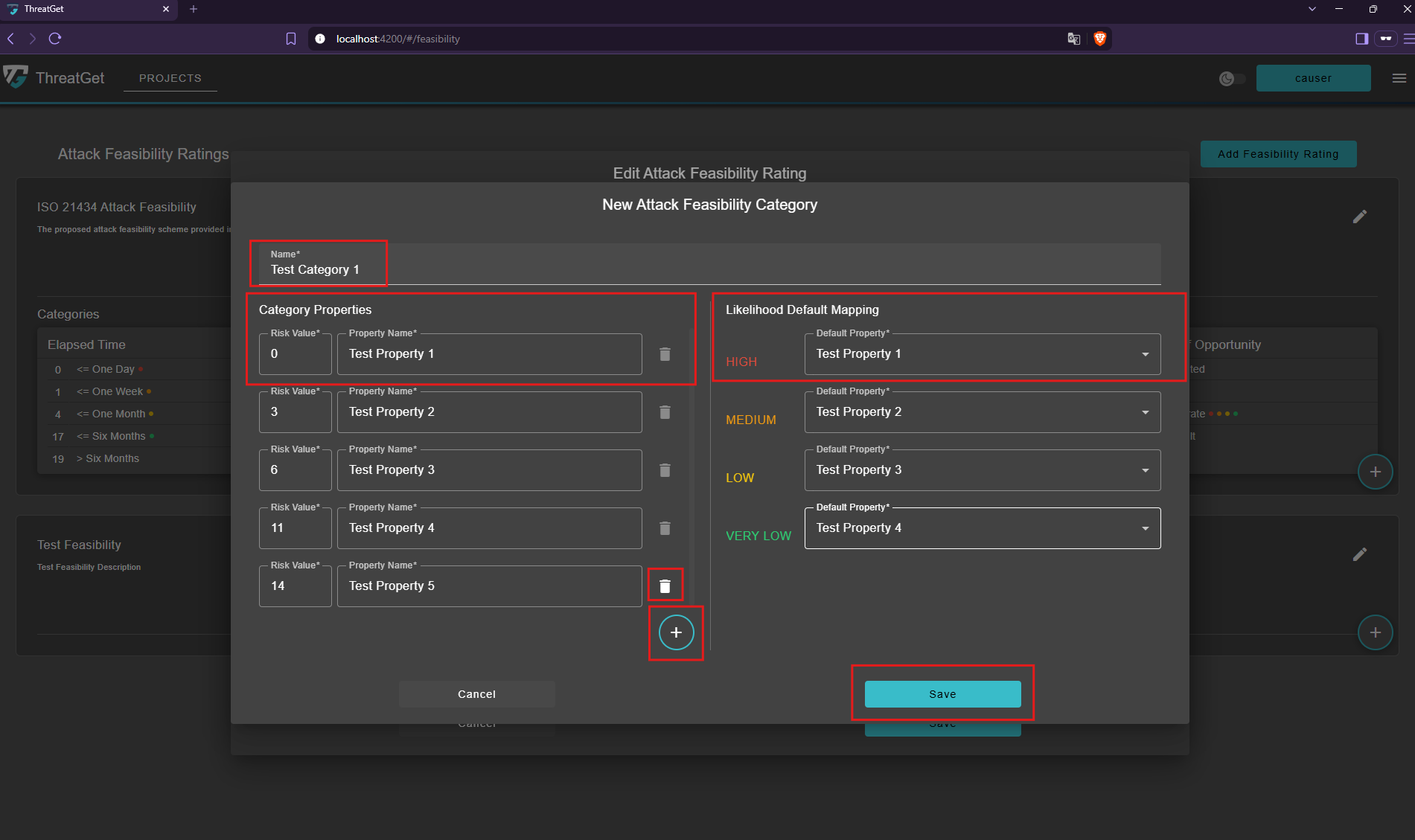
In the Create Category Dialog, complete the following steps:
- Enter a category name.
- Add at least one property by clicking the "+" icon in the category properties section. Specify a name and numeric value for each property.
- The first property added is** automatically assigned** as the default for each likelihood level.
- Use the dropdown next to each likelihood level to select one of the added properties as its default.
- To delete a property, click the trash bin icon next to it.
- Click the Save button to save the category.
Edit an Attack Feasibility Category
To open the feasibility category edit dialog, click the category within the selected feasibility rating.
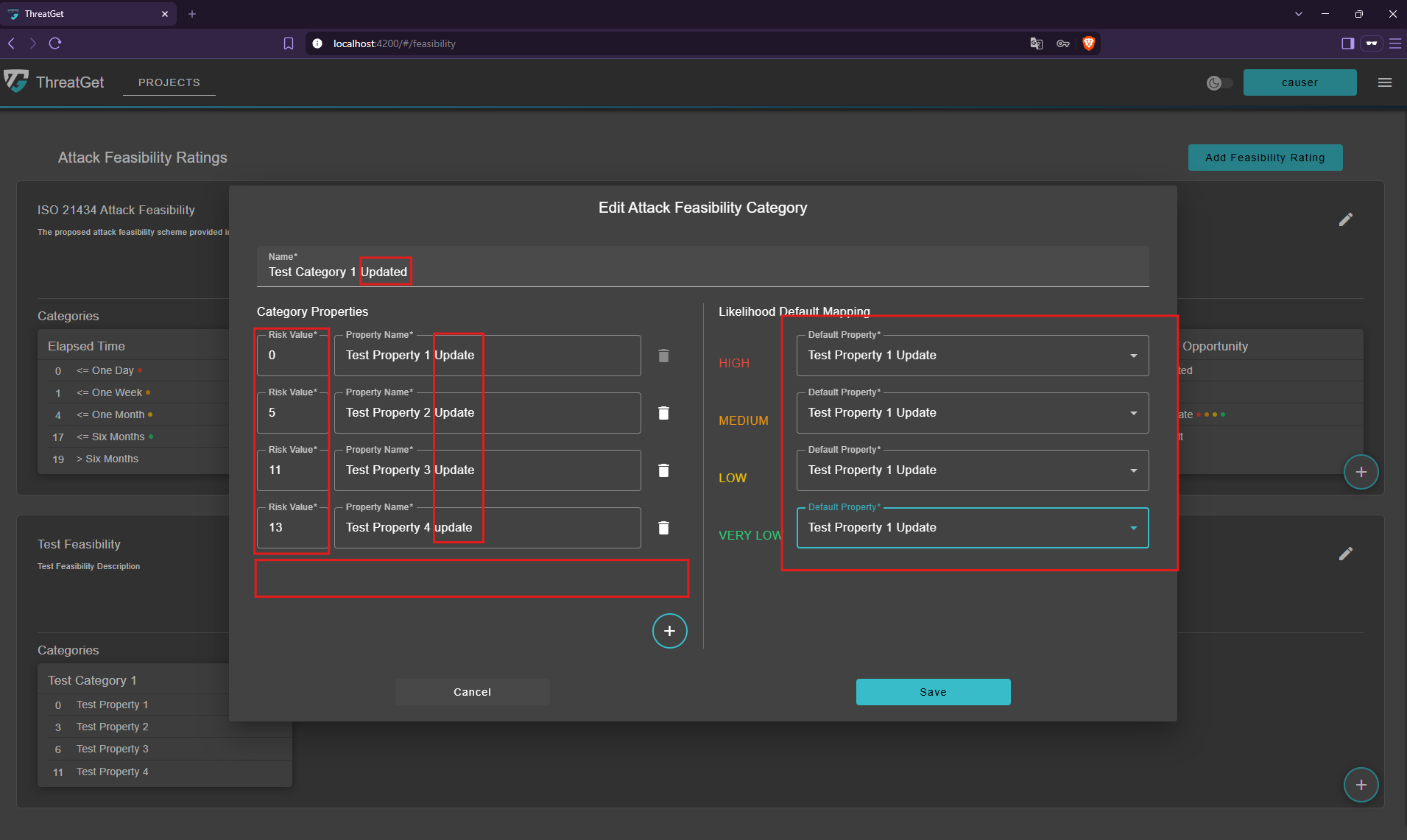
Update the required fields and click the Save button to confirm your changes.
💡Info
The following criteria must be met before saving the category:
- A property can only be deleted if it is not assigned as a default for any likelihood level.
- Property names and numeric values must be unique within each category.
- The sum of the highest property values across all categories must be at least equal to the highest upper bound of the configured likelihood ranges.
Delete an Attack Feasibility Category
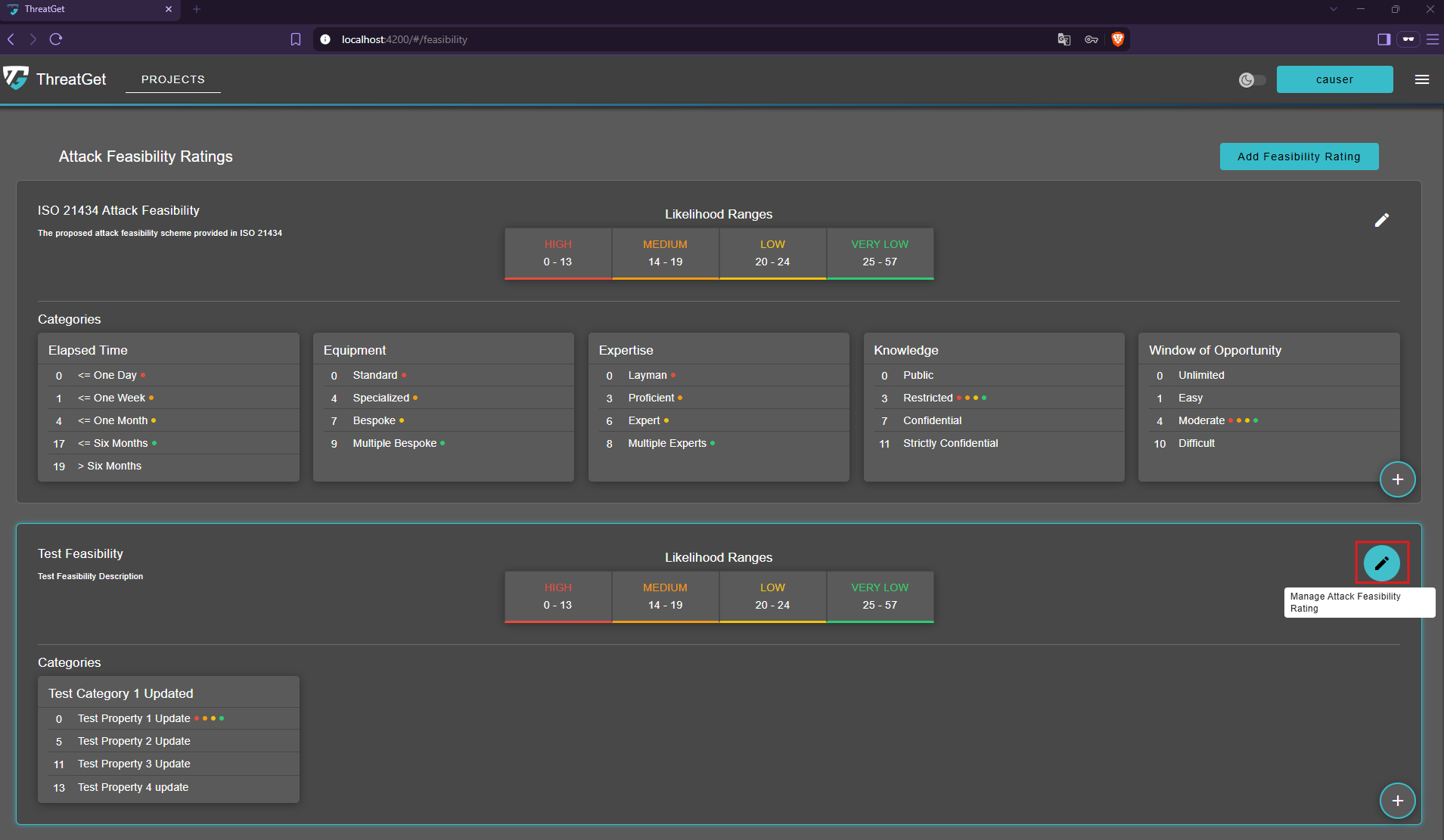
Click the "pencil" icon in the respective feasibility rating to open the edit feasibility dialog.
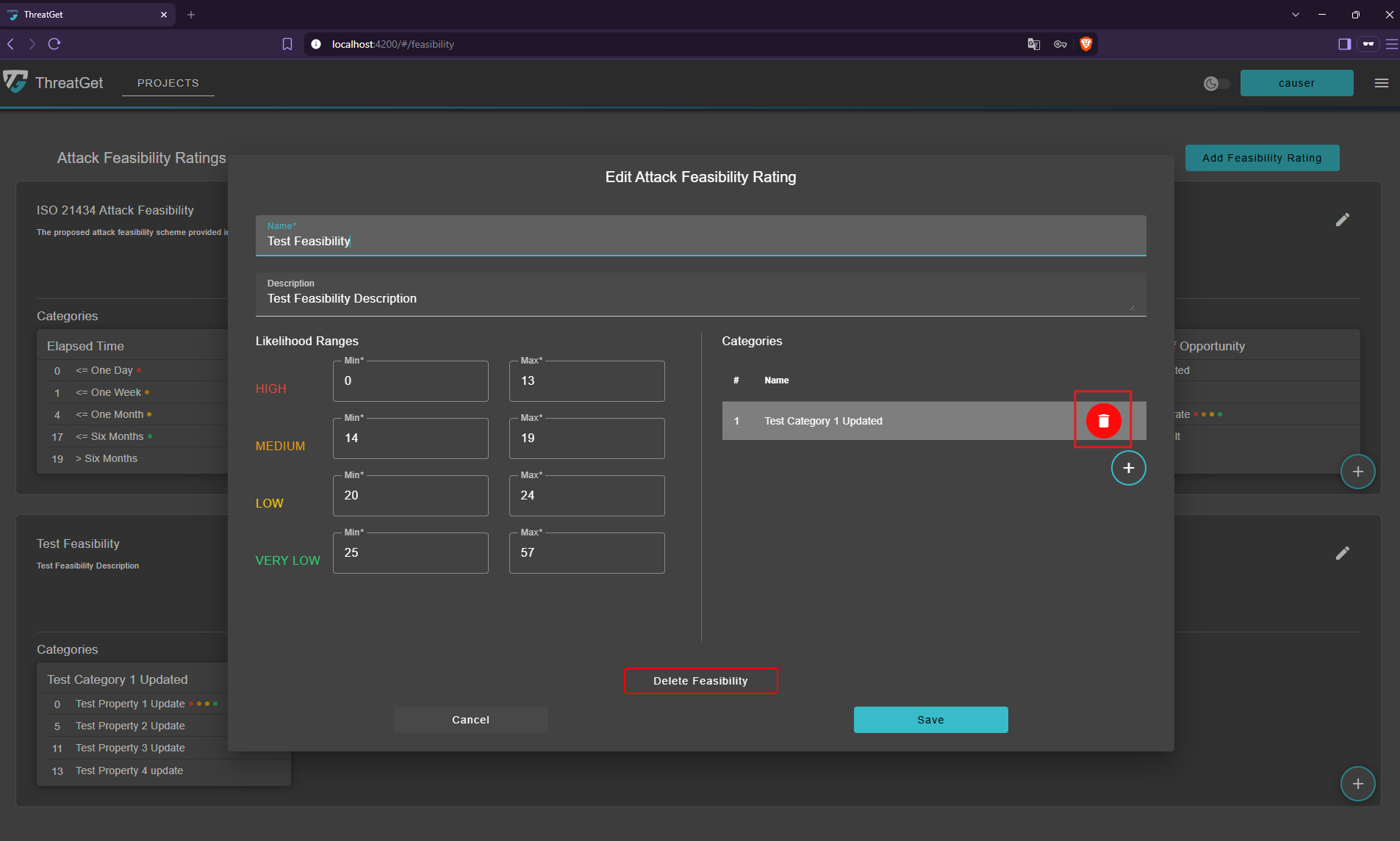
Within the edit feasibility dialog click the trash bin icon next to the category to delete.
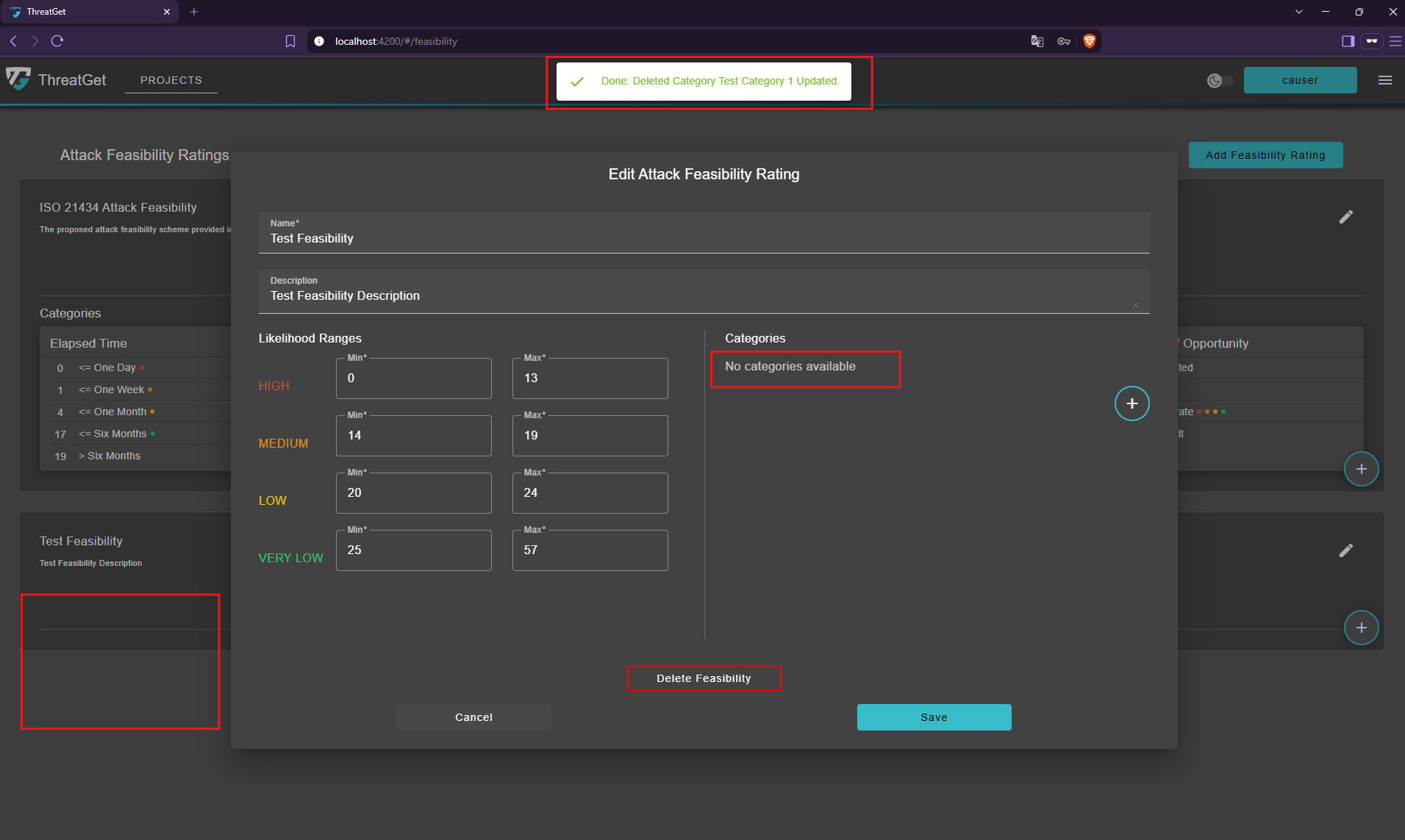
The category has been deleted.
Delete an Attack Feasibility Rating
In the edit feasibility dialog click the Delete Feasibility button.
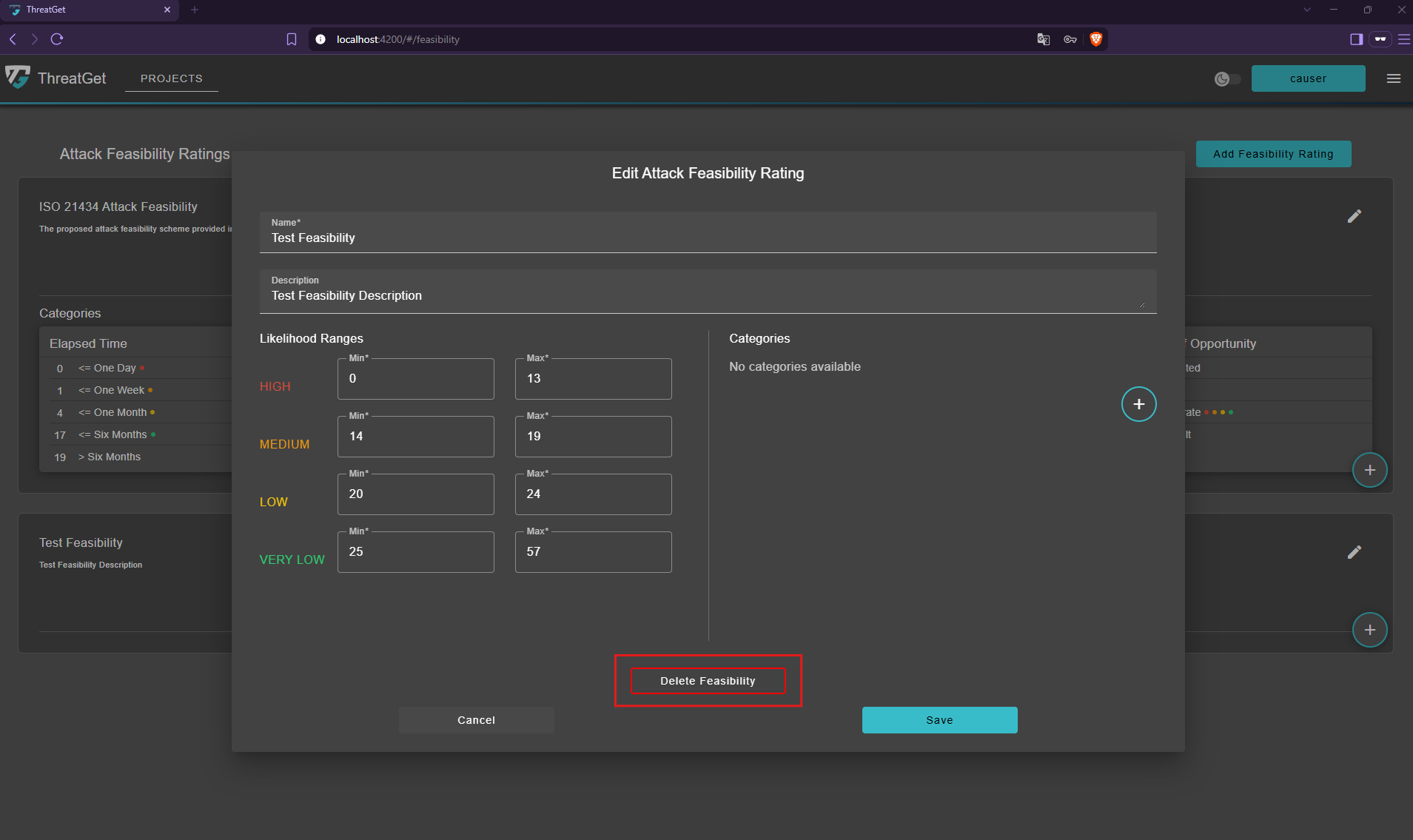
The feasibility has been deleted.