Capabilities
Overview
Capabilities are used to define pre- and postconditions. A precondition describes what has to be given before an attack step is made, whereas a postcondition analyzes the results of an attack.
For example, entering an Admin Password before an action can be defined as precondition. The postcondition would then verify, that we have Control over a component. The postconditions can be used as preconditions for later attack steps. Inside an anti-pattern of a rule, a precondition can be defined by using requires capability, and a postcondition by provides capability.
💡INFO
- A catalog release comes with its own unique toolbox and set of rules. Once the release is published, its toolbox and rules cannot be modified. However, they can still be inherited by another release. A catalog release must be published in order to be linked to an iteration.
- A downloaded catalog release cannot be modified initially. To use its toolbox, it must first be copied into a new or existing catalog.
- To create, alter or delete a catalog, its releases, toolbox and rules the Cybersecurity Architect role is required.
Managing Capabilities
Create a new Capability
To create a new capability, go to the ThreatGet toolbox and click the C button on the left side to open the Capabilities form.
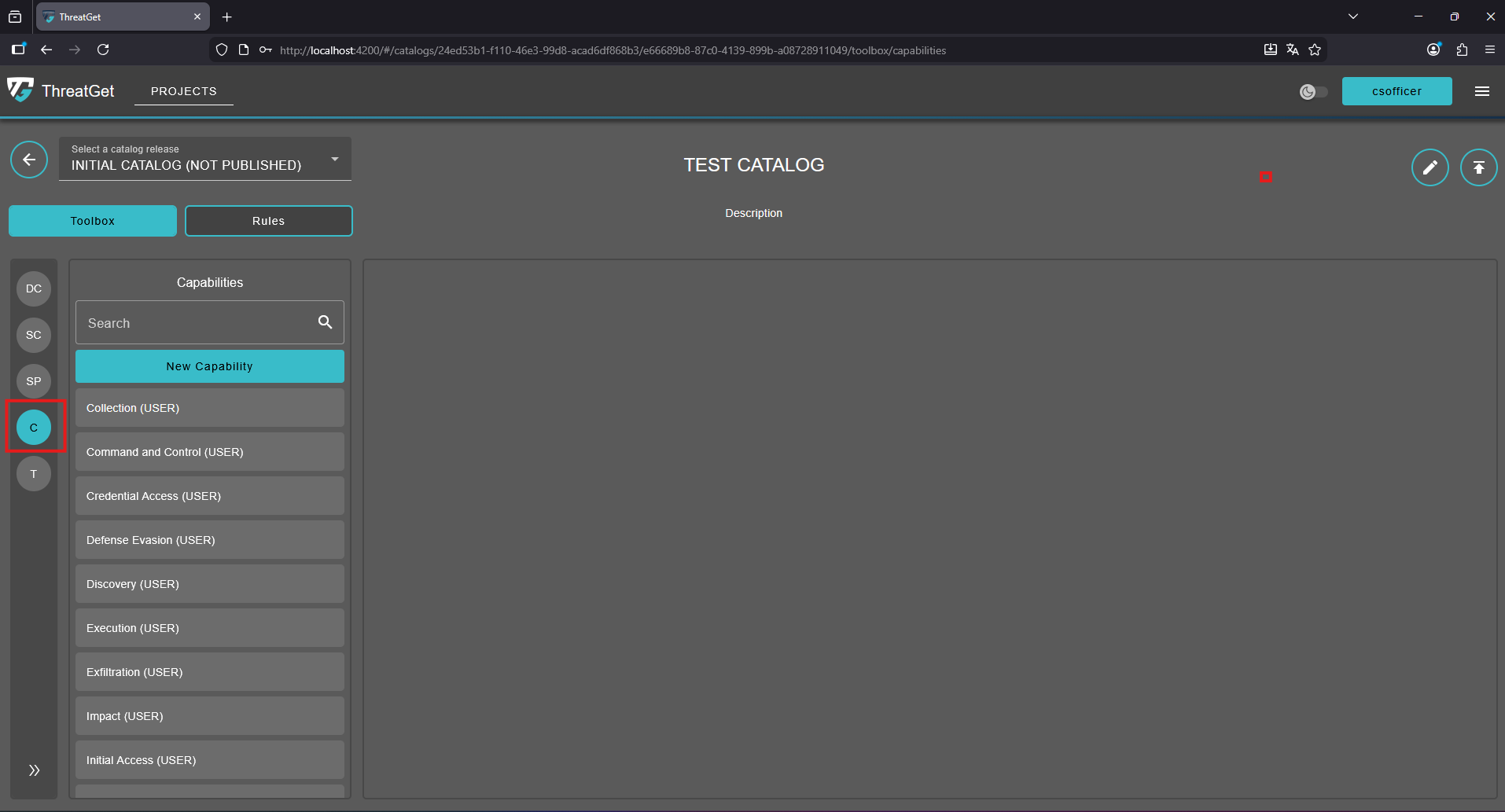
As displayed, there is a list of all default capabilities provided by ThreatGet. However, for specific requirements, users can create new customized capabilities to fully align with their system design. To do this, simply click the "New Capability" button at the top of the list.
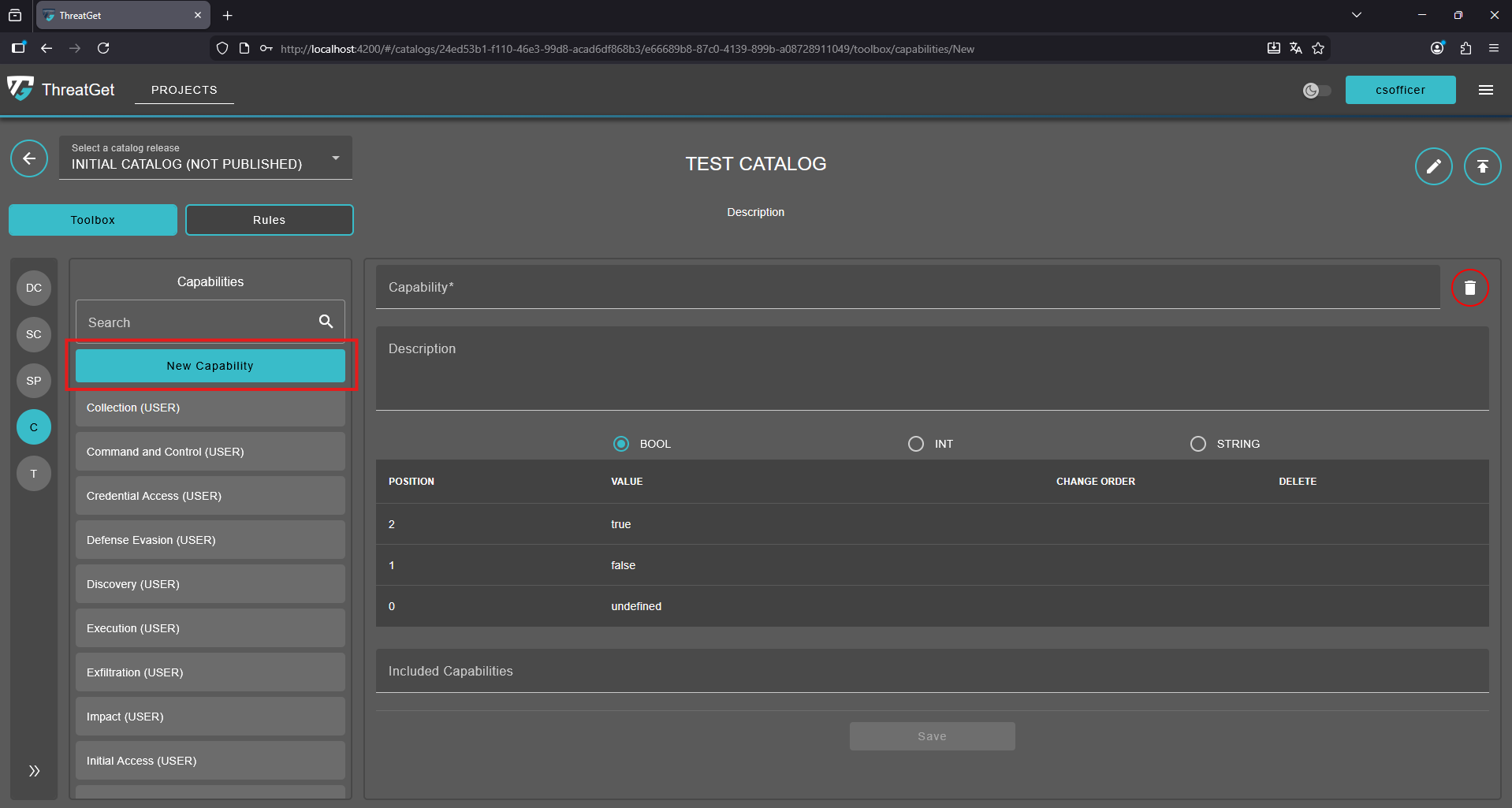
Enter a name and meaningful description for your customized capability. Define the Type, which can be BOOLEAN, INTEGER, or STRING.
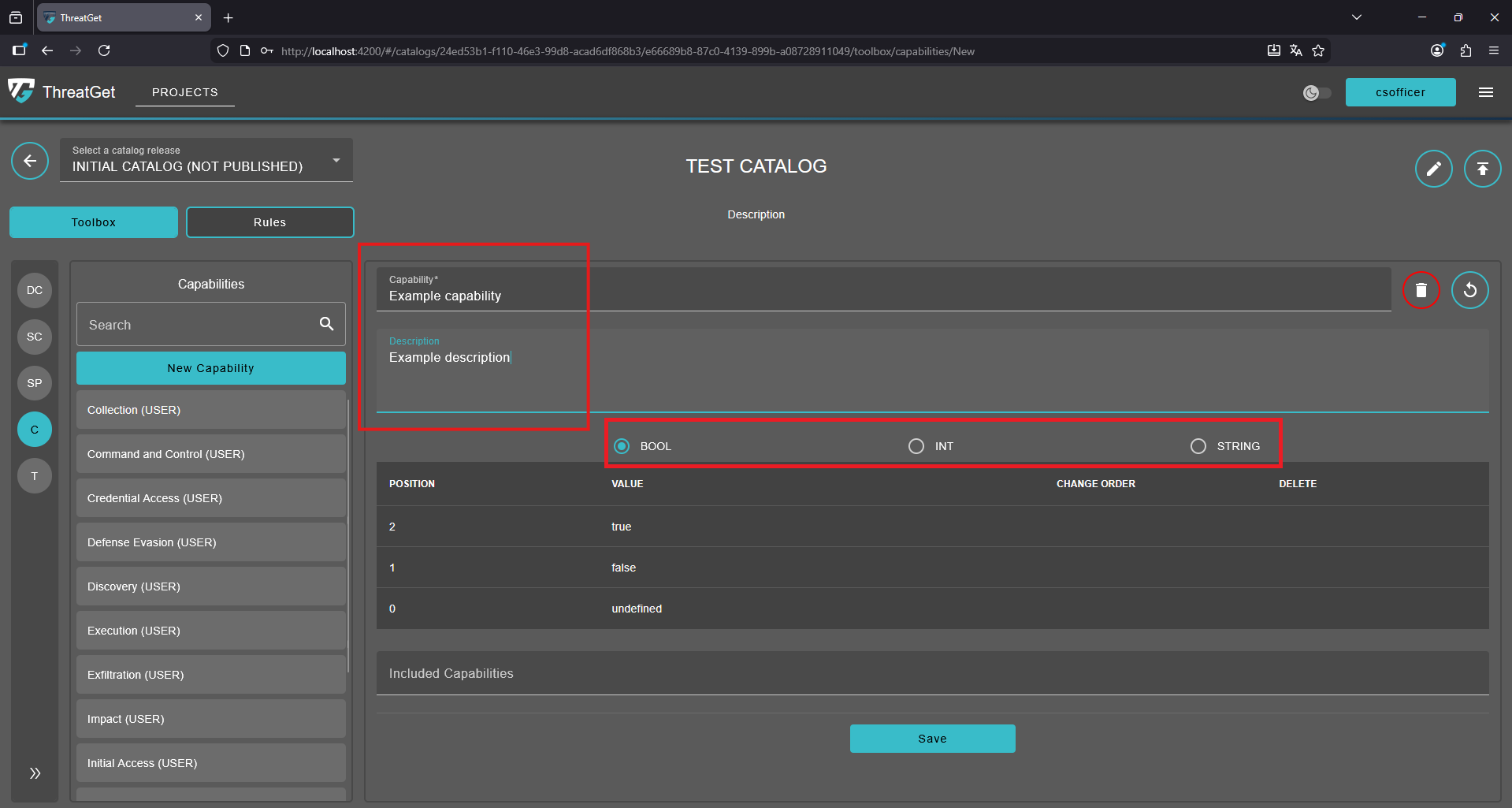
For the boolean capability type, values are preset and cannot be changed.
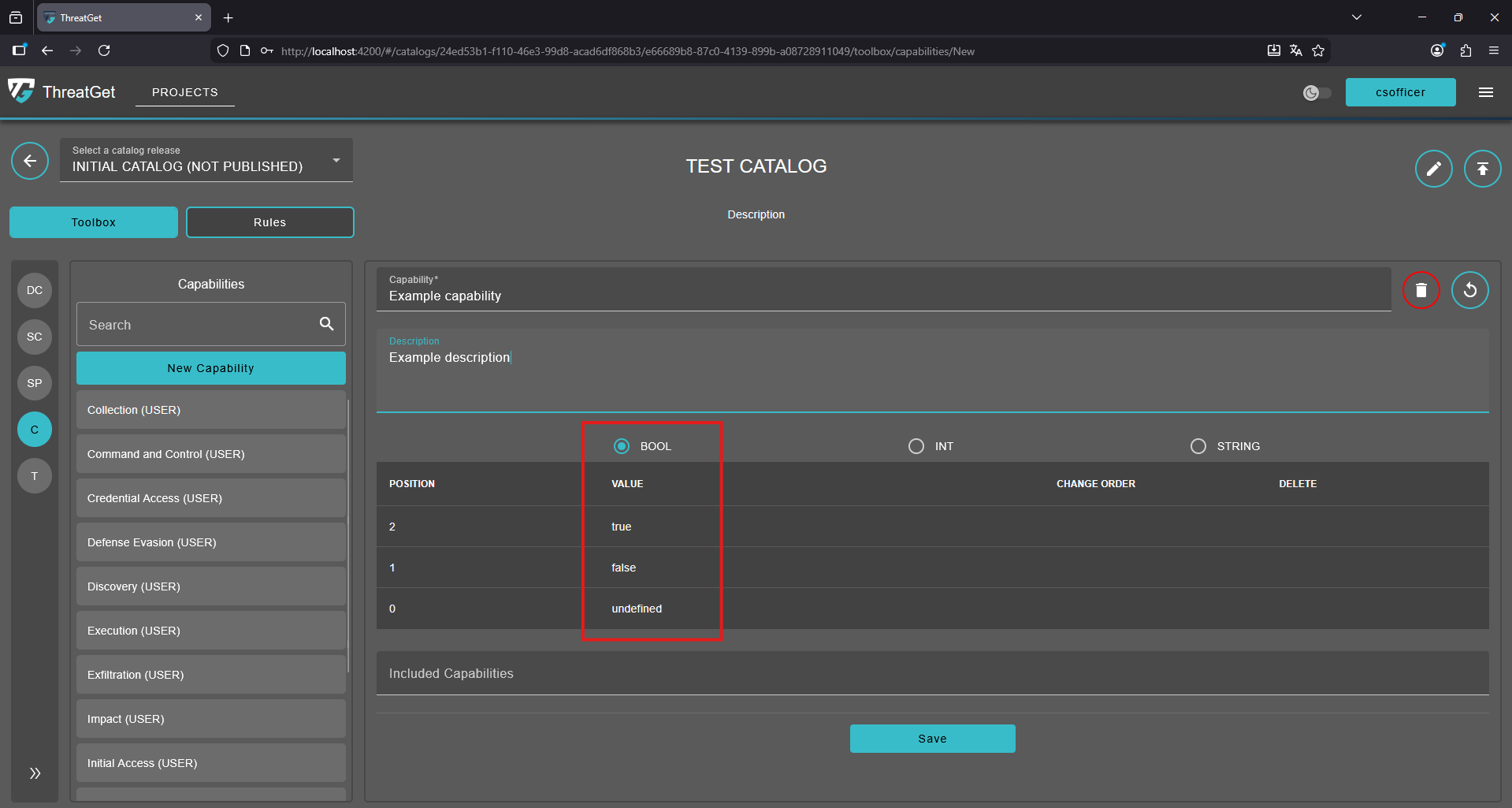
For string and integer types, values should be entered manually. You can do this by entering the value into the New Value field and then clicking on Add.
To save your newly defined tagged value, please click on the Save button.
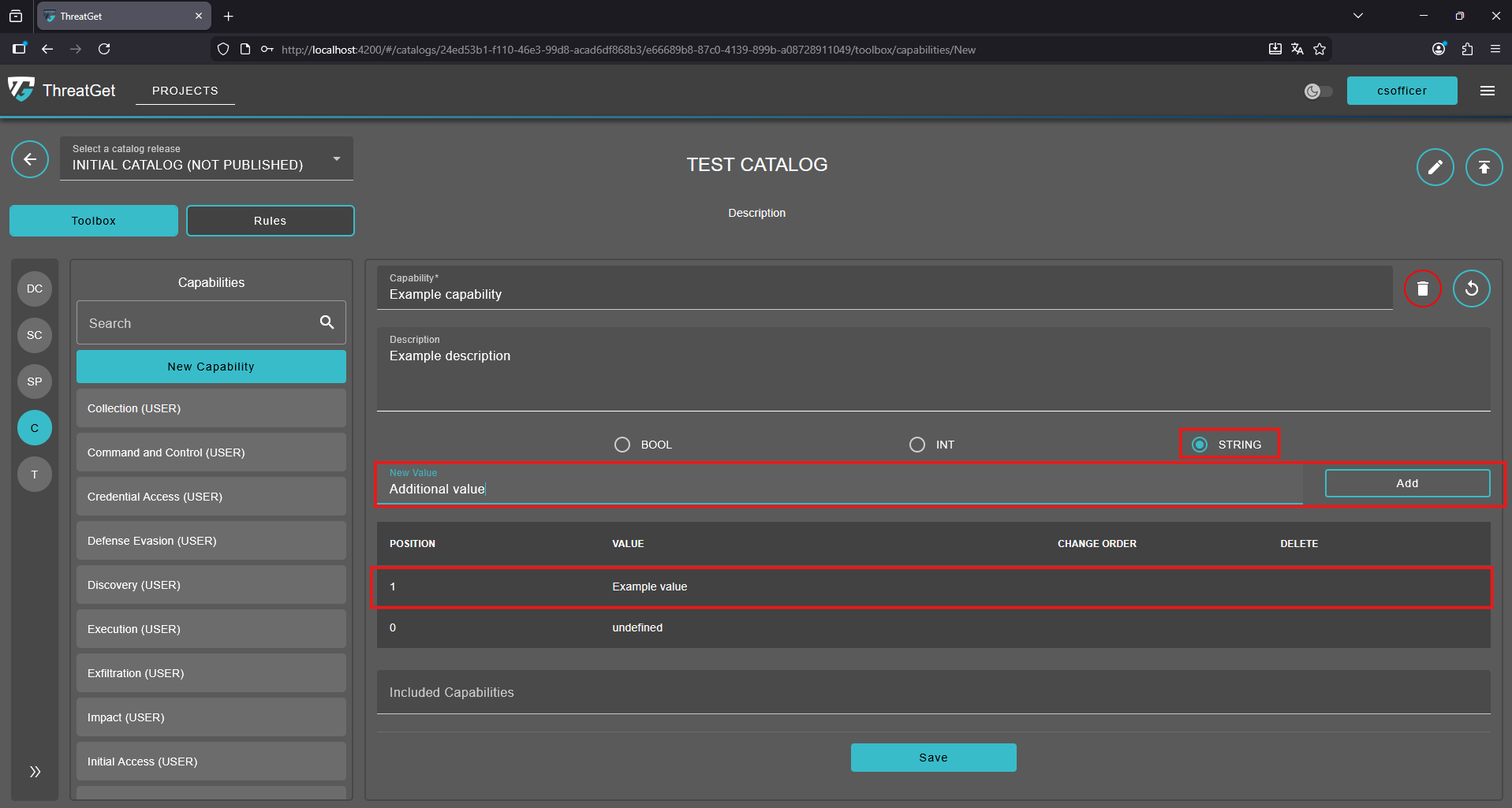
Circular Arrow: Undo any changes.

Trash Can: Cancel the creation of the new element or delete an element, click on the Trash Can.

Save Button: Save your newly defined capability, click on the Save button.

Search for a Capability
As the number of capabilities increases over time, finding a specific capability may become challenging. This can be addressed by using the search bar, where the user can type the capability name to locate it quickly.
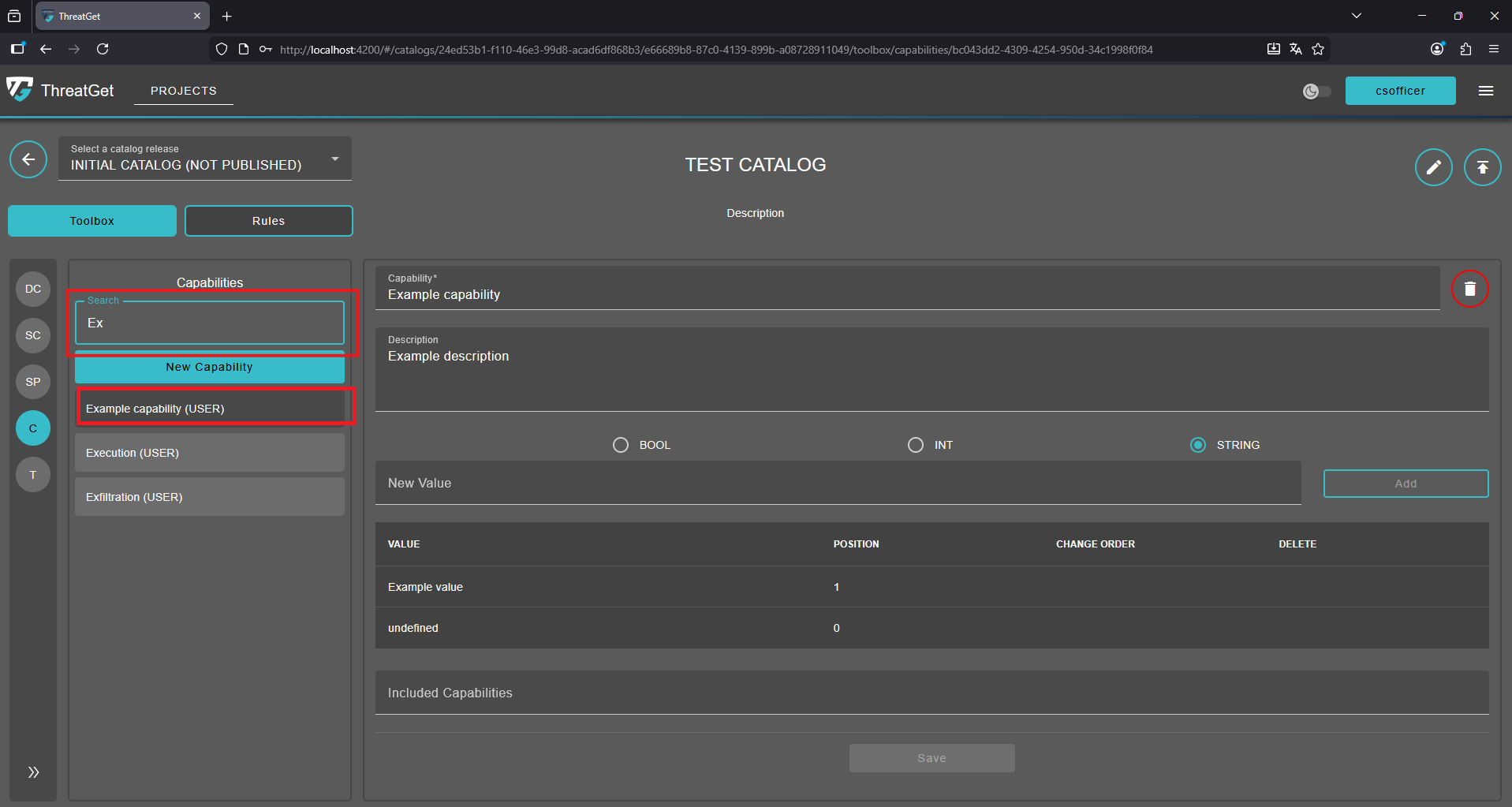
All the capabilities matching the search will be listed.