Catalog Releases
Overview
A ThreatGet Catalog Release release represents a specific version of the catalog and is associated with its own toolbox and rule set. These elements define how analyses can be performed within that release. More information about the structure of a catalog and its releases you can find in our Catalogs section.
To create, modify or delete a catalog, its releases, toolbox and rules the Cybersecurity Architect role is required.
Managing Catalog Releases
Navigate to a catalog
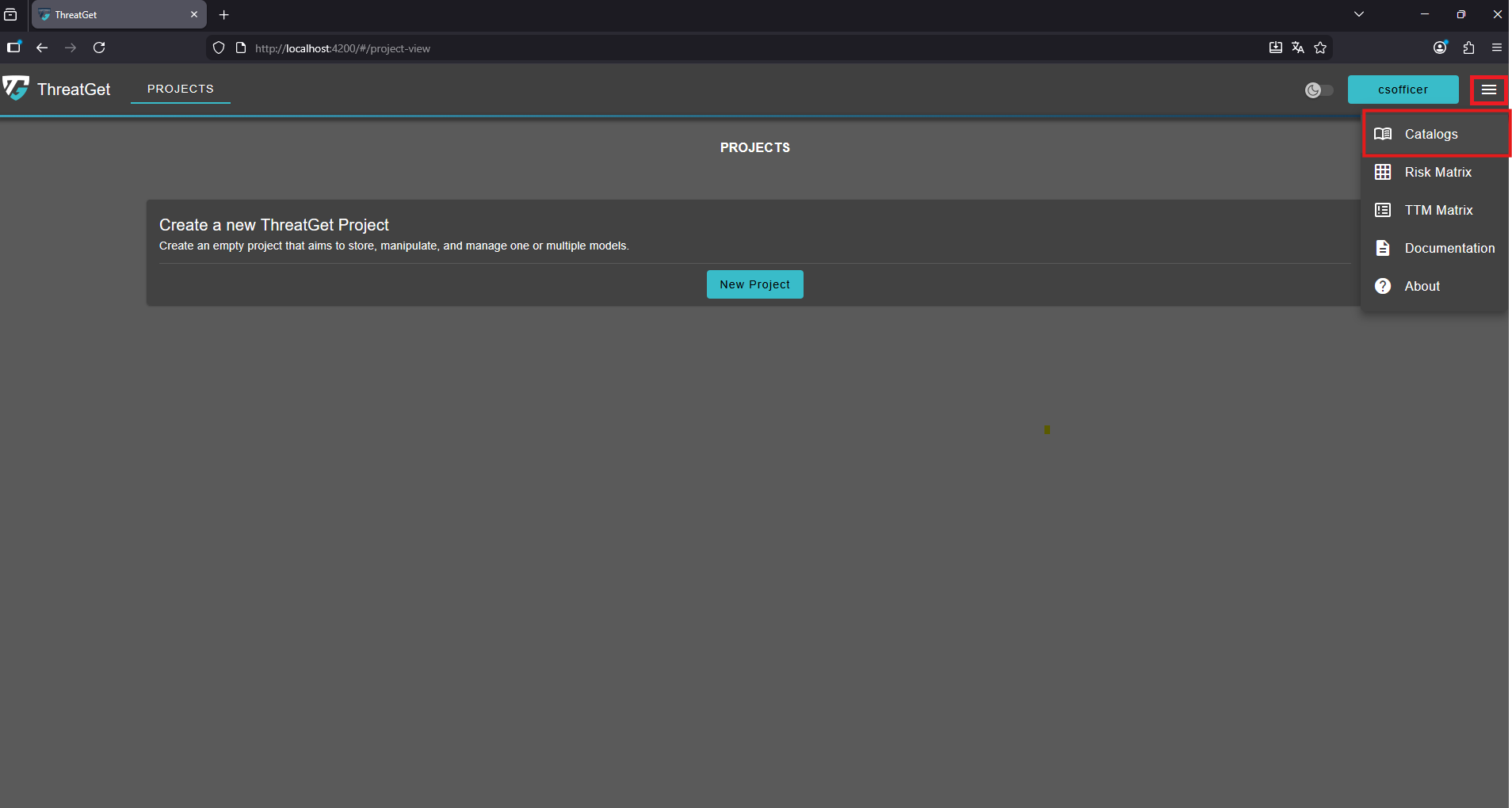
To access the catalogs overview click the menu button in the top-right corner and select Catalogs from the navigation menu.
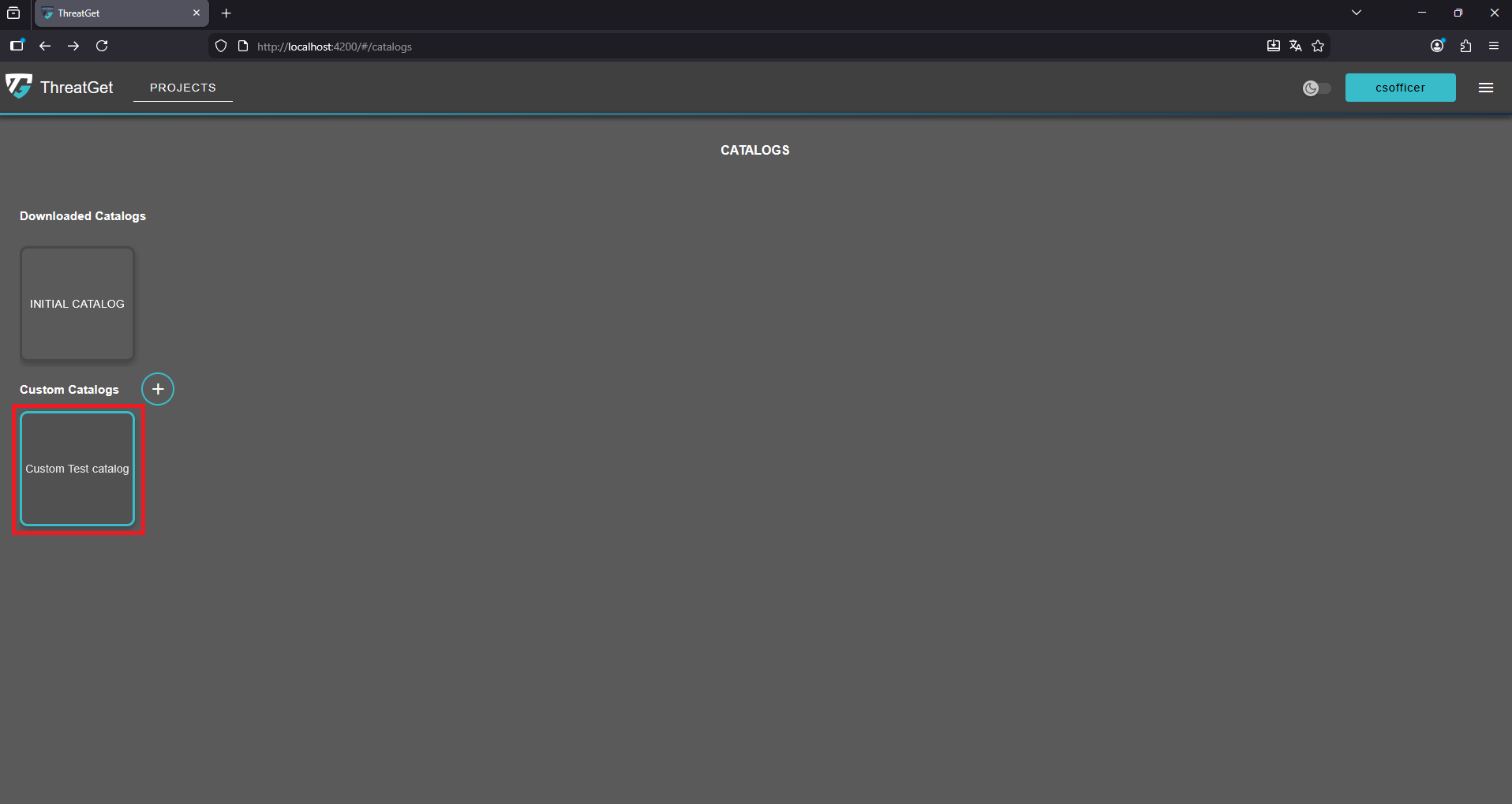
Click on a catalog to open it and access its contents.
Catalog View
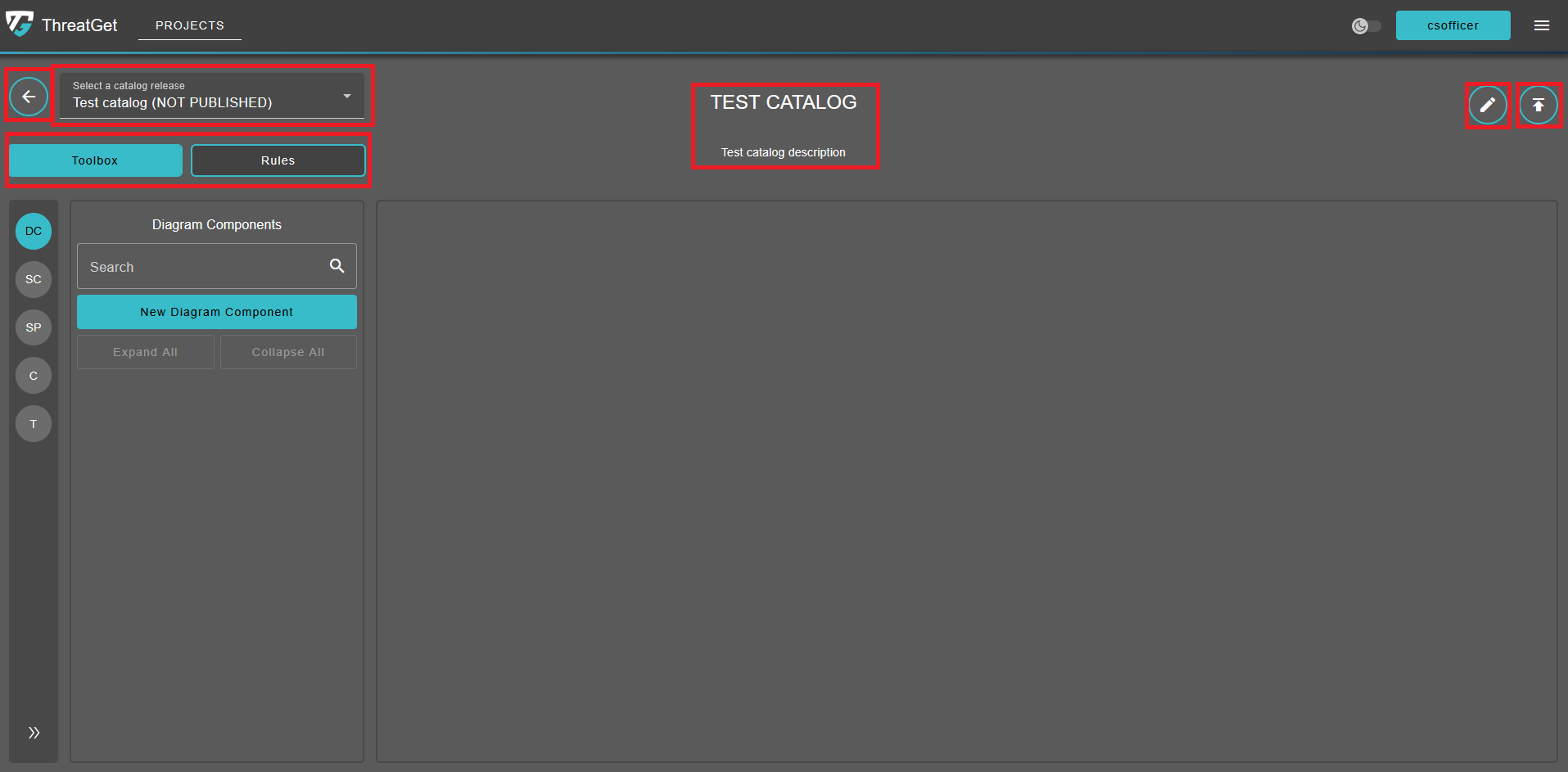
The catalog view displays:
- The catalog's name and description
- The most recently added catalog release, including its Toolbox and Rules
- A selector to choose different catalog releases or add a new one
- The "edit catalog" button
- The "publish release" button
- The "back" button to return to the catalogs view
Create a Catalog Release
Click on the catalog release selector to expand it and view its contents.
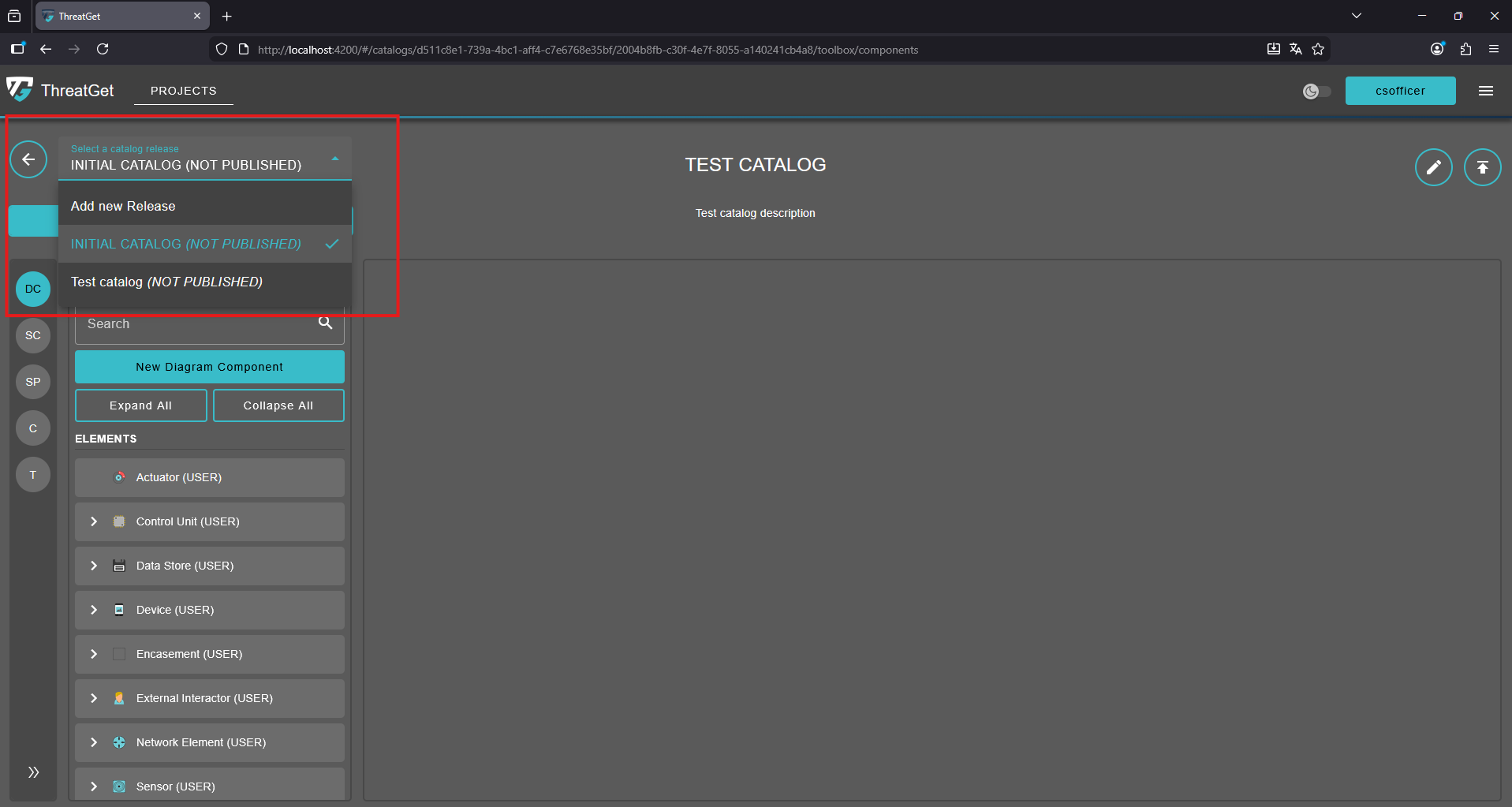
To create a new catalog release select "Add new Release".
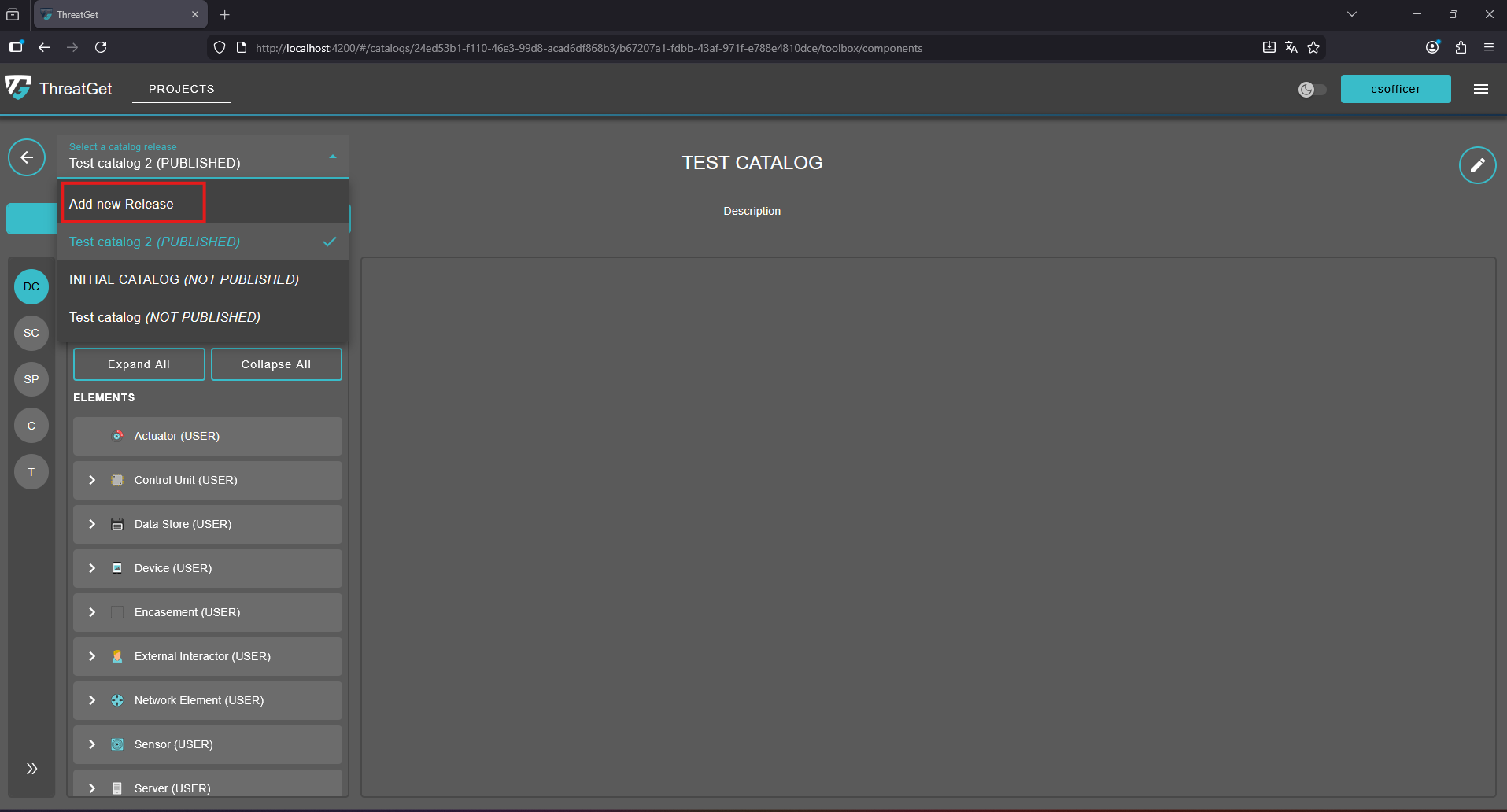
In the “Create new Release” dialog, provide a suitable name and a clear, descriptive summary for the release you are about to create. This information helps identify the purpose and contents of the release within the system. After filling in these details, confirm your input by clicking the “OK” button.
The new release will be automatically added to the custom catalog, and you will be redirected to the page of the newly created release, where you can continue managing or configuring it as needed.
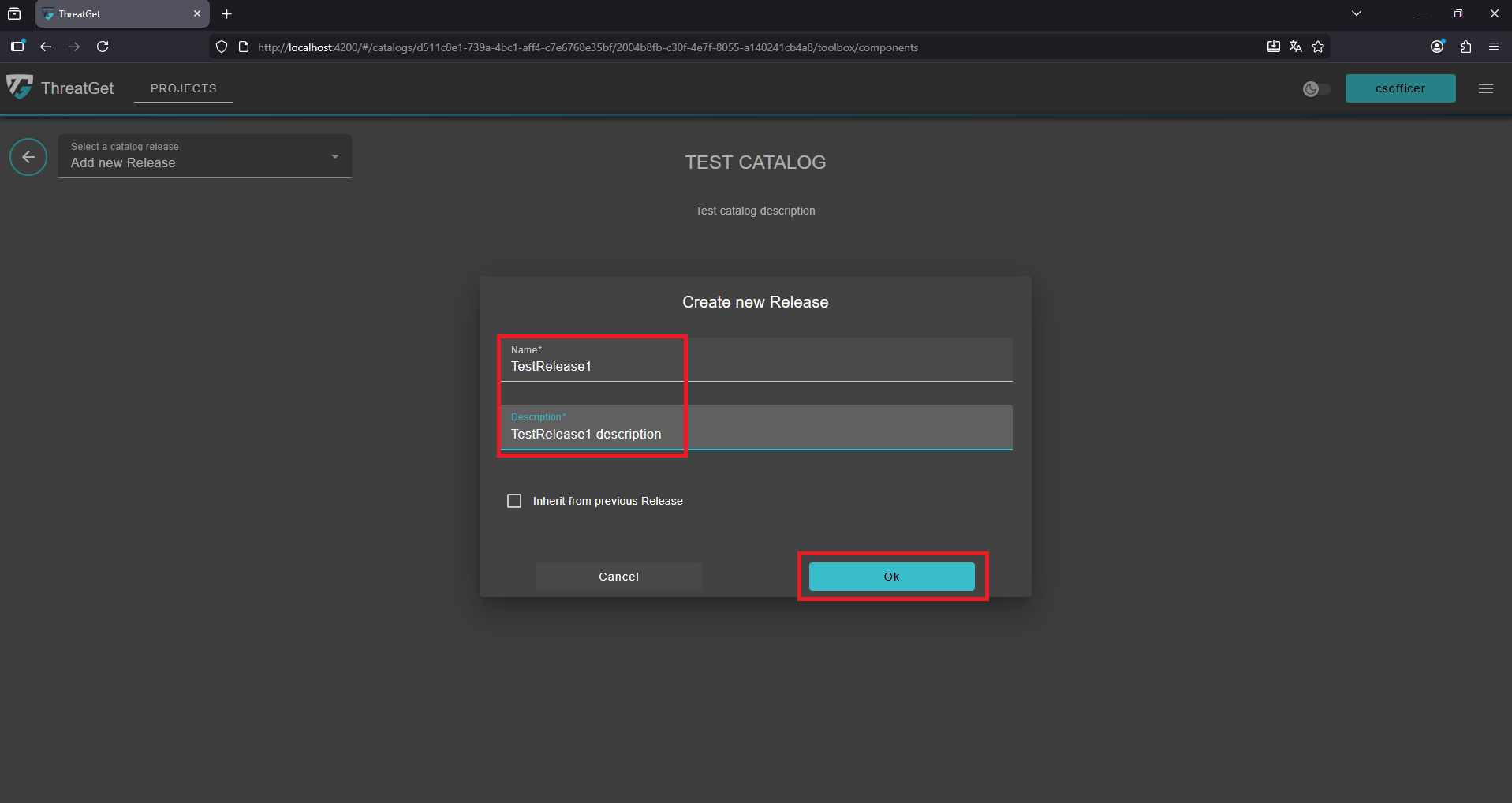
Inherit a Catalog Release
In the “Create new Release” dialog, provide a suitable name and a clear, descriptive summary for the release you are about to create. Select the "inherit from previous release" checkbox and select an existing release. Confirm your input by clicking the “Ok” button. The new inherited release will be added to the catalog and you will be automatically redirected to it.
Publish a Catalog Release
💡INFO
To start modeling (e.g., creating a diagram within the architecture), it is mandatory to link a TARA iteration to a published catalog release. This ensures that the modeling process uses a well-defined and consistent set of rules and toolbox configurations.
Without this linkage, the system cannot determine which rules and tools should be applied during the analysis. You can find more details about the linking process in our Specification section.
To successfully publish a catalog release, requirements must be met beforehand. The toolbox associated with the release must contain at least one diagram component within its collection:
- ELEMENT
- CONNECTOR
- INTERFACE
- BOUNDARY
Ensuring that at least one of these diagram components is present is essential, as it guarantees that the catalog release includes the necessary structural content.
Publishing
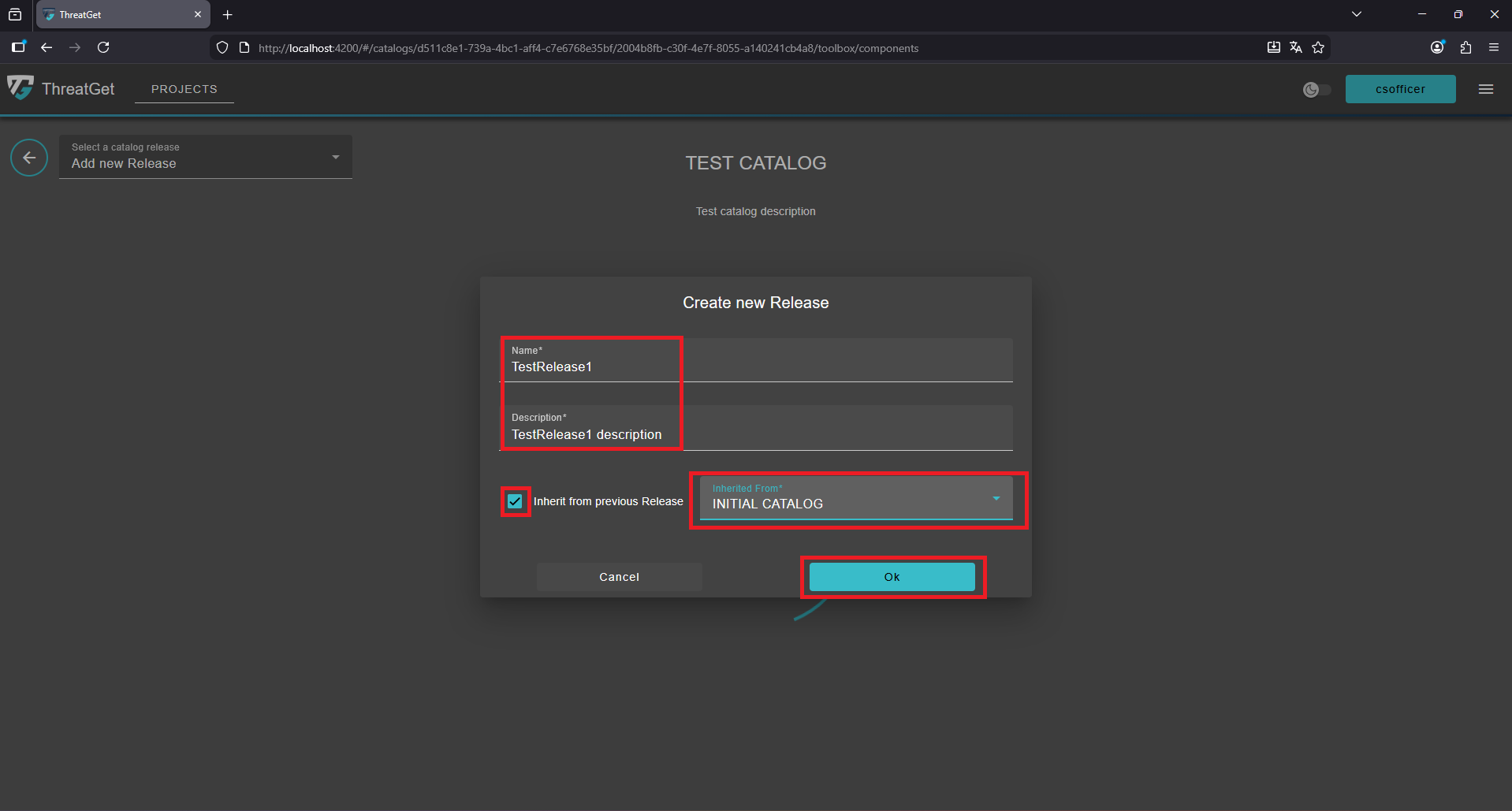
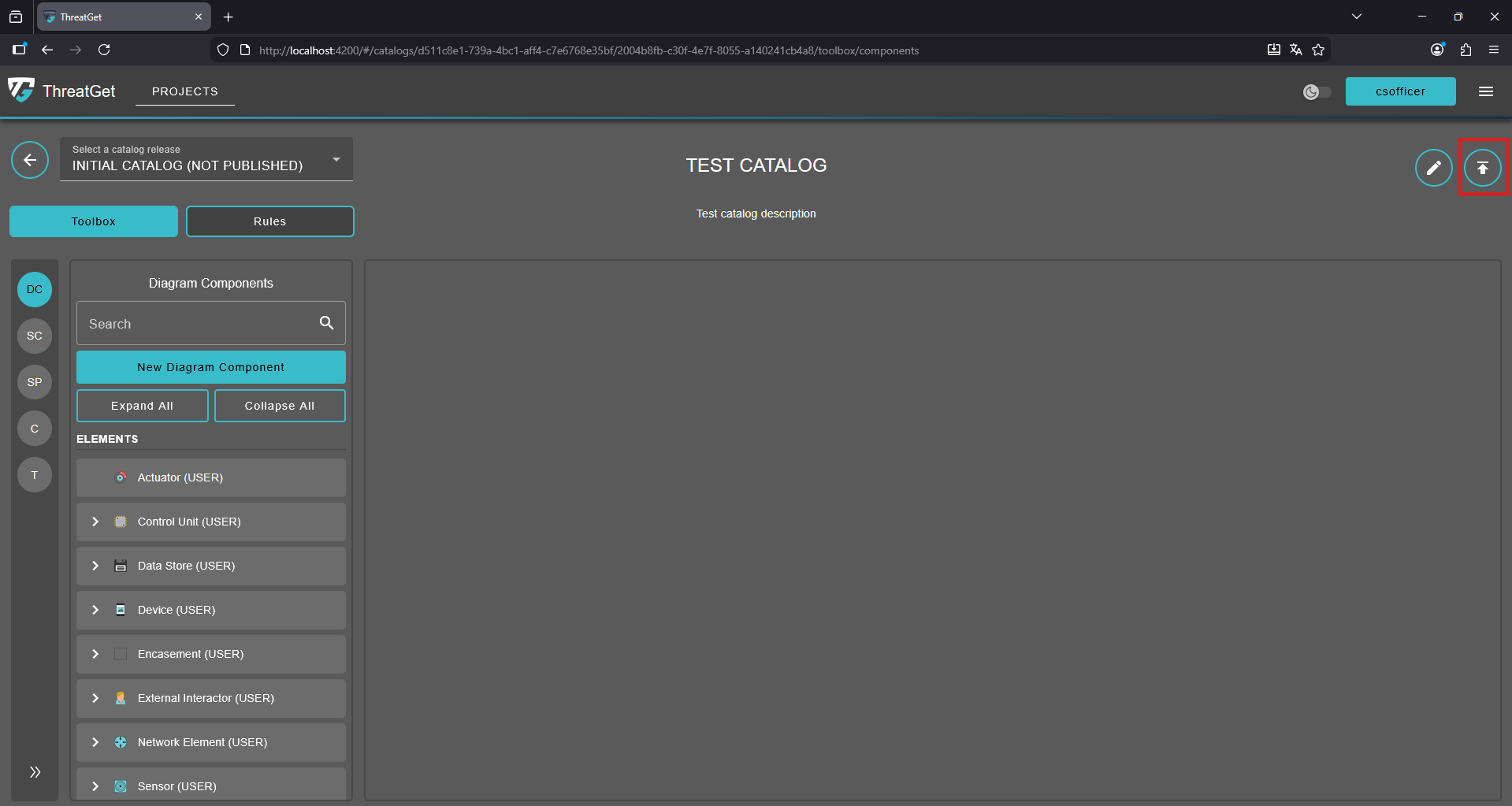
To publish a catalog release, navigate to the desired release and locate the “publish” button in the top-right corner of the interface.
Once you have reviewed the release and ensured that all necessary information is complete and accurate, click this button to initiate the publishing process. Note that that after publishing the release will be read only and cannot be modified further unless inherited to the new catalog release.
Edit a Catalog Release
To modify the catalog’s details, use the edit button located in the top-right corner of the screen.
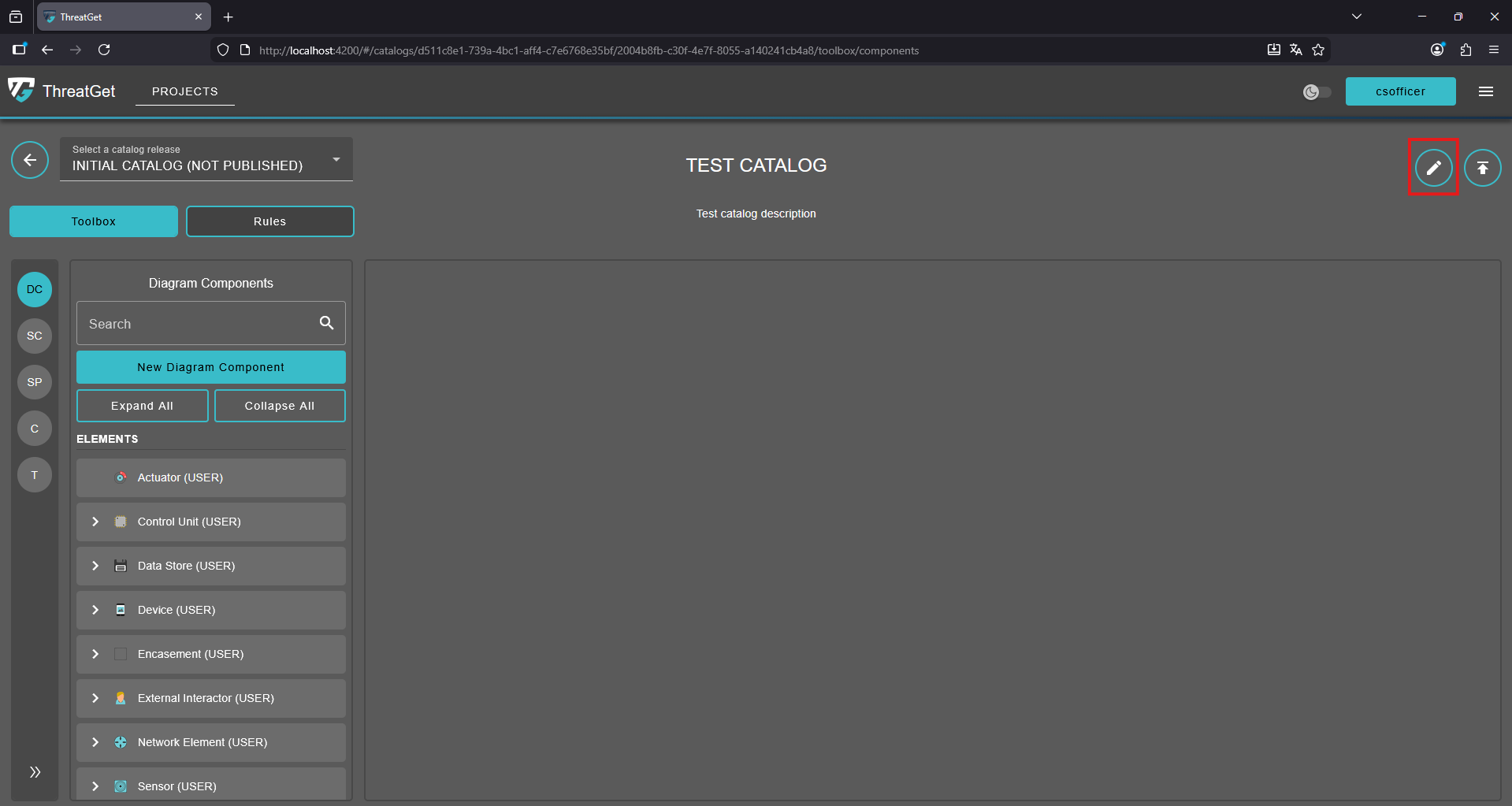
The "Catalog Details" dialog appears, showing the catalog’s name, its description, and a list of all associated releases.
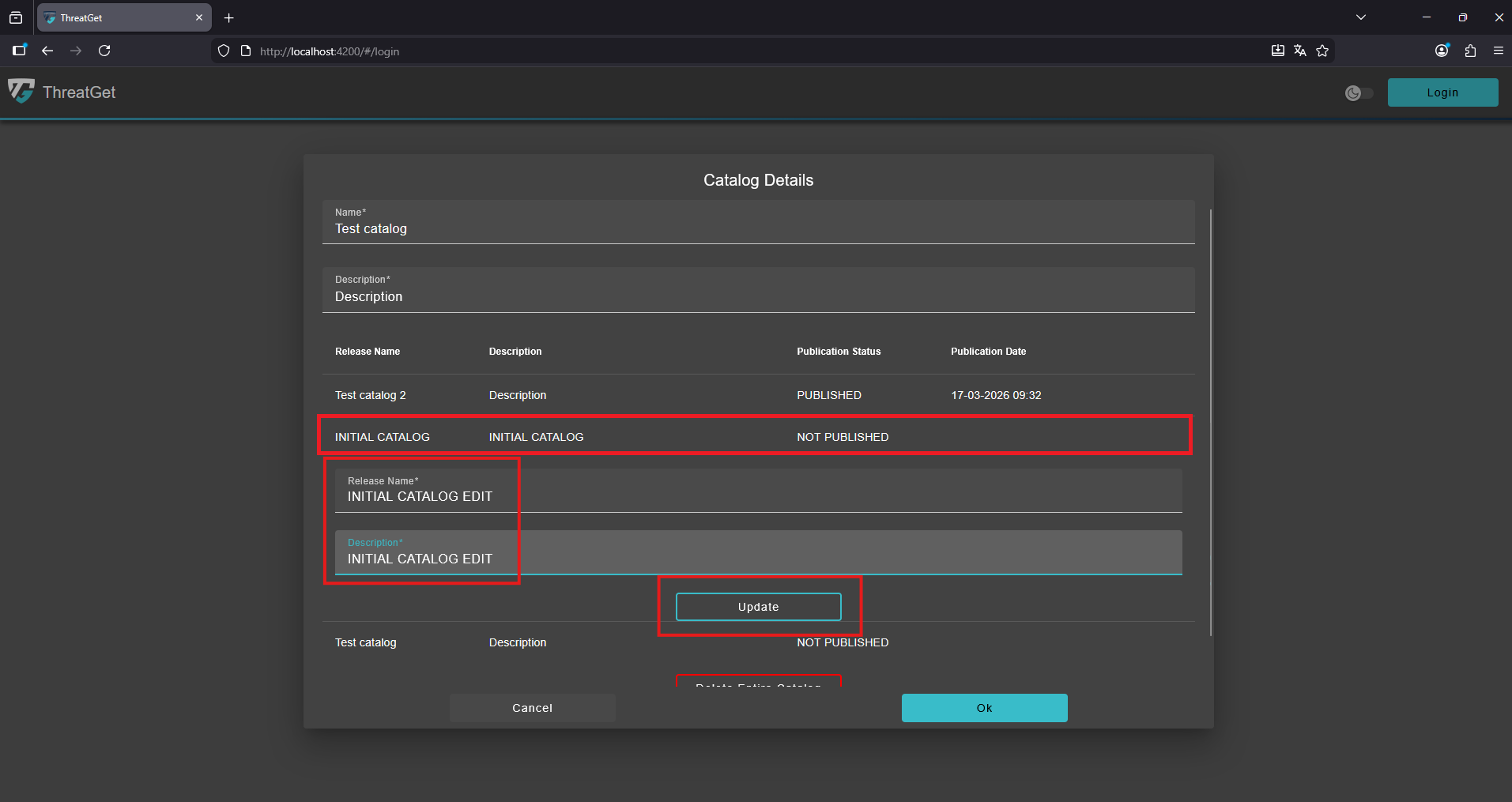
To modify a specific release, click on its corresponding row in the list. This will open the fields for editing the name and description. Enter the updated information as needed. After making your changes, confirm them by clicking the “Ok” button to save and apply the updates.
Delete a Catalog Release
💡INFO
A catalog release cannot be deleted under certain conditions to maintain system consistency and prevent unintended data loss. Deletion is restricted in the following cases:
- The catalog contains only a single release, it cannot be removed, as at least one release must always exist to ensure the catalog remains valid and functional.
- The catalog release is currently linked to a TARA iteration, deletion is not permitted because it is actively being used within an existing process or workflow.
Deleting
To delete a specific catalog realease hover over the corresponding row in the "Catalog Details" dialog and click the delete button.
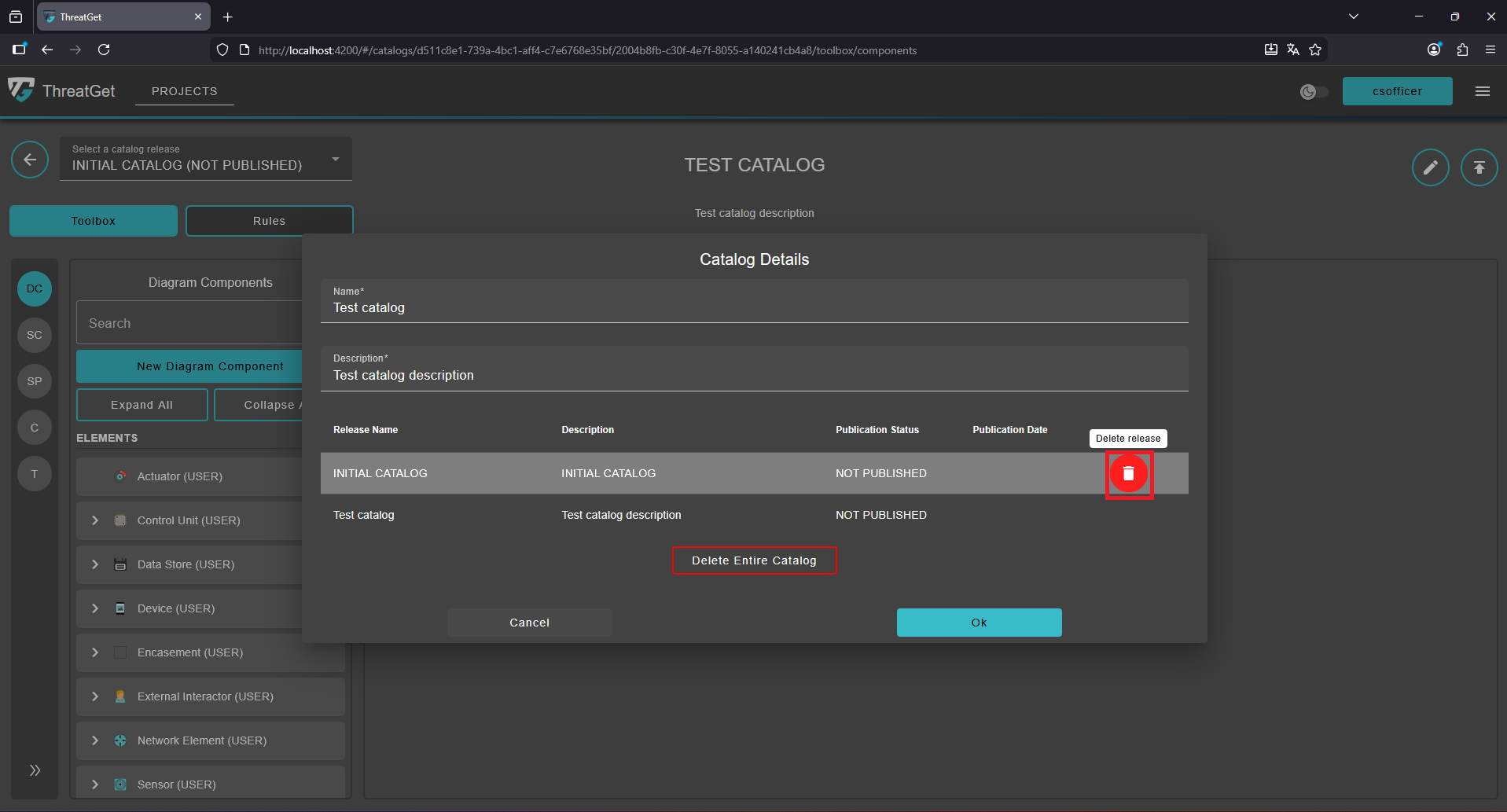
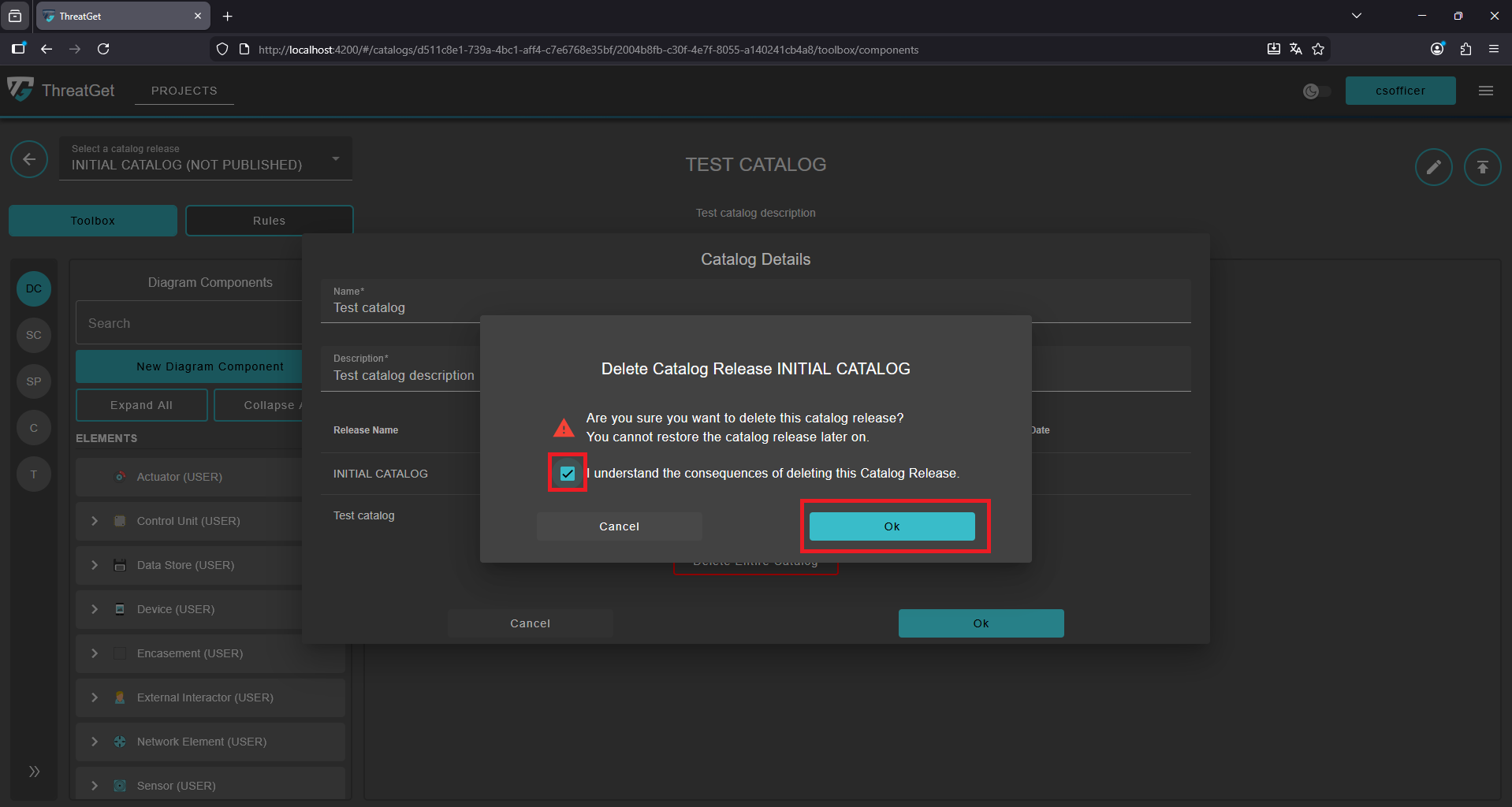
Confirm the deletion of the catalog release by selecting the checkbox to acknowledge the action, then click the “Ok” button to proceed and permanently remove the catalog release from its catalog.
Copy a downloaded Catalog Release
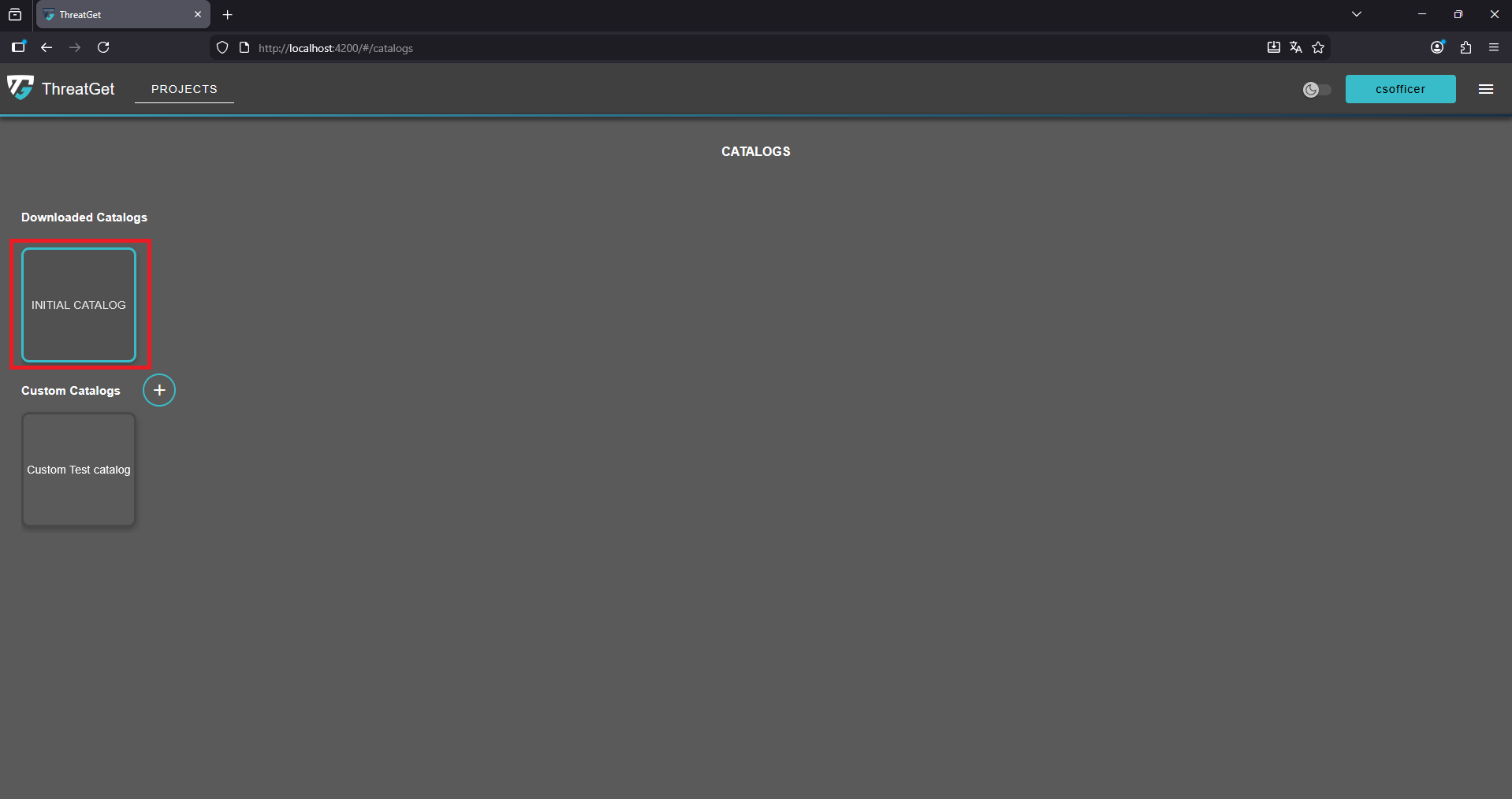
To create a copy of a downloaded catalog release, first navigate to the catalogs view and locate the catalog that has already been downloaded. Select the desired one to proceed with the copying process.
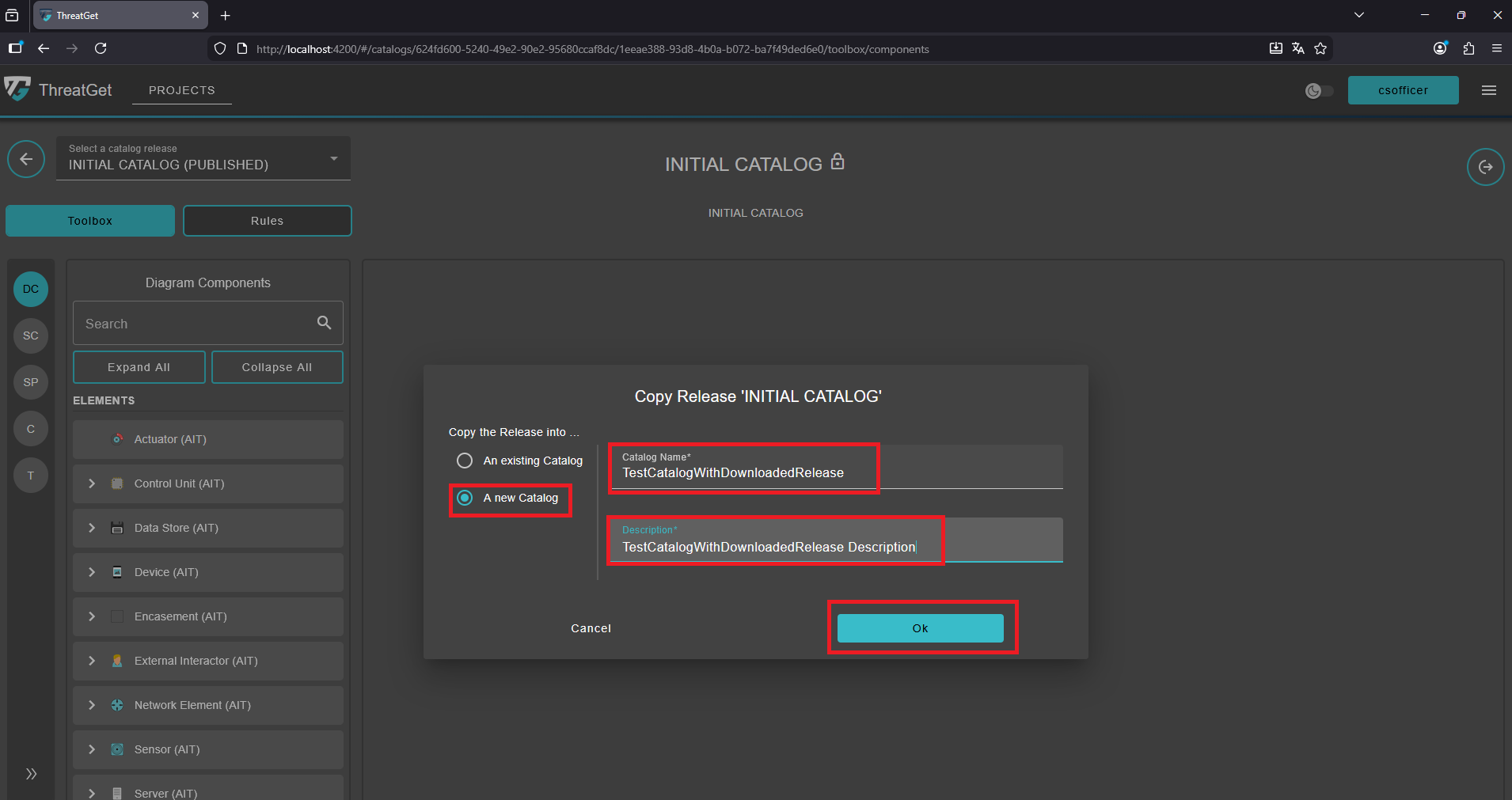
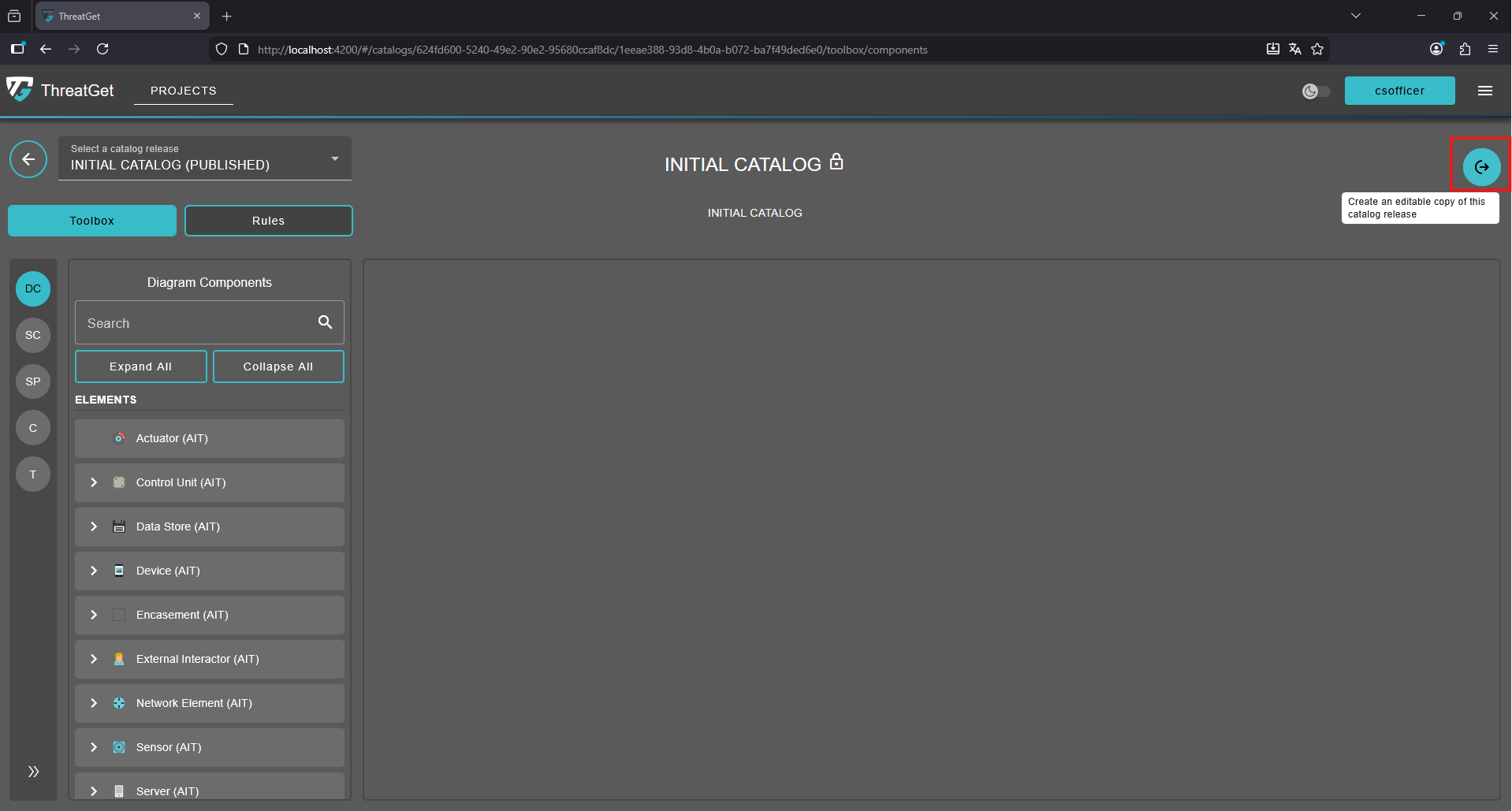
Click on the "copy downloaded catalog release" button to open the "Copy Release" dialog.
Copy to exisiting Catalog
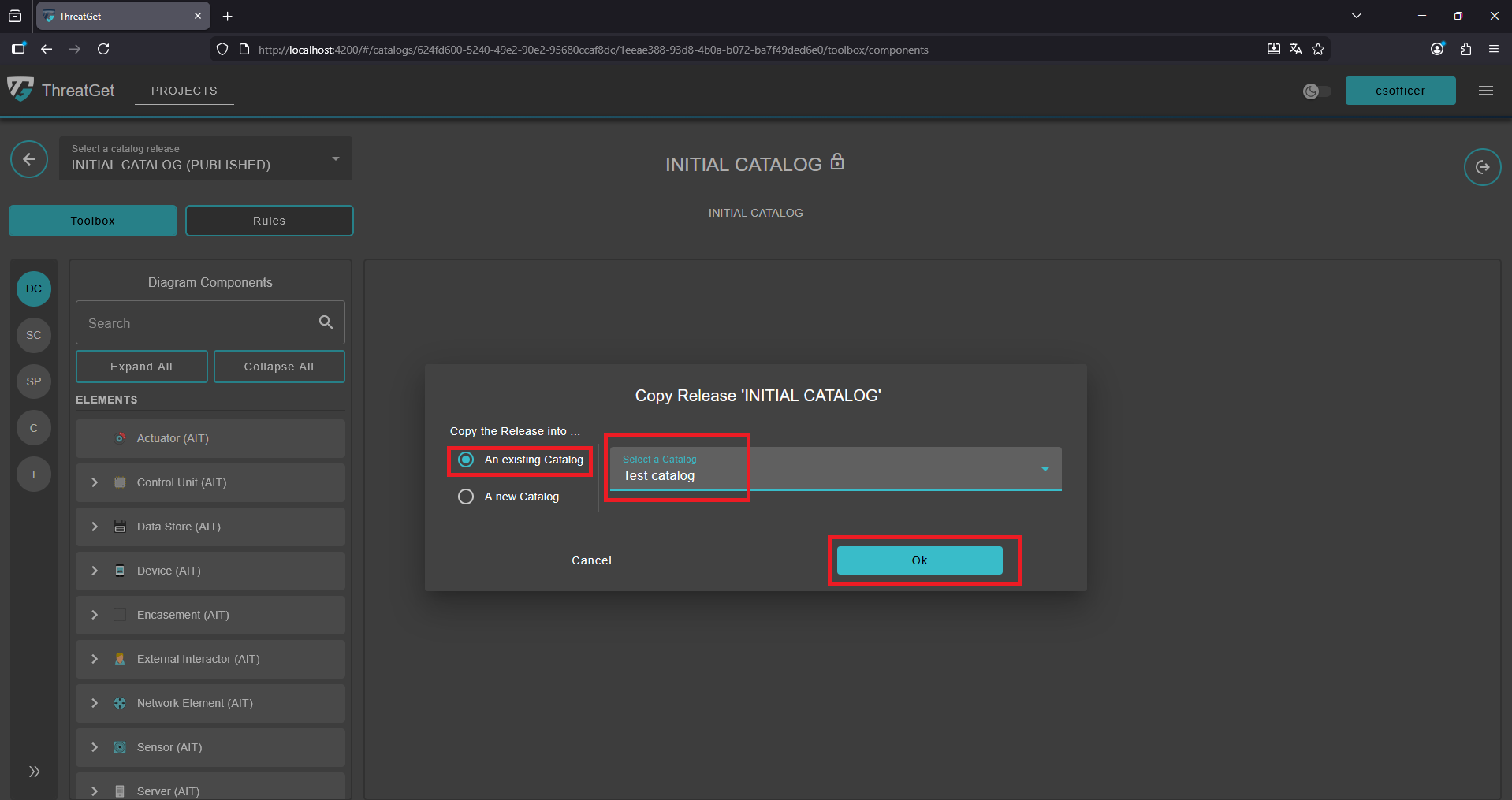
To copy the catalog release into an already existing catalog, first enable the option by selecting the “An existing Catalog” radio button. Once this option is activated, a selection field will become available, allowing you to choose the target catalog from the list of existing catalogs. Select the catalog into which you want to copy the release.
After making your selection, click the “Ok” button to confirm the action. The system will then create a new release within the chosen catalog based on the copied data, and you will be automatically redirected to the page of the newly created release, where you can review or further modify it as needed.
Copy to new Catalog
To copy the catalog release into a new catalog, first enable the option by selecting the “An new Catalog” radio button. Once this option is activated, a name and description field will become available, allowing you to enter the desired catalog name and description.
Click the “Ok” button to confirm the inputs. The system will then create a new catalog with a new release based on the copied data, and you will be automatically redirected to the page of the newly created catalog/release, where you can review or further modify it as needed.