Tags
Overview
ThreatGet Tags are used to group diagram components and rules, helping to categorize these elements effectively.
These tags add specific markers to each component and rule, indicating whether they are designed for a particular domain (e.g., automotive, railway, etc.) or are suitable for general use across multiple domains.
💡INFO
- A catalog release comes with its own unique toolbox and set of rules. Once the release is published, its toolbox and rules cannot be modified. However, they can still be inherited by another release. A catalog release must be published in order to be linked to an iteration.
- A downloaded catalog release cannot be modified initially. To use its toolbox, it must first be copied into a new or existing catalog.
- To create, alter or delete a catalog, its releases, toolbox and rules the Cybersecurity Architect role is required.
Managing Tags
Create a new Tag
To create a new Tag, click the T button on the left sidebar in the toolbox window.
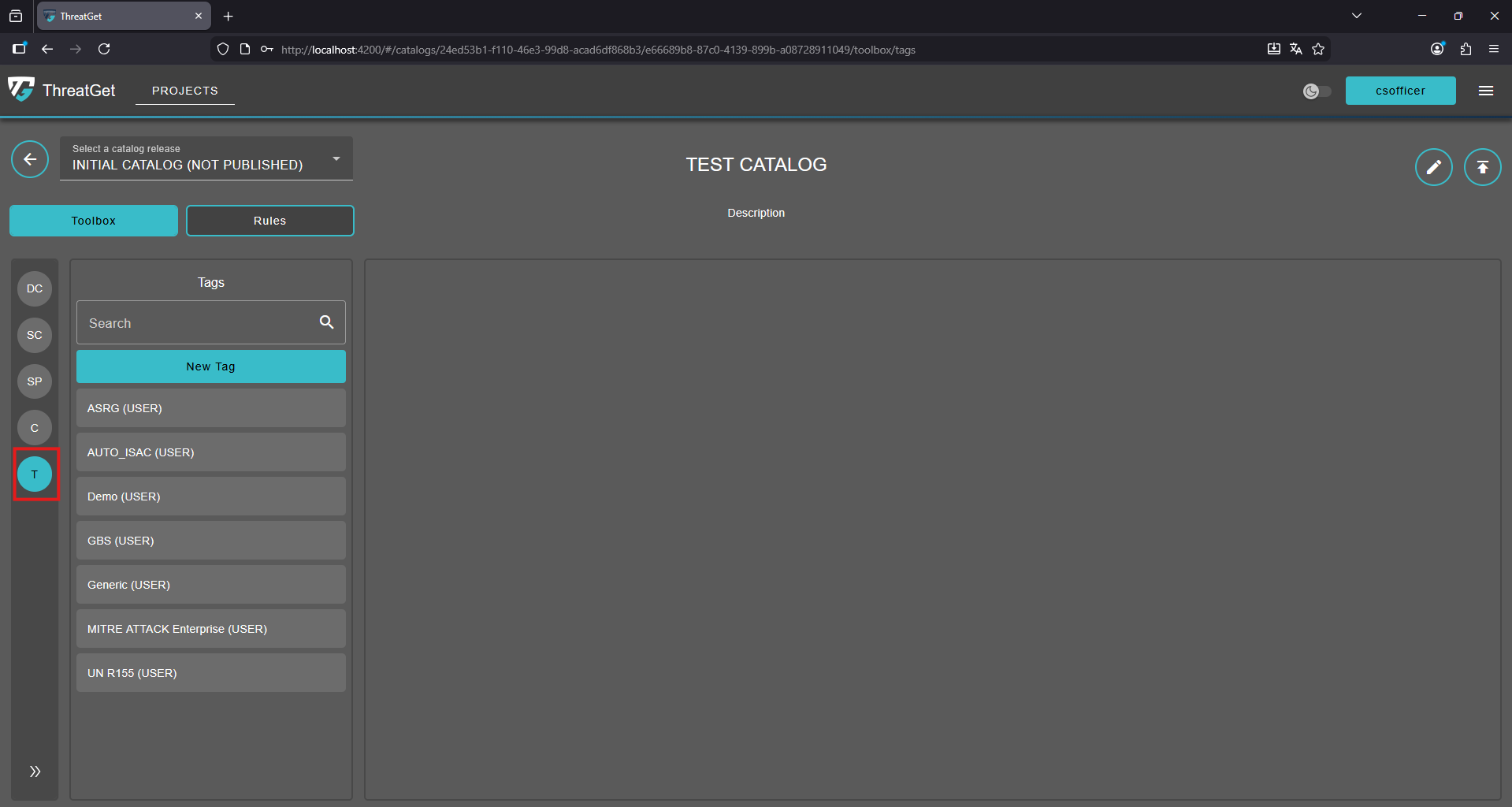
You will see a list of all existing tags defined in ThreatGet . To add a new tag, click the New Tag button at the top of the list.
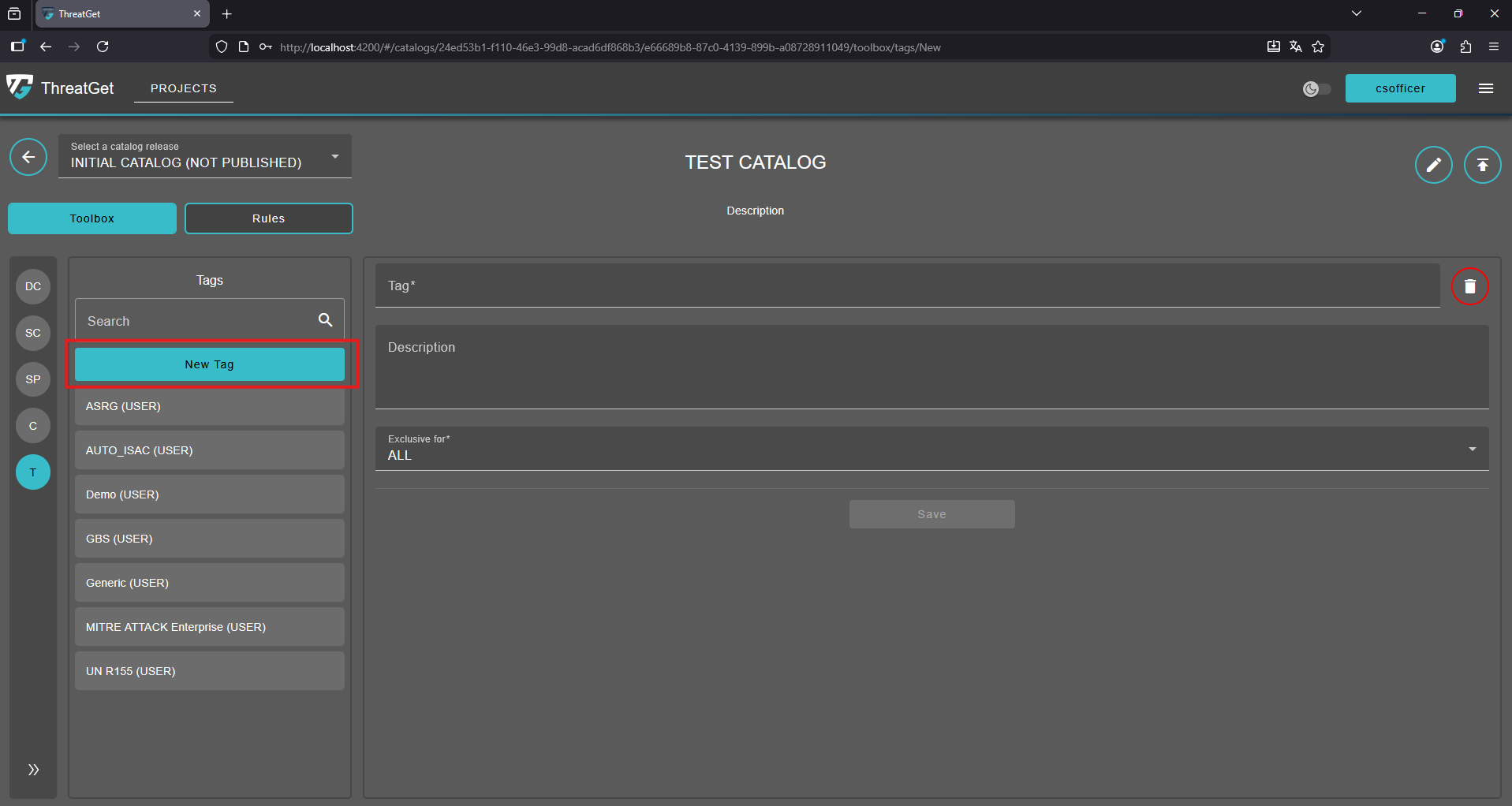
Then enter the Name and Tag Description; the description of a tag should be meaningful to avoid accidentally creating copies of the same tag.
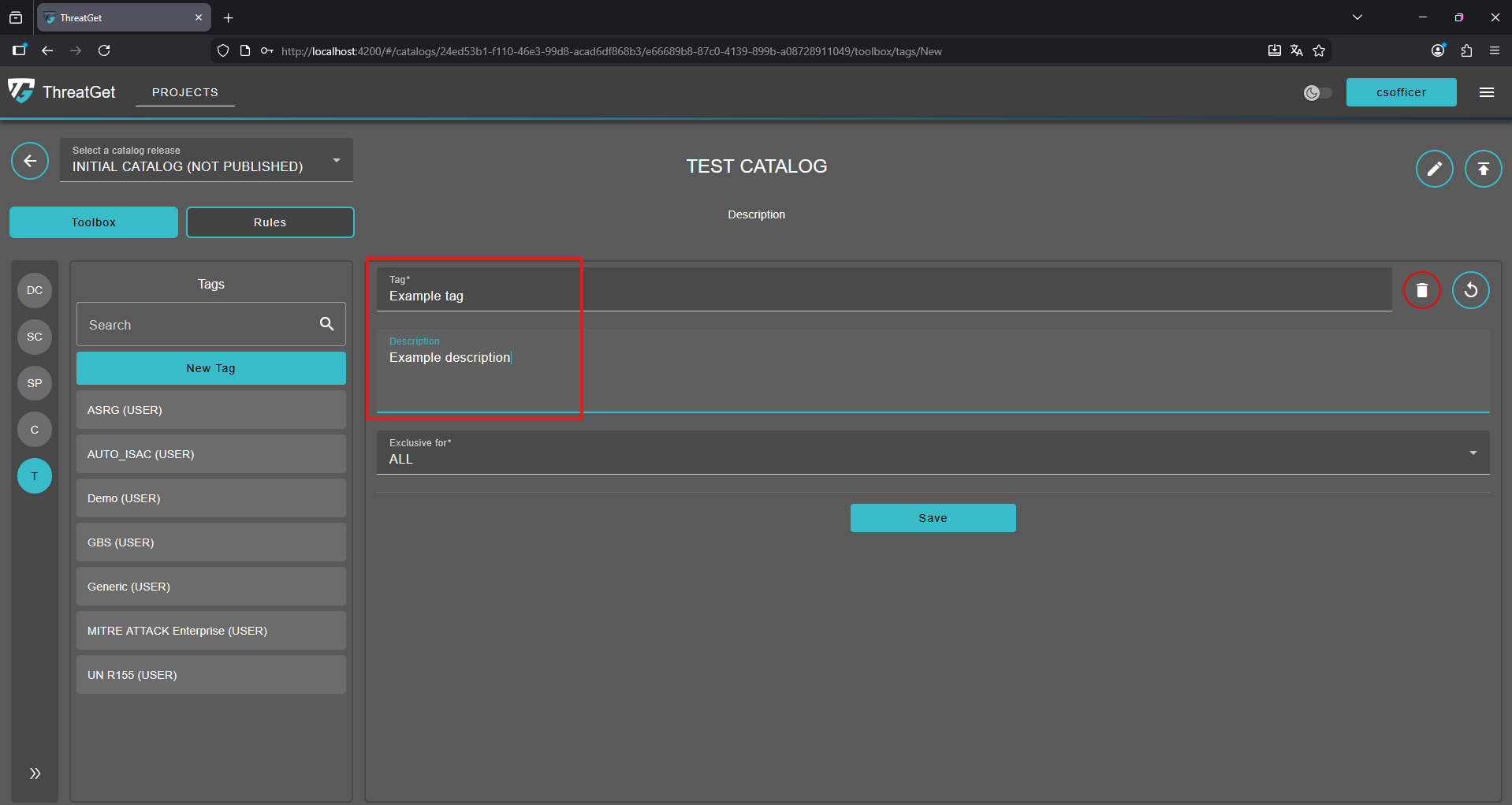
If you want you can change whether this tag can only be used for components or rules using the dropdown marked in the picture below. In this case we decided to create a Tag that can be used for rules as well as diagram components (ALL).
After entering the name and description, save your newly defined Tag by clicking on the Save button below the form.
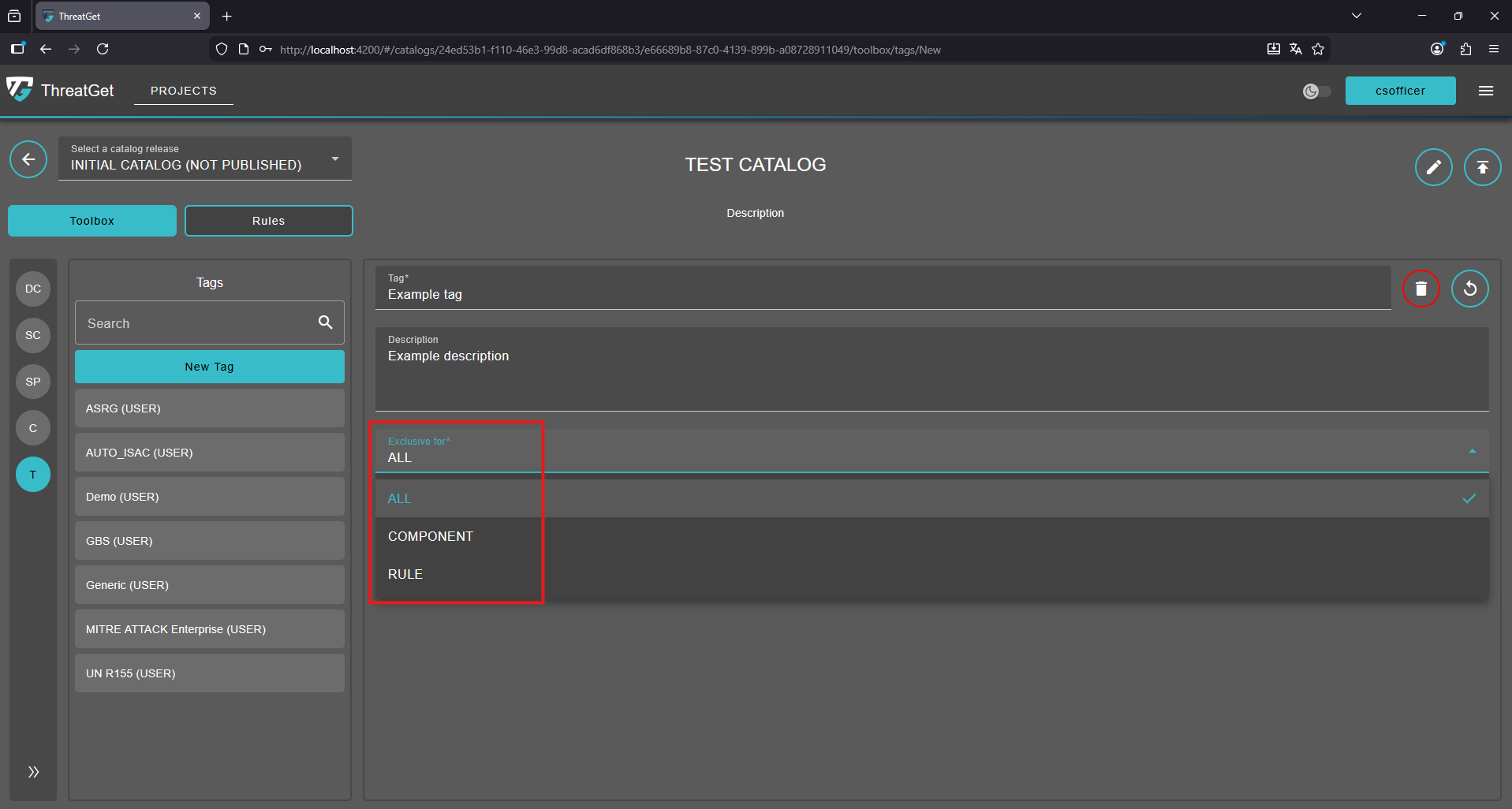
Circular Arrow: Undo any changes.

Trash Can: Cancel the creation of the new element or delete an element, click on the Trash Can.

Save Button: Save your newly defined component, click on the Save button.

Search for a Tag
You are also able to search for certain tags inside the Search Bar above. The search checks the content of the name.
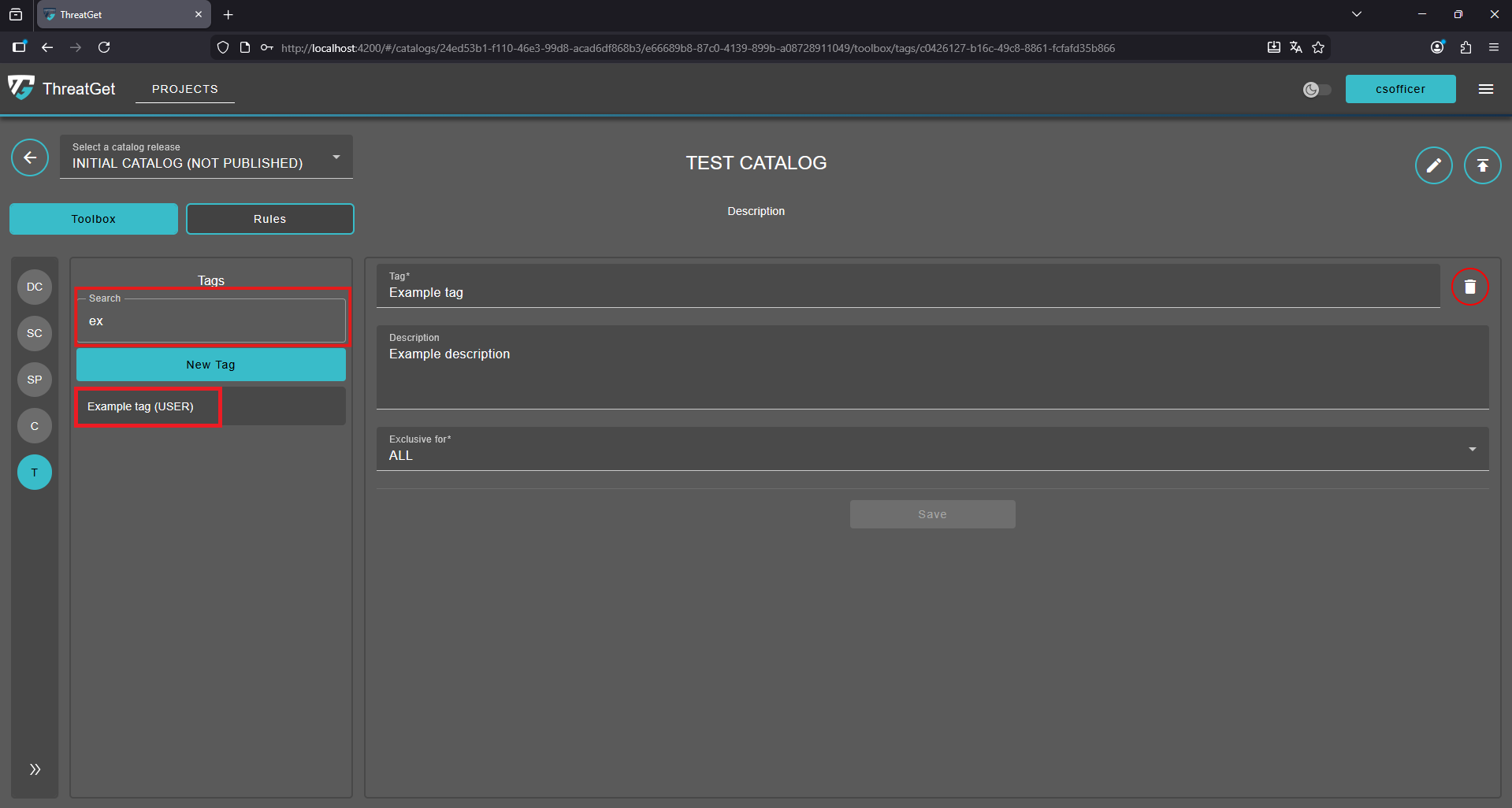
All the tags matching the search will be listed.
Delete a Tag
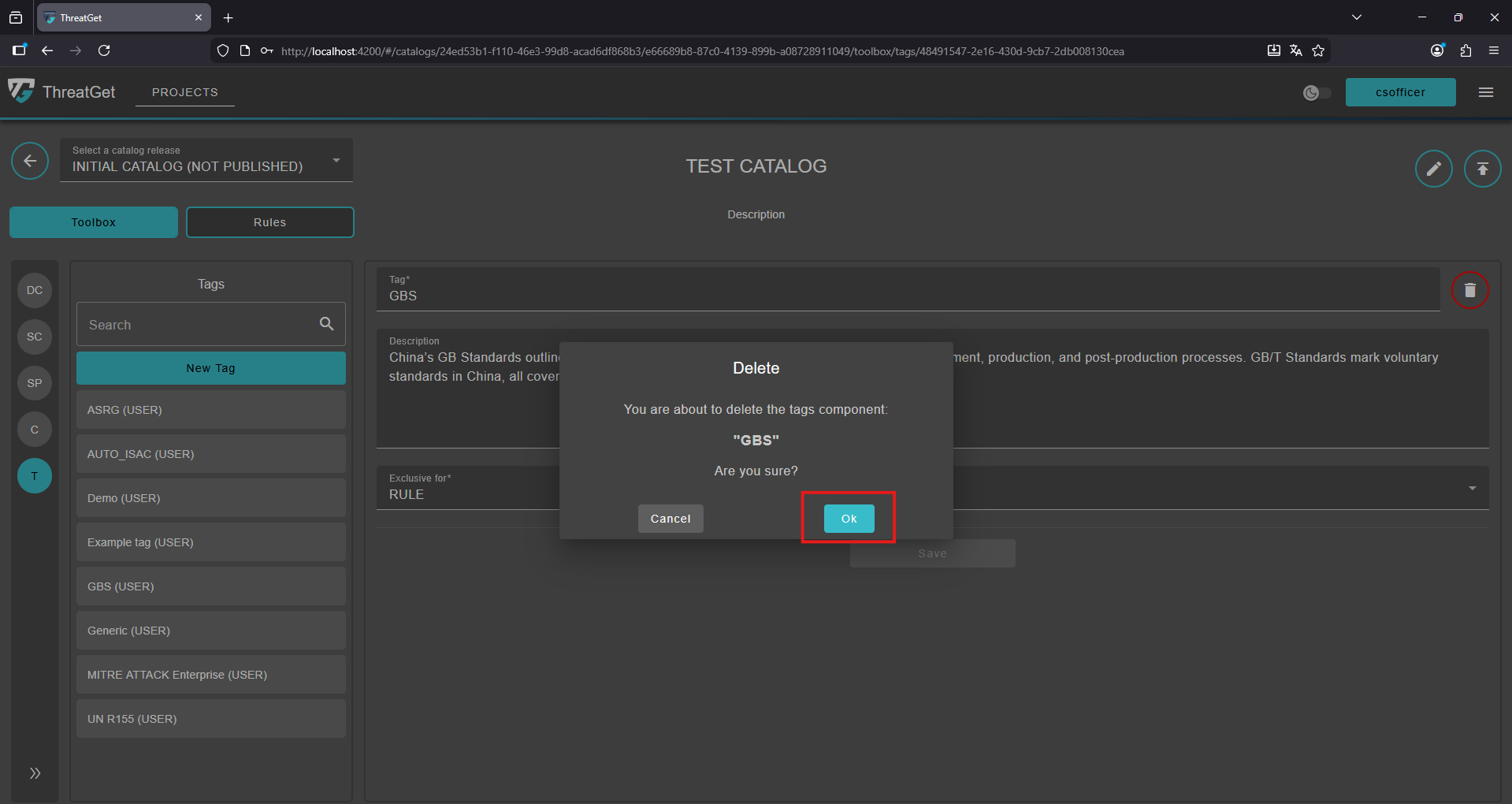
To delete a Tag, click the Trash Can icon at the top.
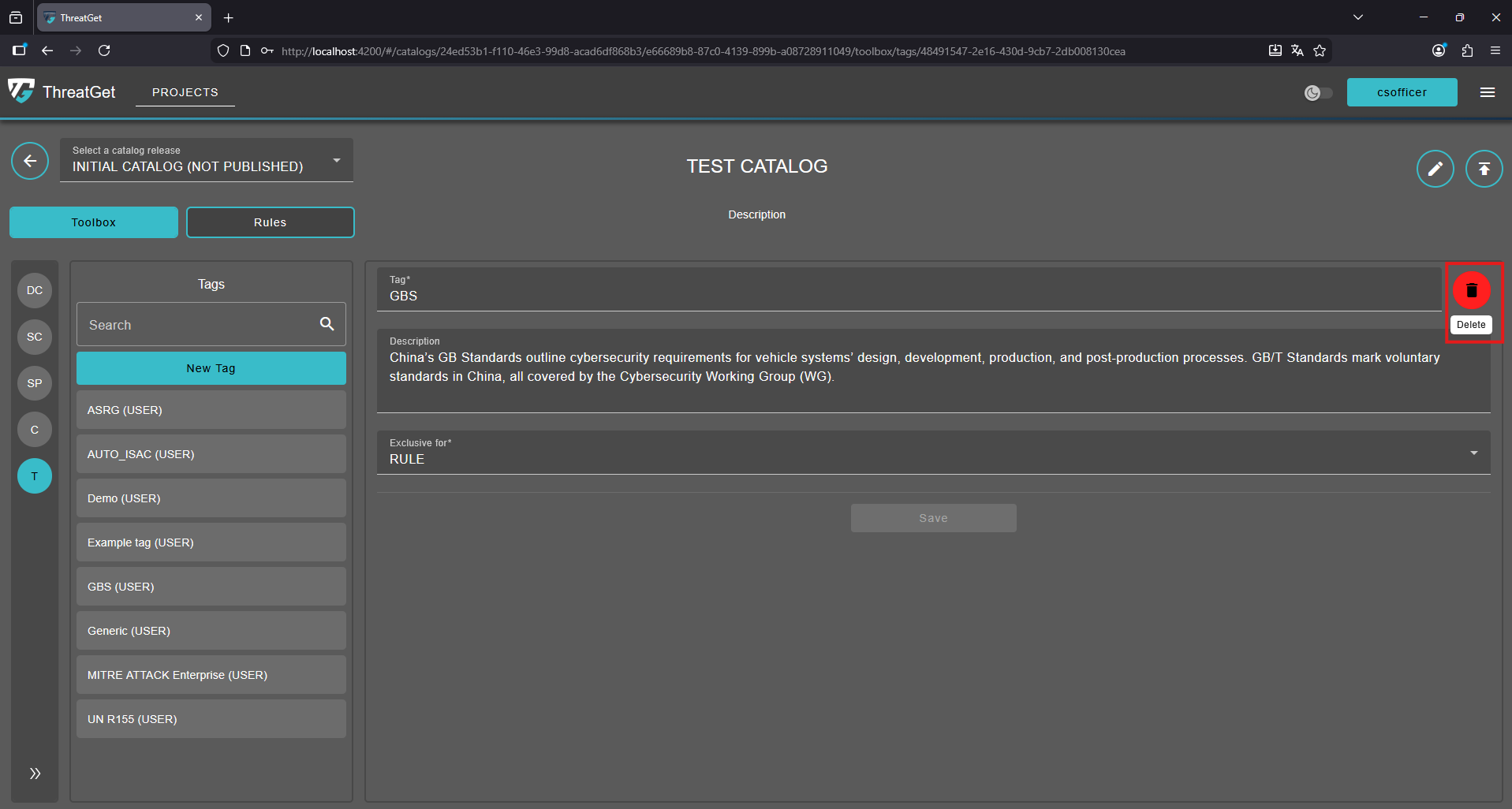
Confirm deletion of the Tag.