Catalogs
ThreatGet Catalog Structure and Releases
A catalog is composed of one or more catalog releases. Each release represents a specific version of the catalog and is associated with its own toolbox and rule set. These elements define how an analysis performs within that release.
To create, modify or delete a catalog, its releases, toolbox and rules the Cybersecurity Architect role is required.
Catalog View
The catalogs interface is divided into two sections:
Downloaded Catalogs
These catalogs are provided externally (e.g., by AIT). They are read-only and cannot be modified directly. However, users can copy these catalogs into:
- a new custom catalog
- an existing custom catalog
This allows reuse of predefined content while still enabling customization.
Custom Catalogs
This section contains user-created catalogs. Custom catalogs are fully editable, allowing users to:
- Create, update or delete rules and toolbox elements
- These catalogs provide the flexibility needed for project-specific adaptations.
Toolbox and Rules
Toolbox
The toolbox is a comprehensive and flexible set of elements designed for security analysis. It enables users to extend the system’s capabilities beyond the predefined options. In cases where existing components are insufficient, users can create and integrate custom elements such as:
- Diagram components
- Security controls & system properties
- Capabilities
- Tags
This extensibility allows the toolbox to adapt to highly specific project requirements, ensuring that users can tailor the analysis environment to their exact needs.
For more information visit our Toolbox section.
Rules
Users are permitted to create, edit, and delete only the rules they have defined themselves. Rules from an downloaded AIT catalog are protected and cannot be altered, which preserves consistency, reliability, and comparability across standardized analyses.
As mentioned before there is the possibility to copy a downloaded catalog release to an existing or new catalog to enable customization.
Rules play a critical role in the system, as they directly influence how analyses are executed and interpreted. While user-defined rules remain flexible and can be adjusted to meet specific needs, this flexibility is limited to the development phase. Modifications are allowed only as long as the corresponding catalog release has not yet been officially published.
Once a catalog release is finalized and published, its rules become fixed and immutable. This ensures traceability, reproducibility of results, and alignment across all users working with the same catalog version.
Note that within a catalog, a published release can be inherited, allowing it to become editable again for further adjustments.
For more information visit our Rules section.
Working with Catalogs in Modeling
💡INFO
To start modeling (e.g., creating a diagram within the architecture), it is mandatory to link a TARA iteration to a published catalog release. This ensures that the modeling process uses a well-defined and consistent set of rules and toolbox configurations.
Without this linkage, the system cannot determine which rules and tools should be applied during the analysis. You can find more details about the linking process in our Specification section.
Managing Catalogs
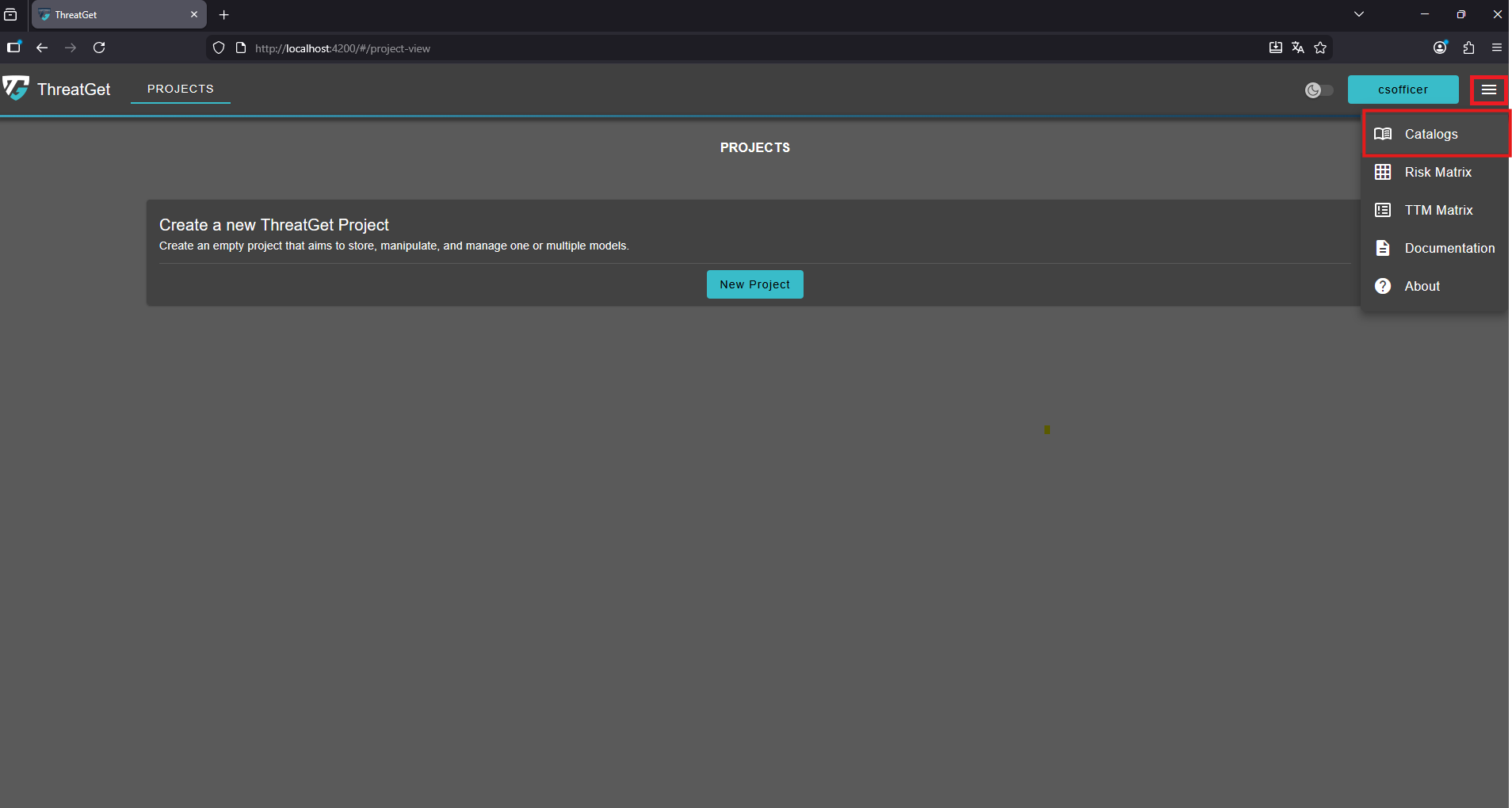
Naviagte to Catalogs
To access the catalogs overview click the menu button in the top-right corner and select Catalogs from the navigation menu.
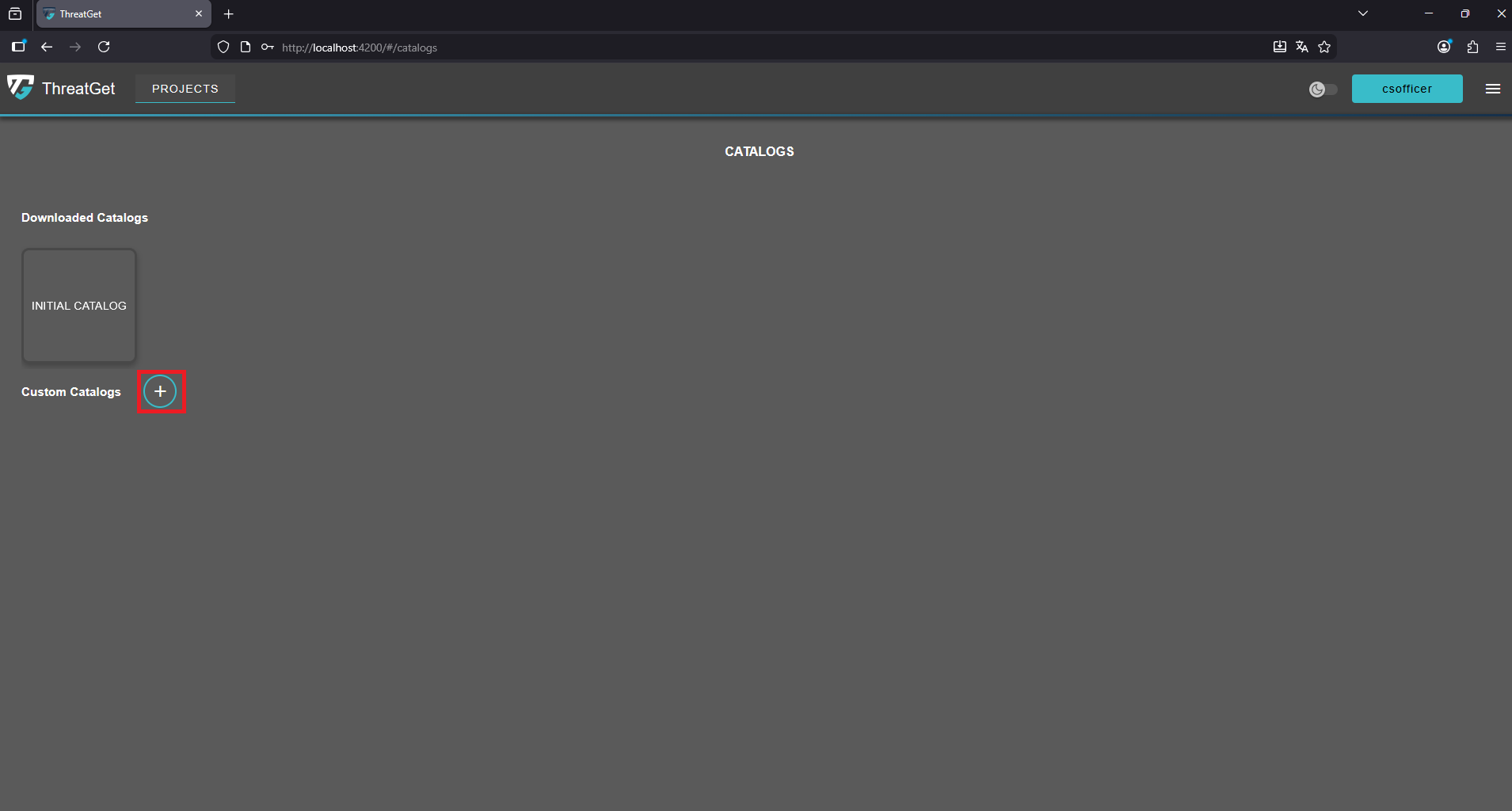
Create a Custom Catalog
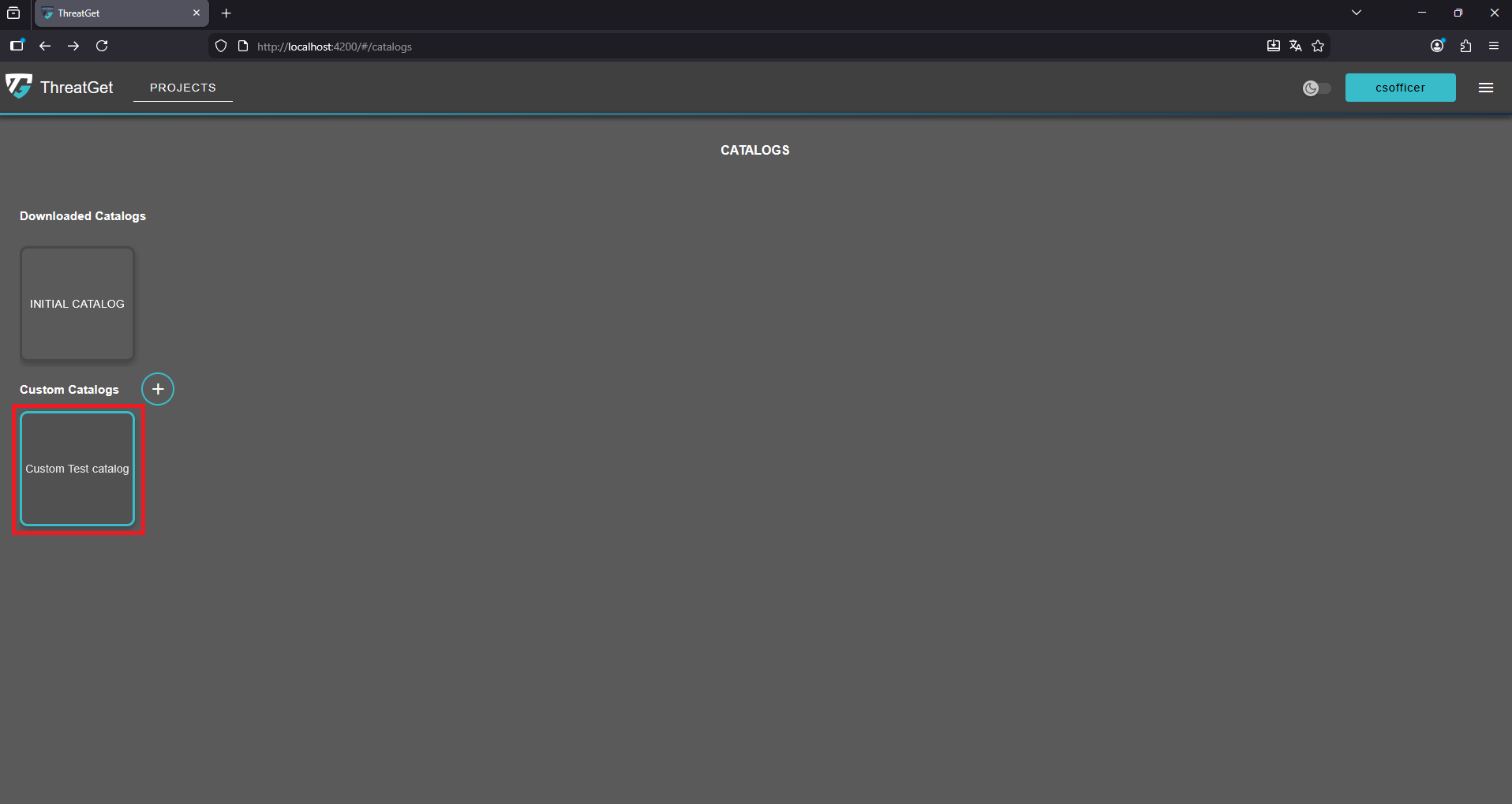
Start the catalog creation process by clicking the “+” button.
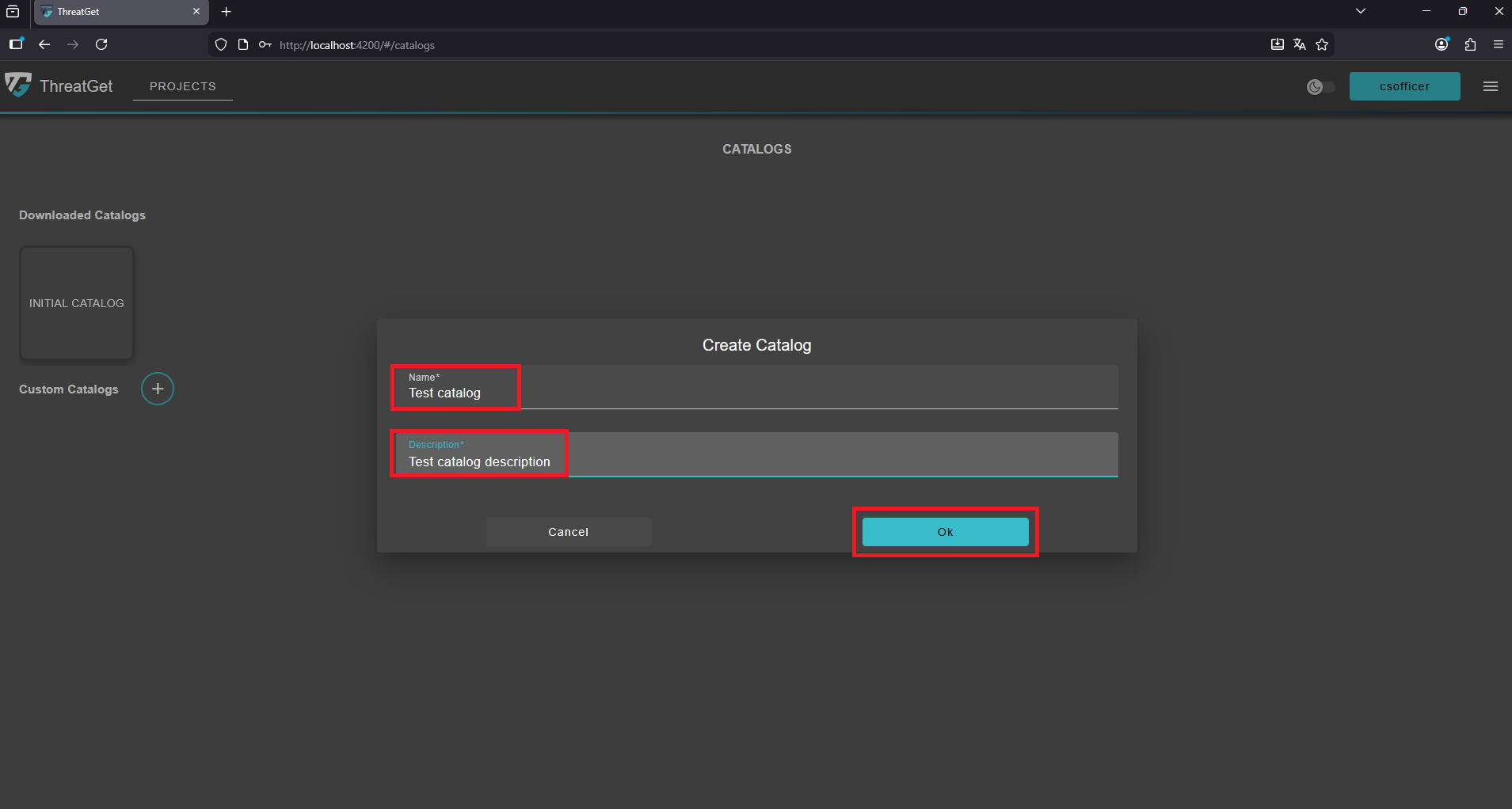
In the Create Catalog dialog, provide a name and a description for the catalog, then confirm your input by clicking the “Ok” button.
Your custom catalog has now been successfully added. Click on the newly created catalog to open it and access its contents.
Edit the Catalog
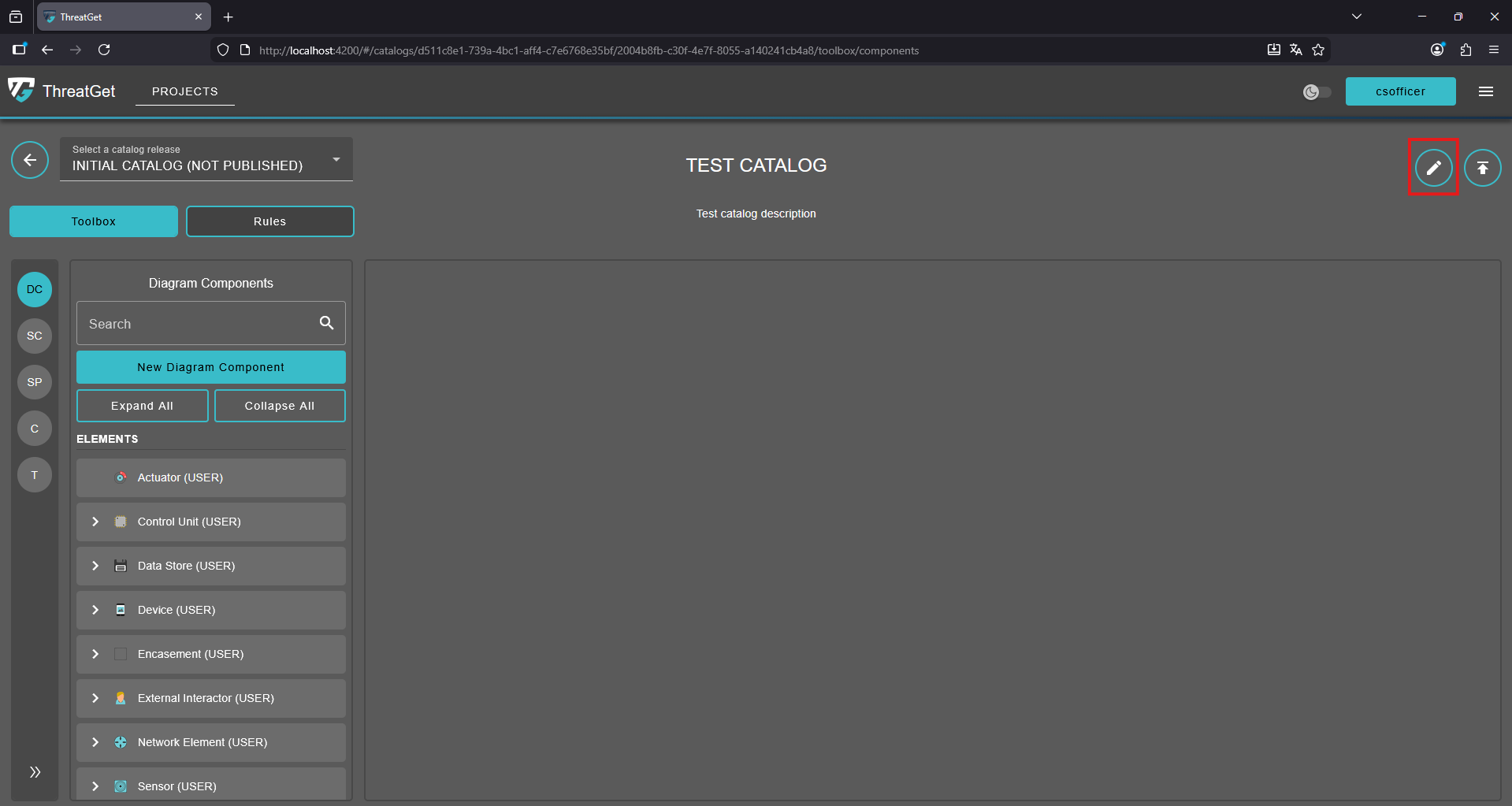
Within the catalog view, the current release is displayed along with its associated toolbox and rules. To modify the catalog’s details, use the edit button located in the top-right corner of the screen.
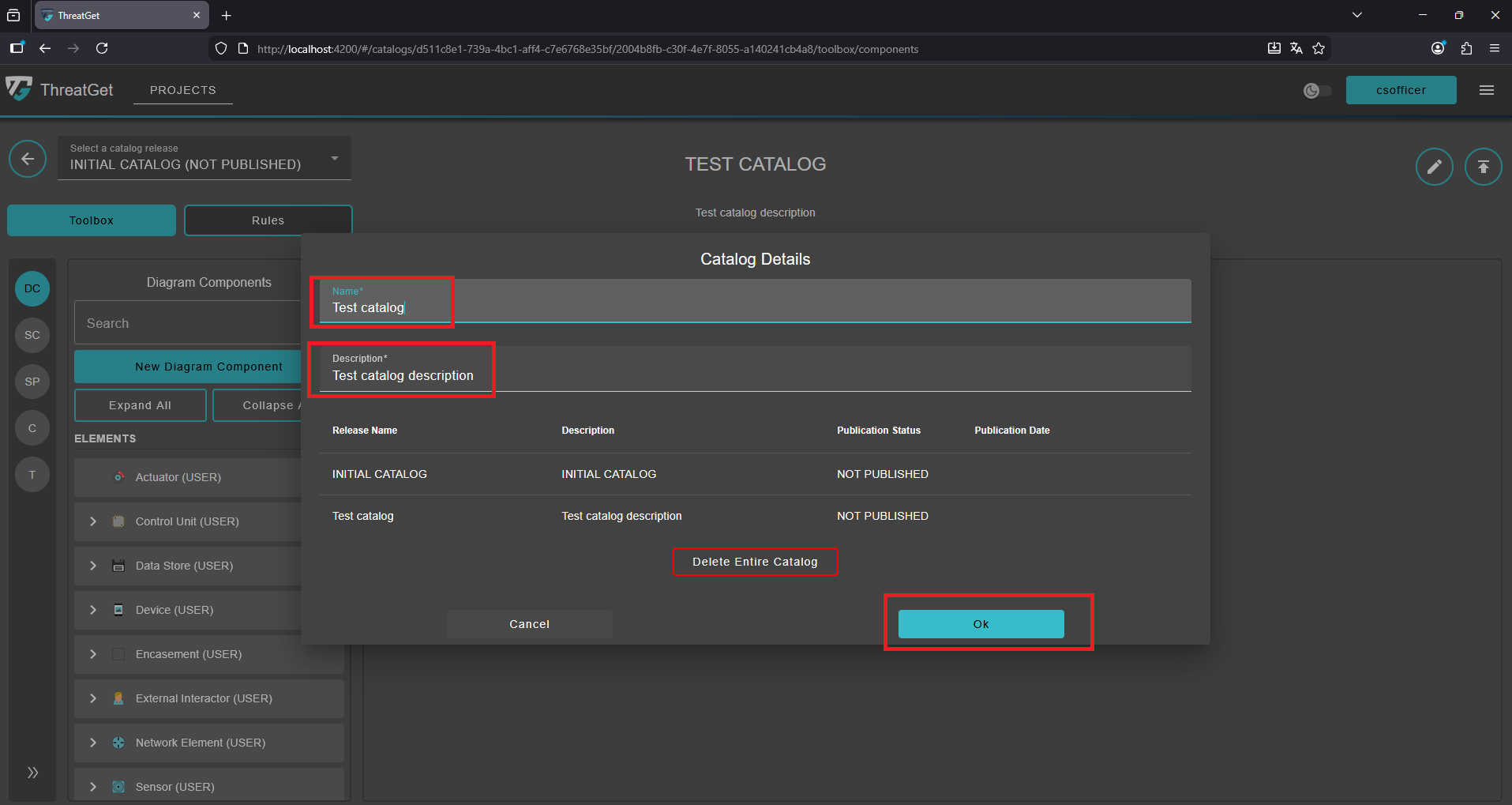
The Catalog Details dialog opens, displaying the catalog’s name, description, and a list of all its releases. Update the name and description as needed. Once you have made your changes, click the “Ok” button to save and apply them.
Delete the Catalog
💡INFO
A catalog cannot be deleted under certain conditions to maintain system consistency and prevent unintended data loss. Deletion is restricted in the following cases:
- A catalog release is currently linked to a TARA iteration, deletion is not permitted because it is actively being used within an workflow.
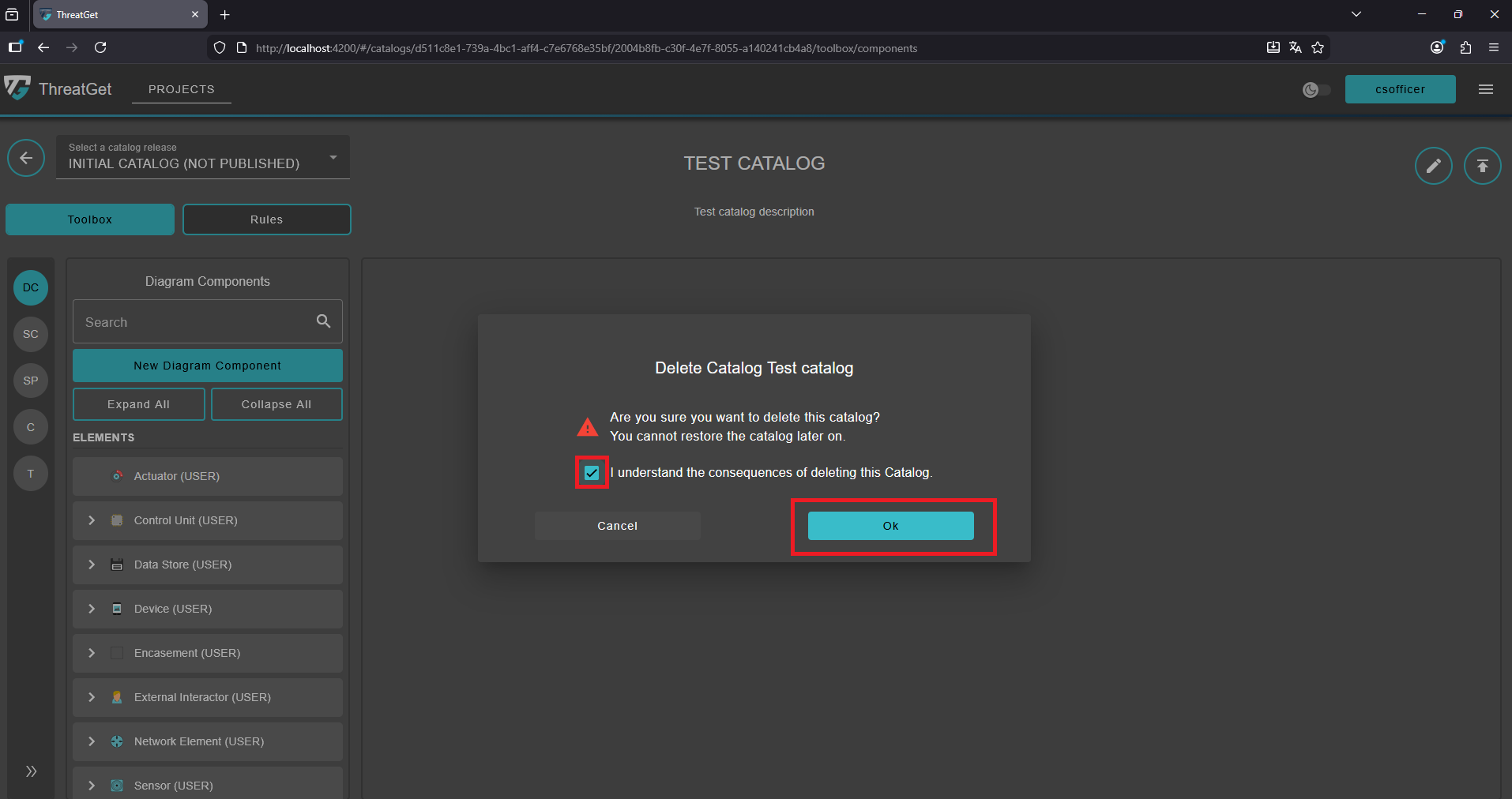
Deleting
Within the Catalog Details dialog, use the “Delete Entire Catalog” button to permanently remove this custom catalog from the system.
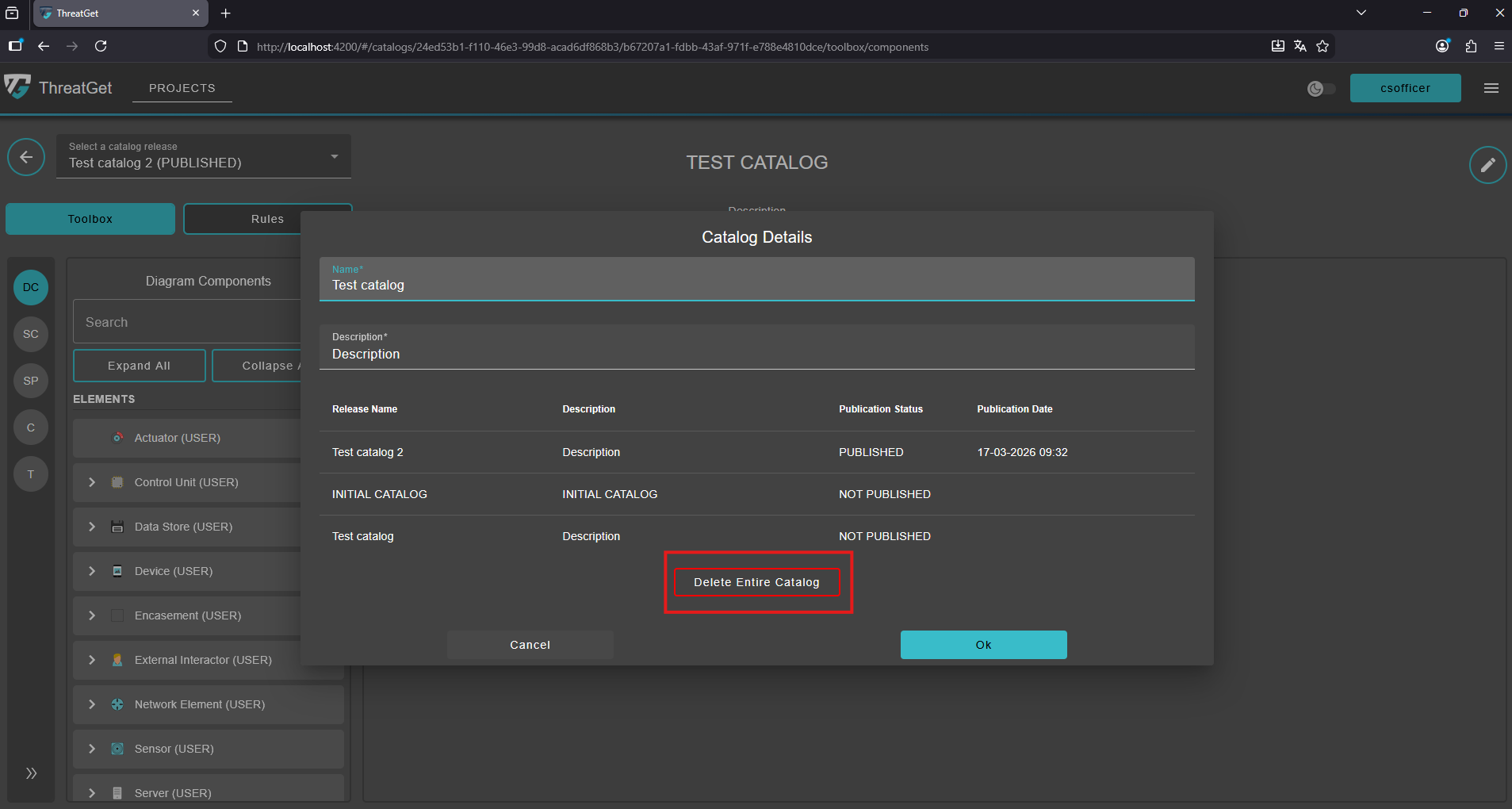
Confirm the deletion of the catalog by selecting the checkbox to acknowledge the action, then click the “OK” button to proceed and permanently remove the catalog and all its releases.