Security Controls & System Properties
Security Controls
System Controls describe how well a component is protected. Their values are ordered or leveled. They determine how difficult a threat is to execute.
System Properties
System properties describe how a component is configured or what role it plays in the system. Their values are binary or unordered. They determine whether a threat is applicable.
Overview
A downloaded catalog provides a broad range of security controls and system properties, which the rule engine leverages to assess cyber risks.
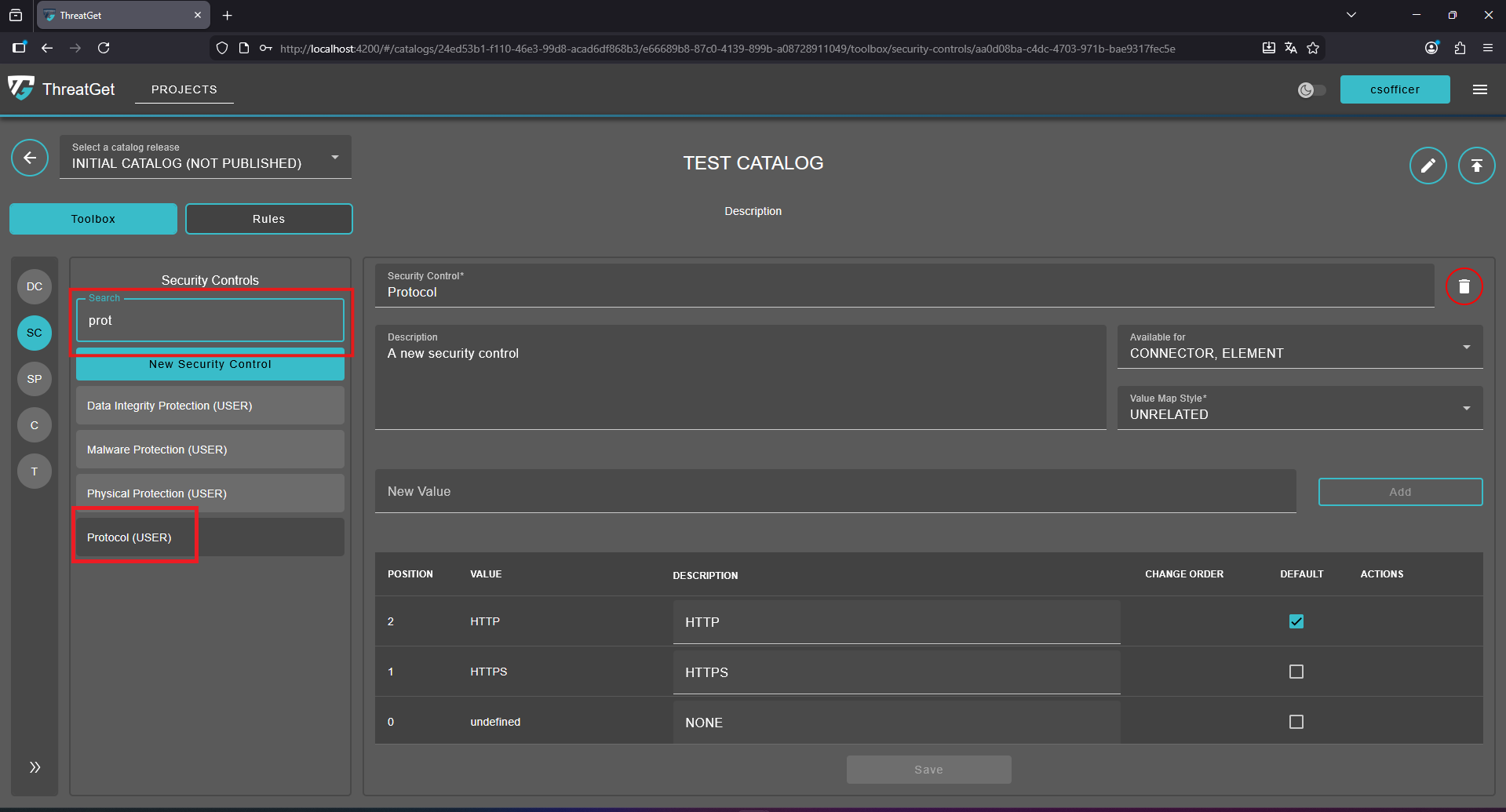
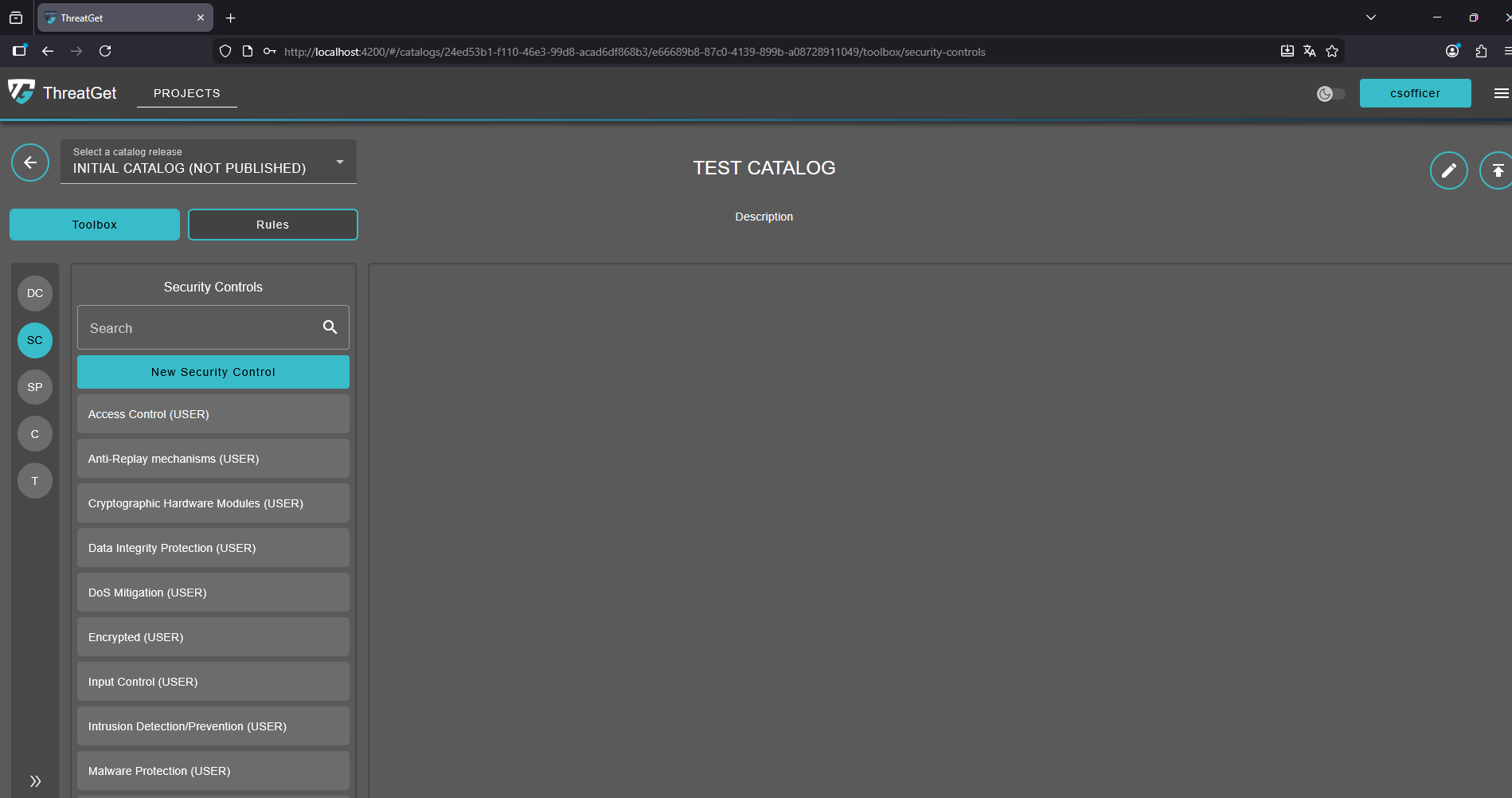
To meet specific requirements, users may need to add additional security controls or system properties. ThreatGet offers the flexibility to create custom security controls and system properties, enabling them to be integrated into system models. By visiting the ThreatGet toolbox page, users can click the SC or SP button on the left side to start managing and creating security controls or system properties.
💡 INFO
- A catalog release comes with its own unique toolbox and set of rules. Once the release is published, its toolbox and rules cannot be modified. However, they can still be inherited by another release. A catalog release must be published in order to be linked to an iteration.
- A downloaded catalog release cannot be modified initially. To use its toolbox, it must first be copied into a new or existing catalog.
- To create, alter or delete a catalog, its releases, toolbox and rules the Cybersecurity Architect role is required.
Managing Security Controls & System Properties
Create a new Security Control and System Property
To create a new Security Control, click the green New Security Control button. A form will appear on the right, showing all required fields for configuring the security control.
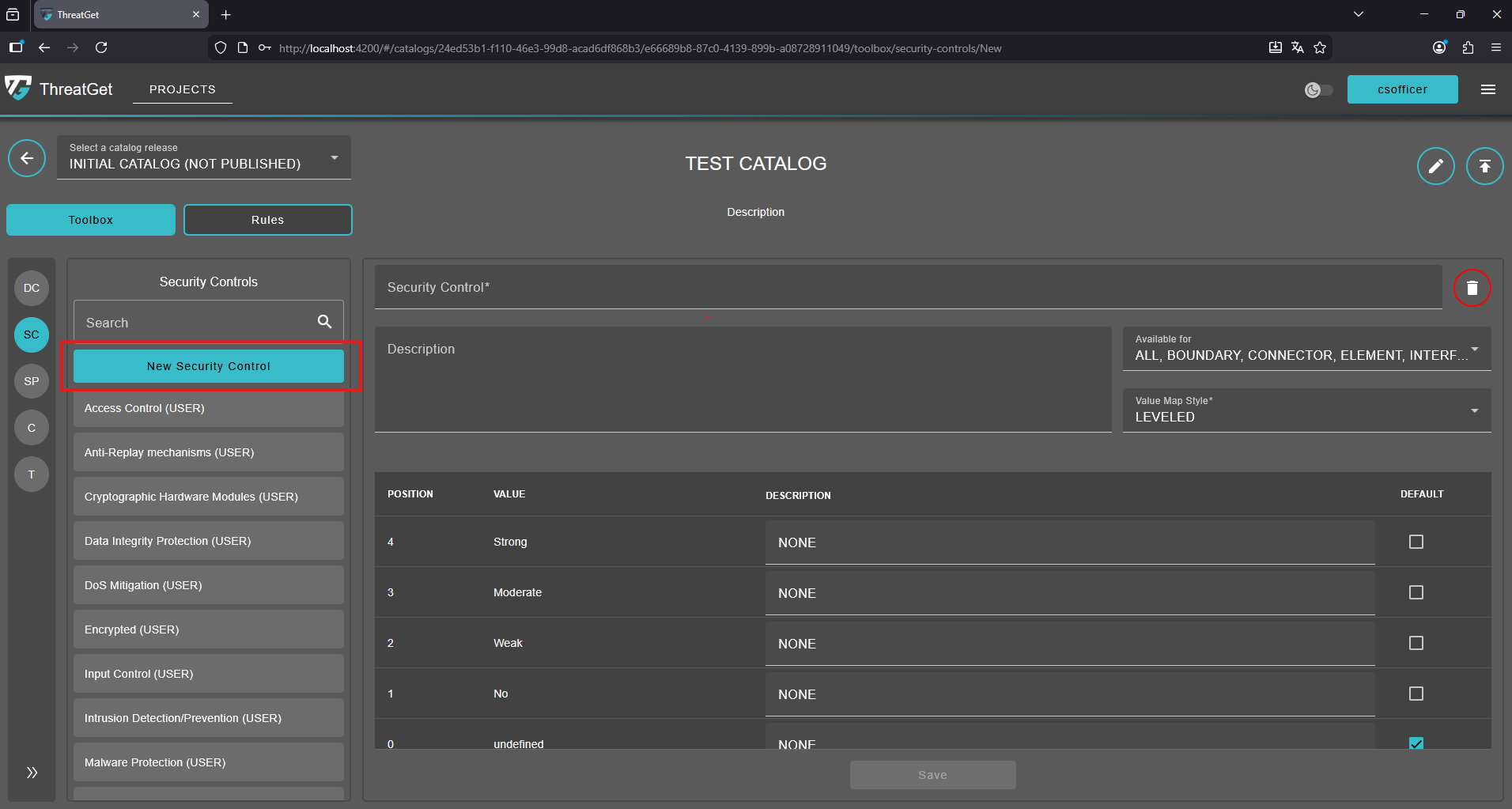
Enter an appropriate name and relevant description for the security control and system property. It is recommended to provide a clear, meaningful description to prevent any ambiguity or overlap with other security controls.
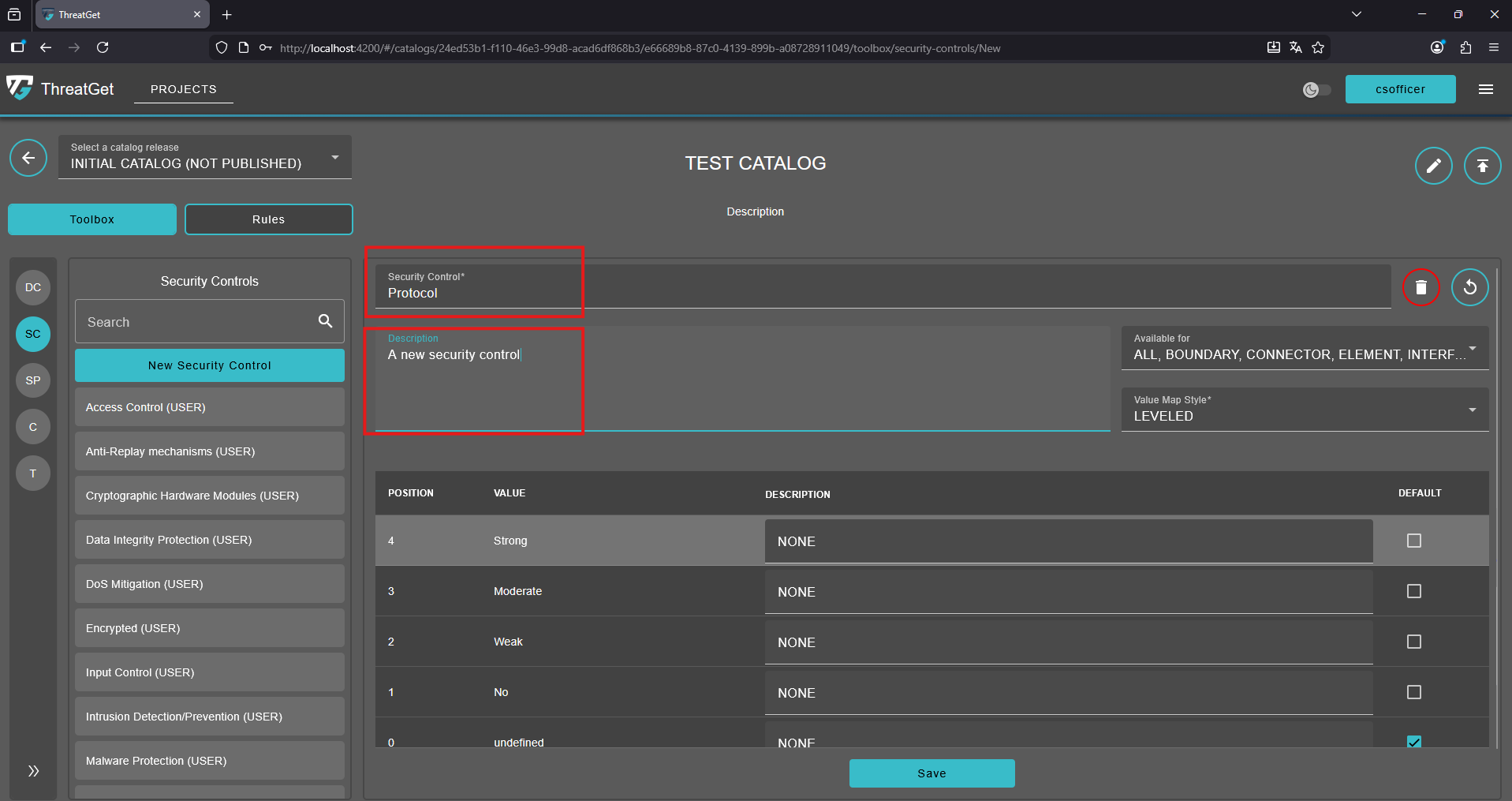
Security controls and system properties can also be restricted to certain types of components. If this protocol should only be available for Elements and Connectors, then we can simply select these two from the dropdown menu.
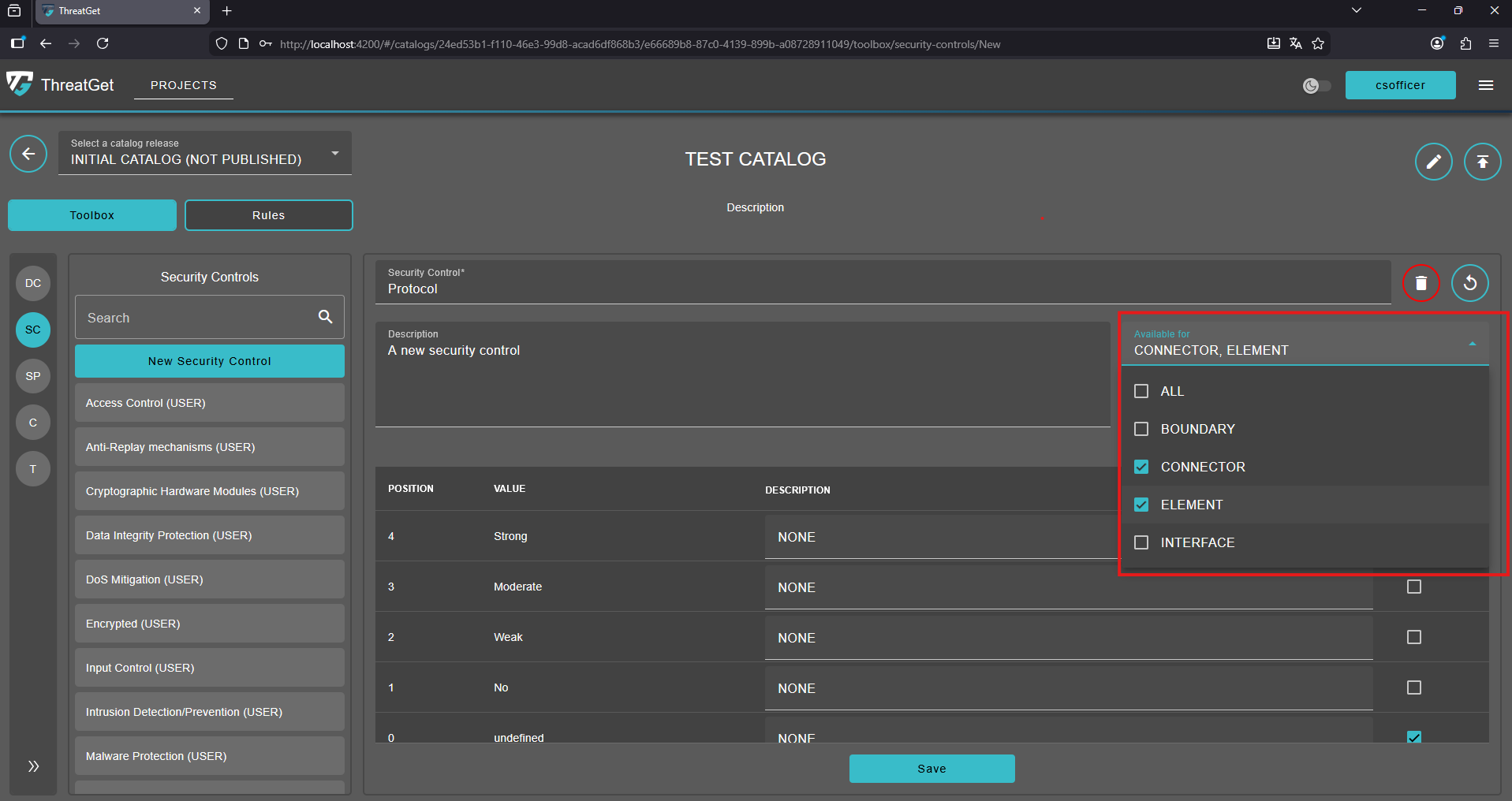
Security controls and system properties values can be set as LEVELED, BOOL, or UNRELATED, with distinctions as follows:
-
LEVELED: Provides a range of levels, including options such as undefined, No, Weak, Moderate, or Strong.
-
BOOL: Defines a boolean value for the security and system property, set to either true or false.
-
UNRELATED: Allows for a customized set of values for the security control and system property. The "undefined" valie is automatically assigned as the initial default value for the new security control and system property.
When selecting the UNRELATED option, users can enter custom values in the provided text field, such as HTTP and HTTPS. Simply type the desired value in the New Value field, then click the "Add" button on the right to add it.
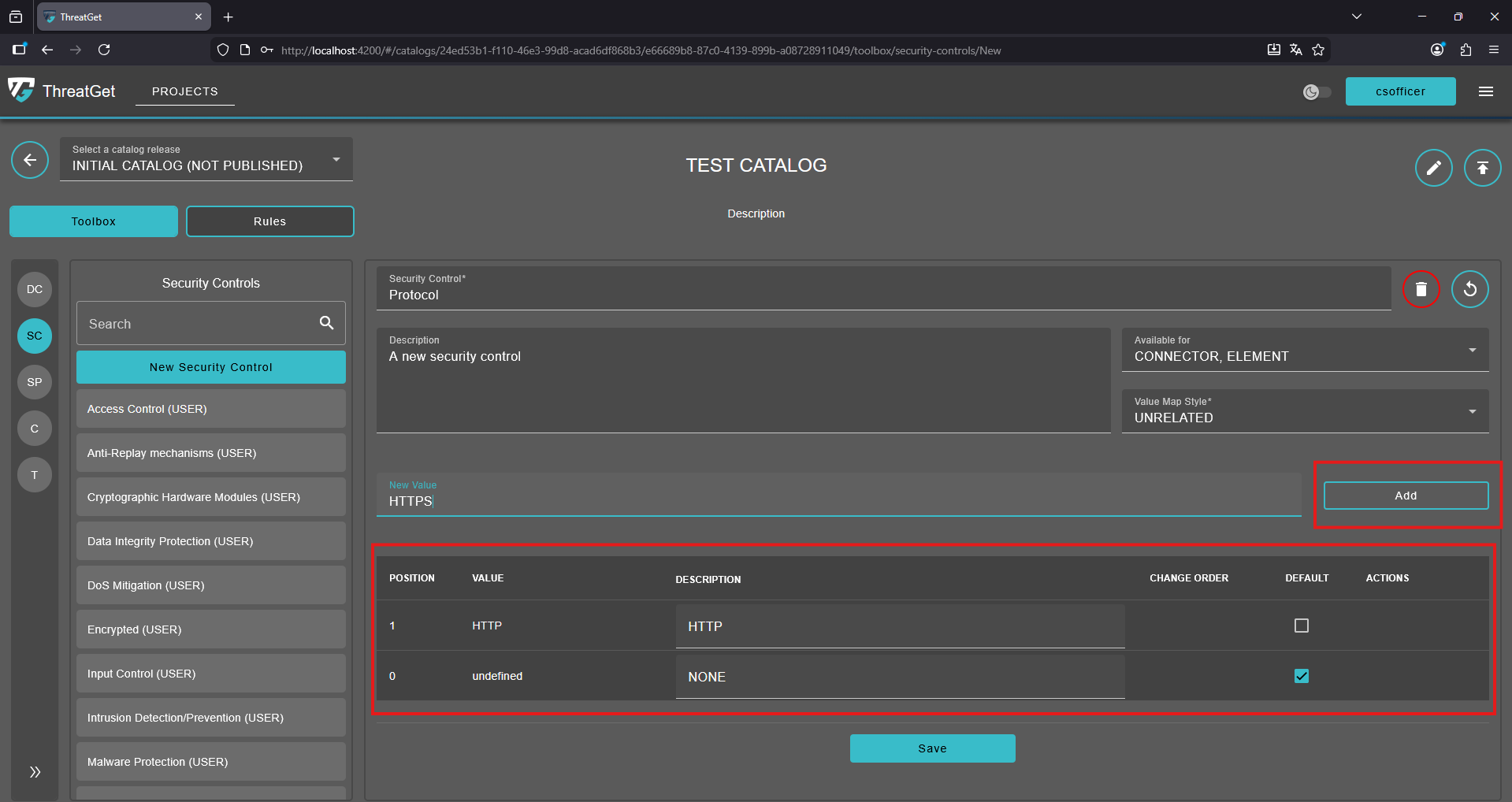
All values can be deleted by moving the mouse over the value; a red Trash Can icon will appear next to each entry in the Actions column, allowing the user to delete it if necessary.
Additionally, "undefined" is automatically assigned as the default value, but this can be changed if needed. To set a different default value, the user can click the checkbox in the Default column for the desired value in the table.
In the right-top corner of the security control details window , you can see two buttons ("Circular Arrow", "Trash Can") and a Save button in the middle below the input area.
Circular Arrow: Undo any changes.

Trash Can: Cancel the creation of the new element or delete an element, click on the Trash Can.

Save Button: Save your newly defined security control and system property, click on the Save button.

Arranging Security Control and System Property Values
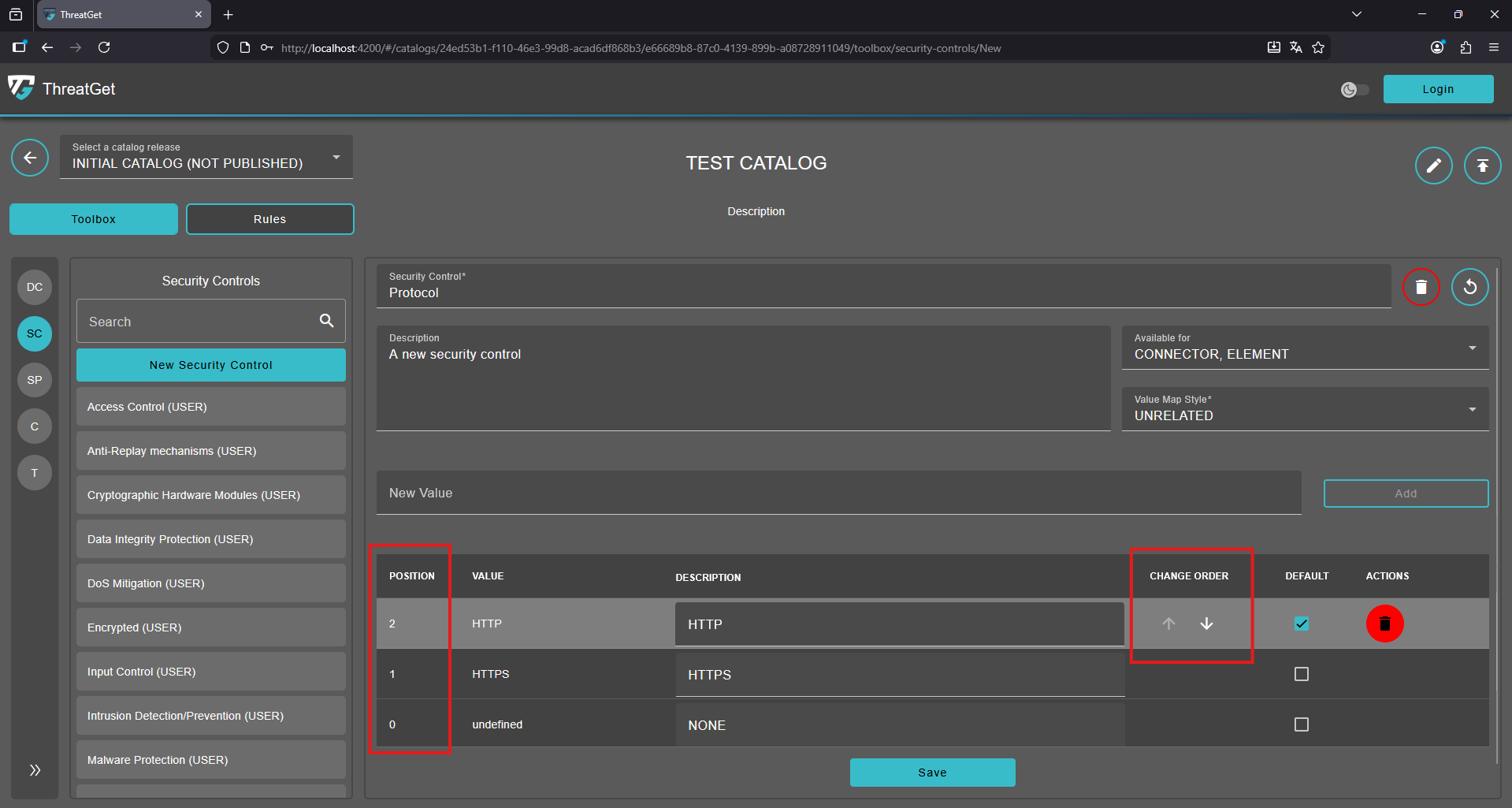
Each defined value of the security control and system property has a position and this can be adjusted by using the up and down arrows.
Find a Security Control and System Property
As the number of security controls and system properties increases over time, finding a specific control and property may become challenging. This can be addressed by using the search bar, where the user can type the control and property name to locate it quickly.
All the security controls and system properties matching the search will then be listed.