Diagram Components
Overview
ThreatGet contains a collection of components (such as Elements, Connectors, Interfaces, and Boundaries) that the user can use to model their required scenarios.
However, in some cases, the user needs to create new customized components to model a particular scenario. With the ThreatGet web interface, users can create and update their own diagram components, as well as interact with them. Before diving into the ThreatGet components, the following diagram gives an overview of the difference between Elements, Connectors, Interfaces and Boundaries.
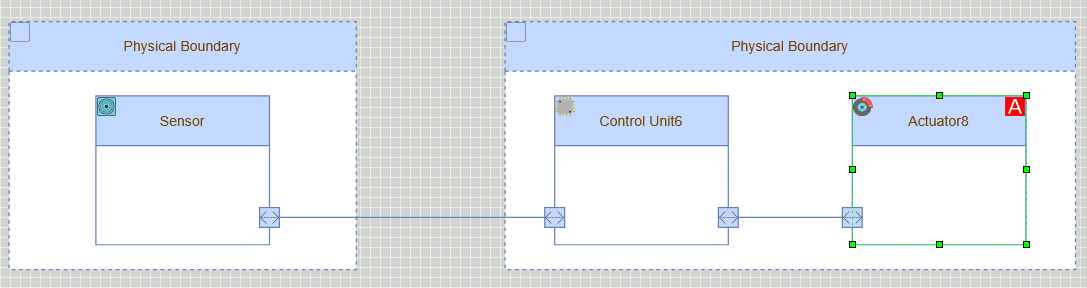
The diagram shows that a Sensor and an ECU are defined as elements.
Connectors allow these elements to be linked together. Assets refer to vital items that require additional security precautions.
Assets in ThreatGet can be directly connected to element(s) or attached to connector(s) using Asset Connector. Boundaries are used to define a scope of a collection of elements and assets.
In the general context, a connector describes a connection between two elements. This connection can be considered physical as well as logical. For example, you want to check the connection between two elements, wireless or wired. Alternatively, you want to investigate what kind of data is exchanged between these elements.
Boundaries can be seen as a container for one or more Elements. They can also collect physical or logical features. Elements, Connectors, Interfaces and Boundaries can be grouped into hierarchies as a set of groups of elements and sub-elements.
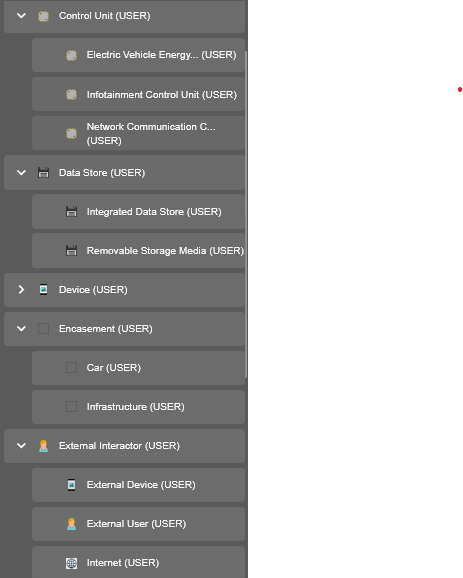
There is a superordinate category External Interactor and several subordinate elements like a Car. The security characteristics are defined for the top category (i.e., External Interactor) inherits its properties to the derivatives below.
💡INFO
- To create, alter or delete a catalog, its releases, toolbox and rules the Cybersecurity Architect role is required.
- A catalog release comes with its own unique toolbox and set of rules. Once the release is published, its toolbox and rules cannot be modified. However, they can still be inherited by another release. A catalog release must be published in order to be linked to an iteration.
- A downloaded catalog release cannot be modified initially. To define its toolbox, it must first be copied into a new or existing catalog.
Managing Diagram Components
Create a New Element
In the system design modeling process, users may need customized elements to align with the system's design requirements. If the required element is not available in the ThreatGet components list, users can create it. To create a new Element, navigate to the toolbox by pressing the menu button and select Catalogs.
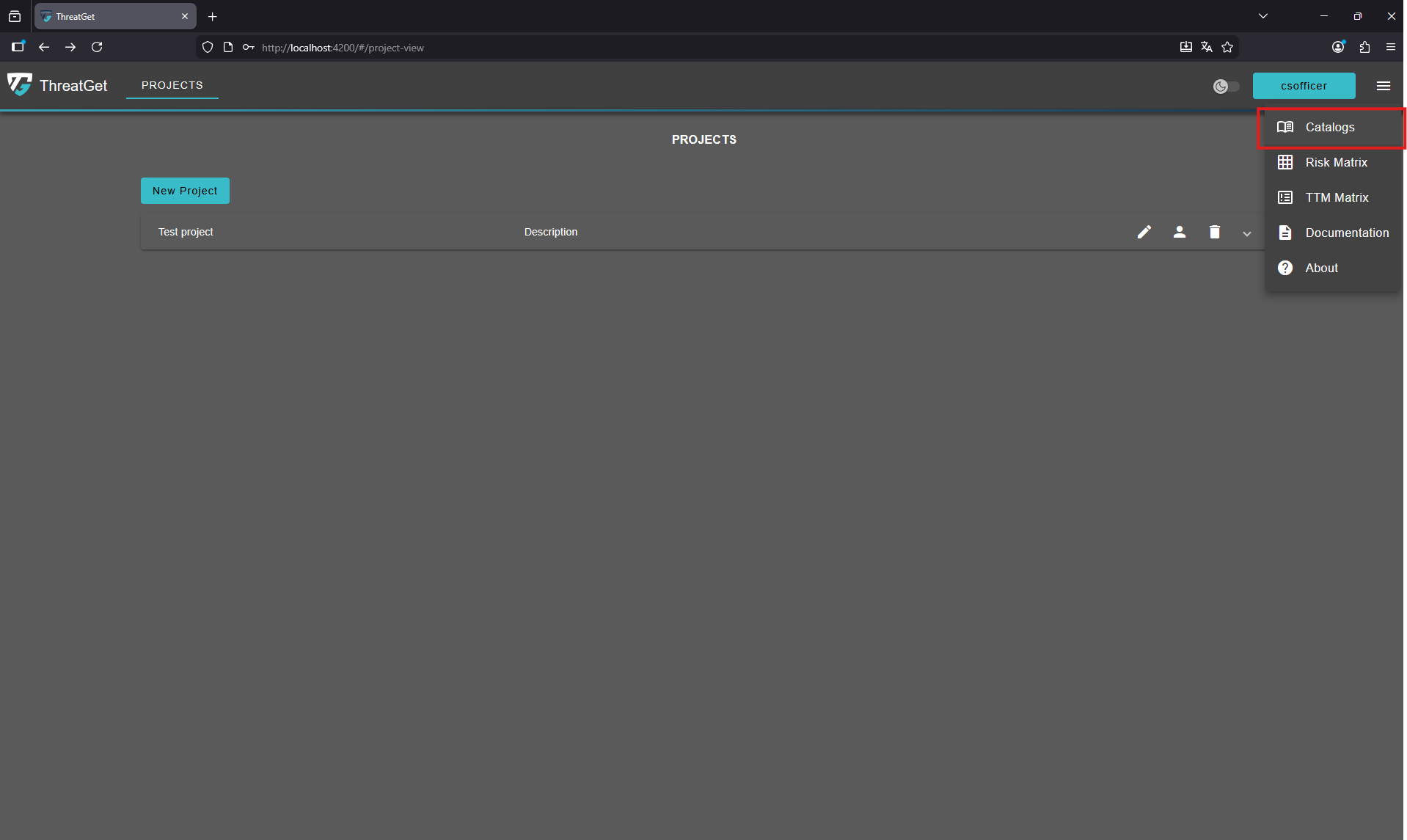
Select your custom catalog to modify its toolbox.
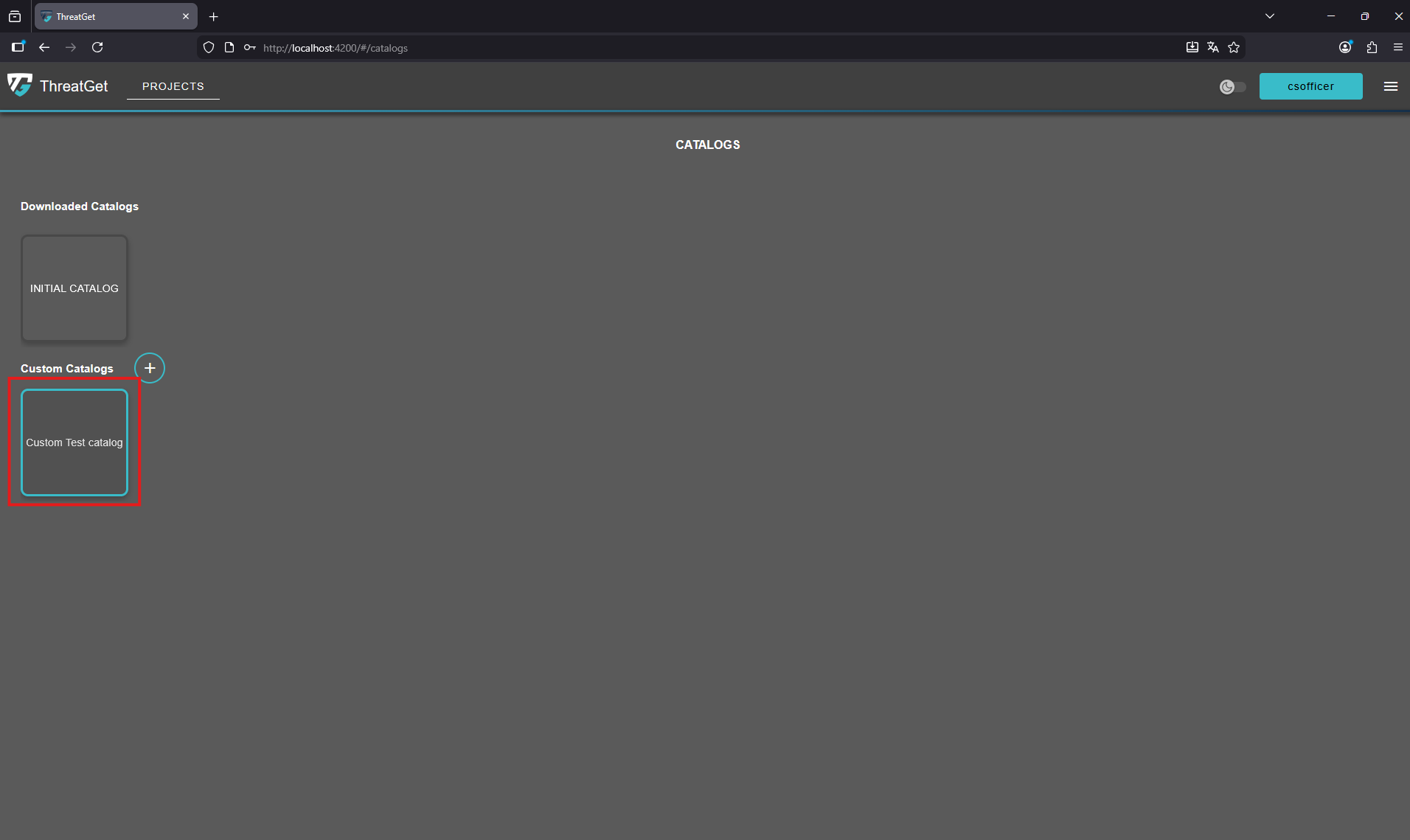
This opens the overview with the defined elements. You can already see all defined Elements, Connectors, Interfaces and Boundaries in their hierarchical structure on the left side.
In order to create a new component, click on the green New Diagram Component button on top of the listing to the left.
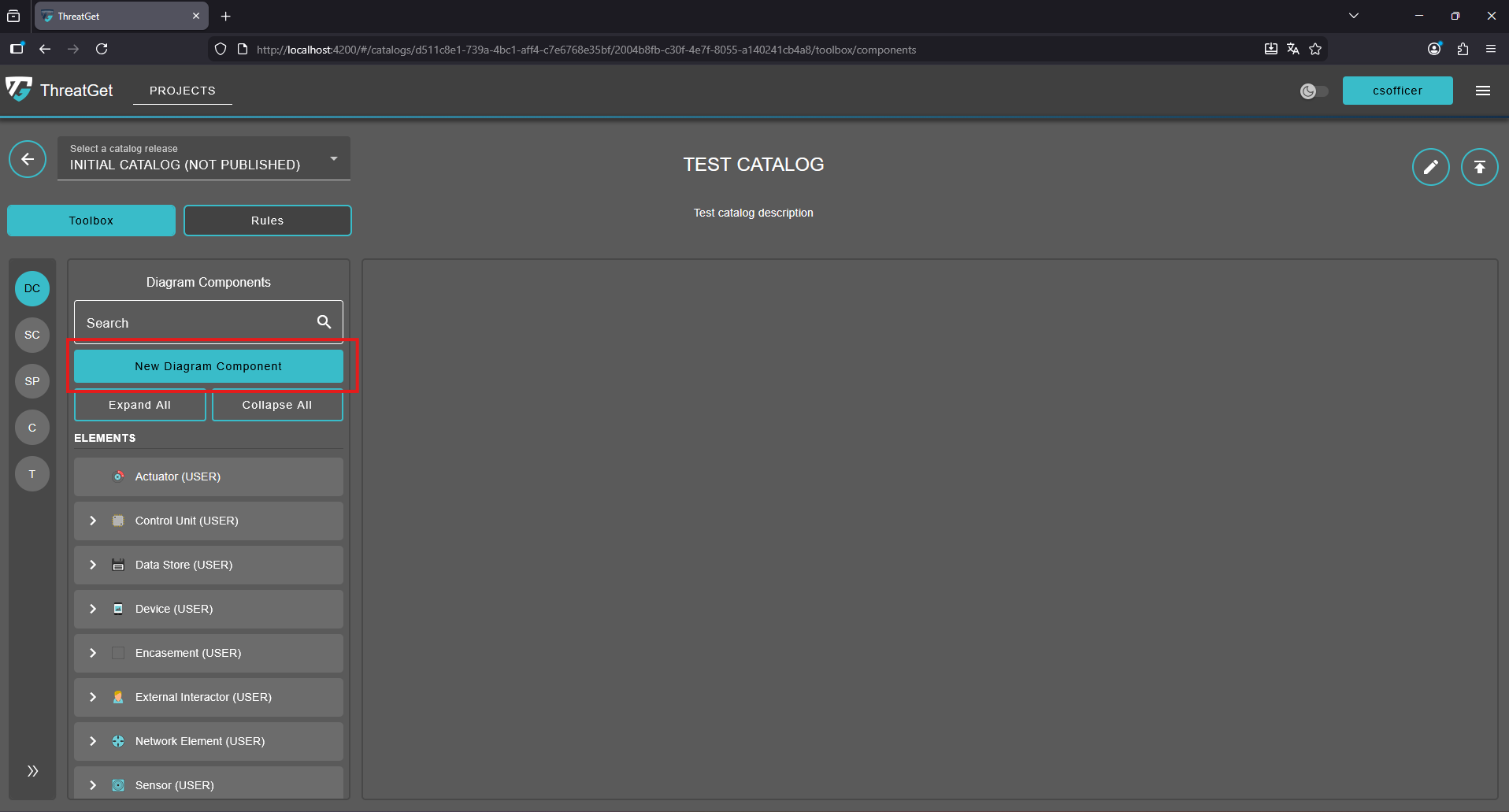
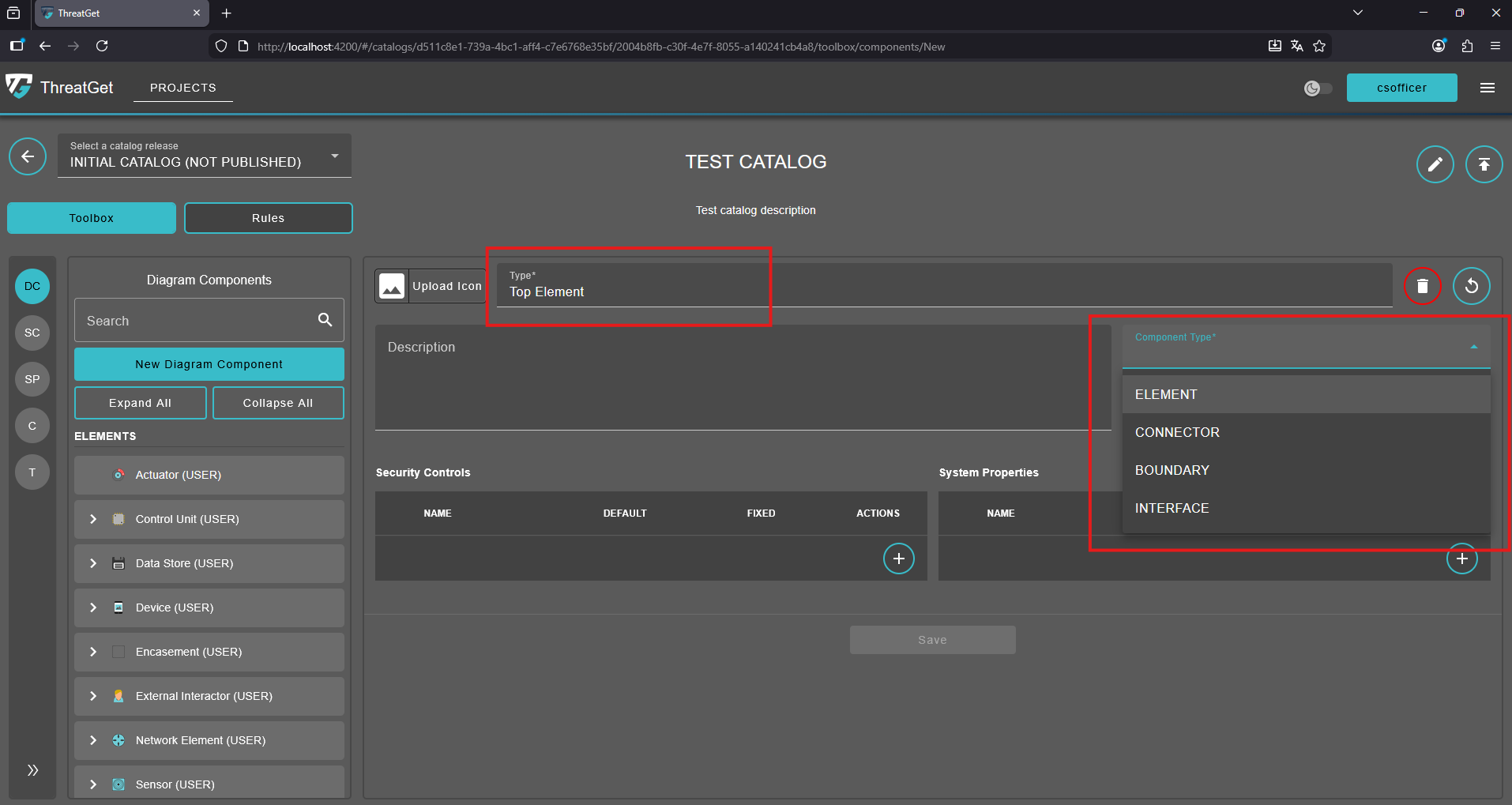
This opens a new window to the right in which you can define the name and select the type of the desired component. In this case, we define the name as "Top Element" and select the ELEMENT as the component type.
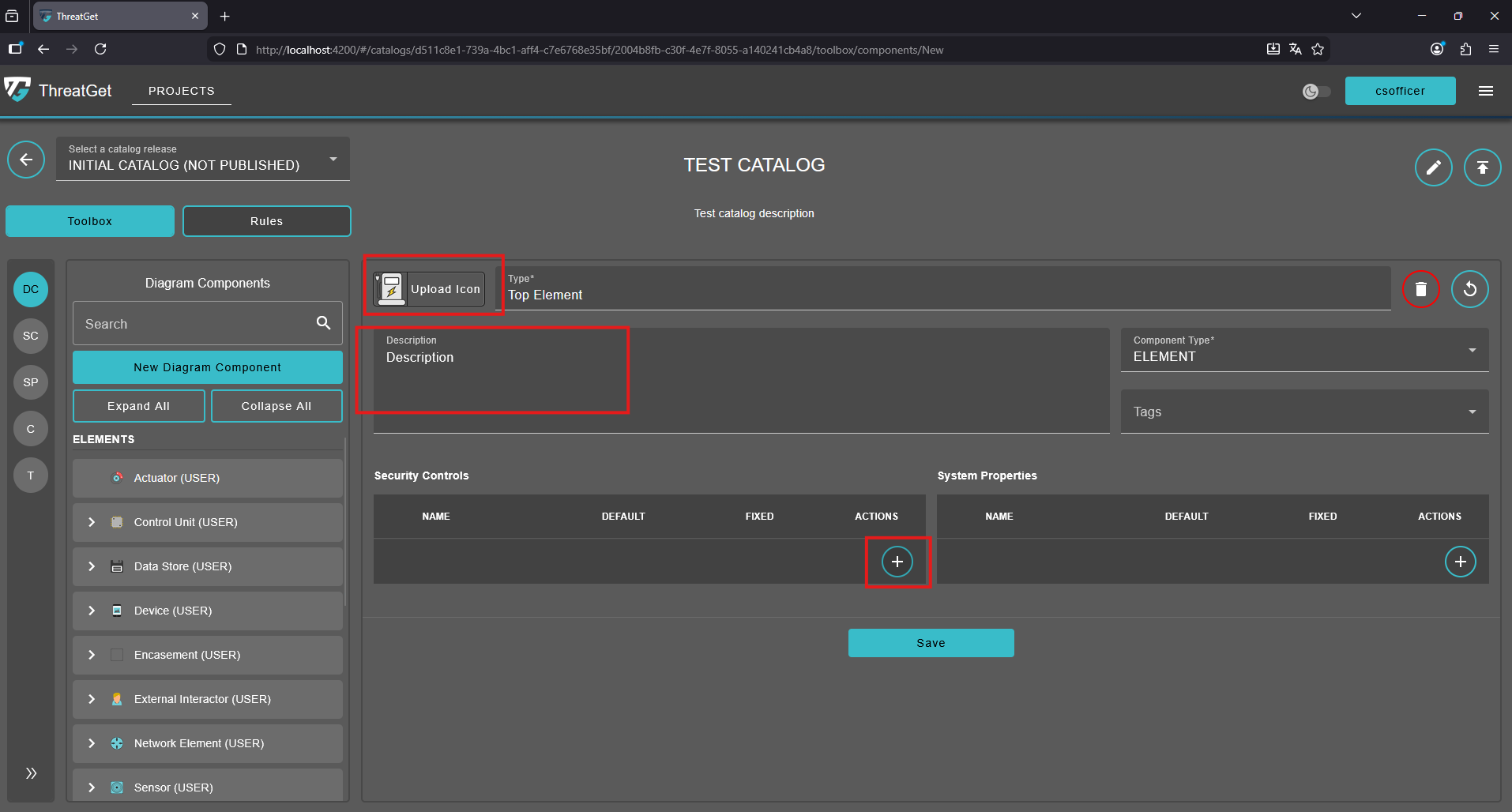
Here please now enter a Description for the created element. You can define an Icon, if the default ones are not appropriate. If so, please click on the Upload Icon button and select the desired image to add the icon and image. Image size and resolution are automatically adjusted.
In the lower part of this window, you can see 2 sections where entries are still missing. These sections displays Security Controls and System Properties that have been assigned to this element.
Click on the "+" button inside the security controls table to add a security control to the newly created element. A dialog box will open, allowing you to review and add the Security Controls you need.
You can easily scroll up or down to locate the security control you wish to add to your element (e.g., Top Element). ThreatGet also provides a search bar to help you quickly find your desired security control.
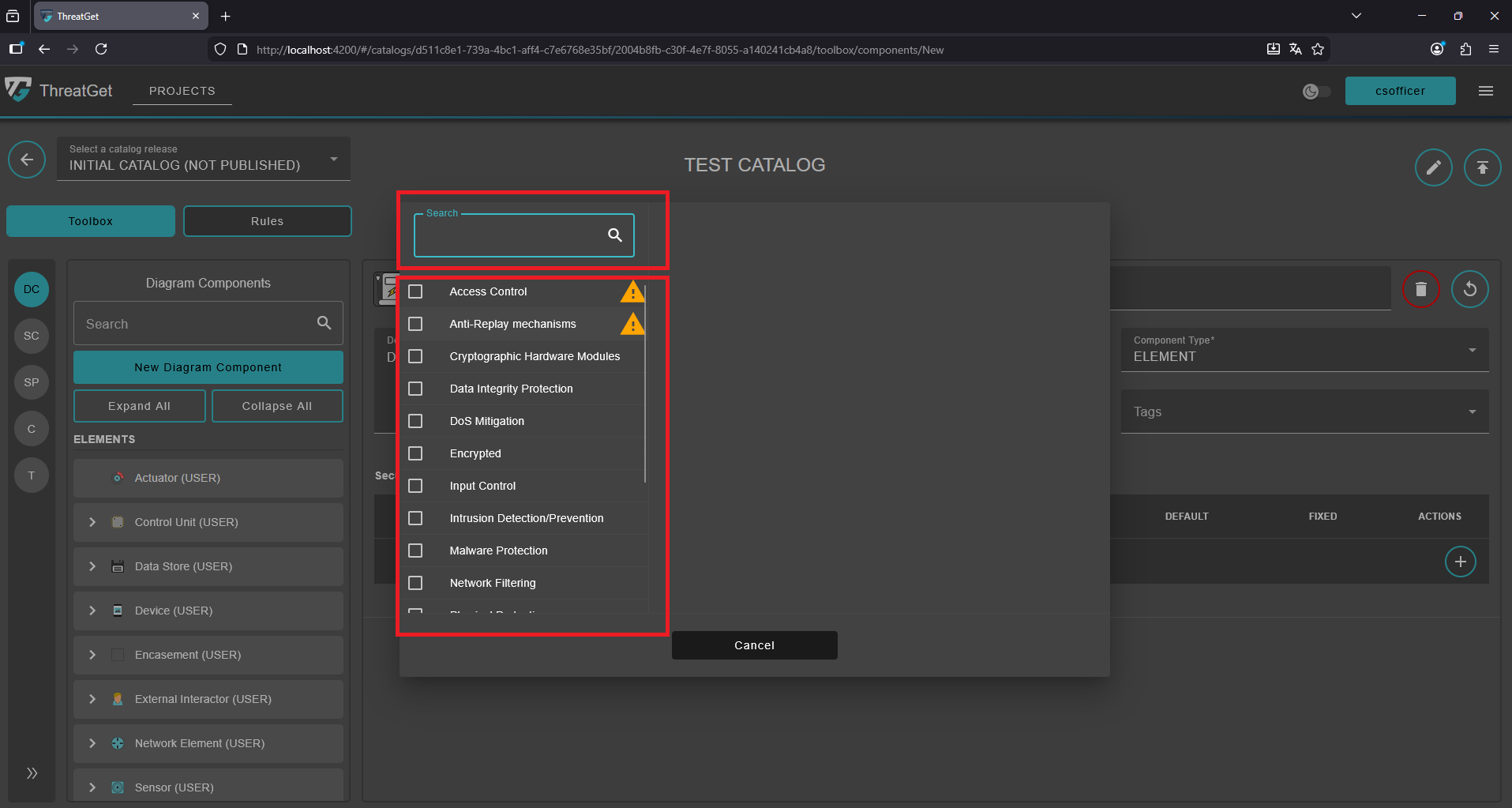
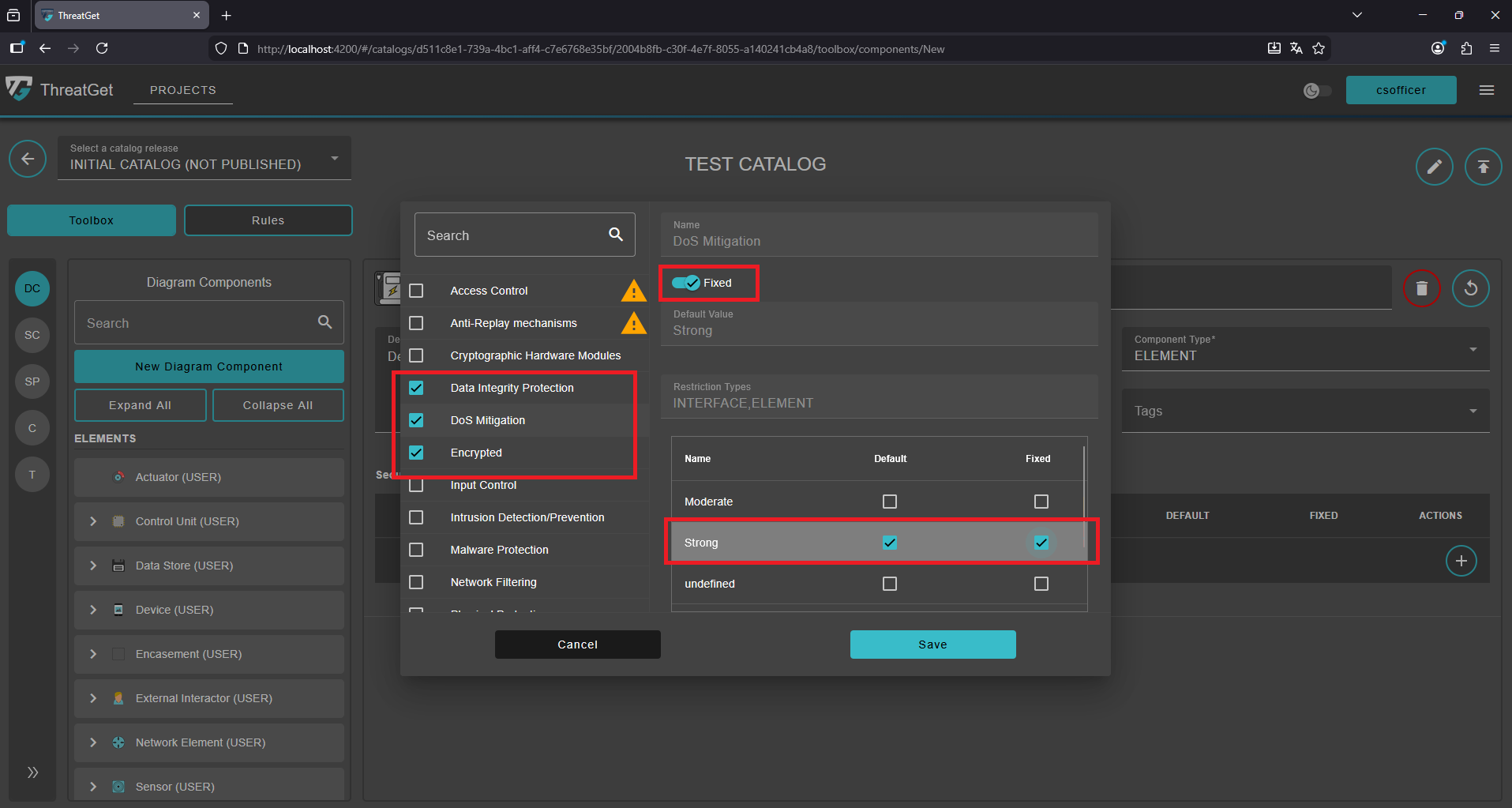
To add a Security Control, you have to activate the Checkbox next to the Security Control name. For example, you can just add the Data Integrity Protection, DoS Mitigation, and Encrypted Security Controls to your element.
💡 INFO
The yellow ⚠️ Warning Sign indicates that the Security Control is not intended for the diagram component you want to create. However, we do not restrict you from assigning a Security Control to a component; we simply point it out to you.
You can set any of the Security Controls to Fixed. This means that if a fixed value is assigned to a particular security control for an element, it will remain constant and cannot be modified. For example, in the figure below, a "Strong" value is set for the DoS Migration property, and the fixed value option is activated. This ensures that when a user utilizes the newly created Top Element component, its DoS Migration security control will be set to "Strong" and cannot be changed.
You can also add Tags to your element. These tags are different from the Security Controls and System Properties, as the purpose of the Tags is to group Elements, Assets, Connectors, Interfaces and Boundaries.
To add a Tag to an Element please click on the selectable Tags Input.
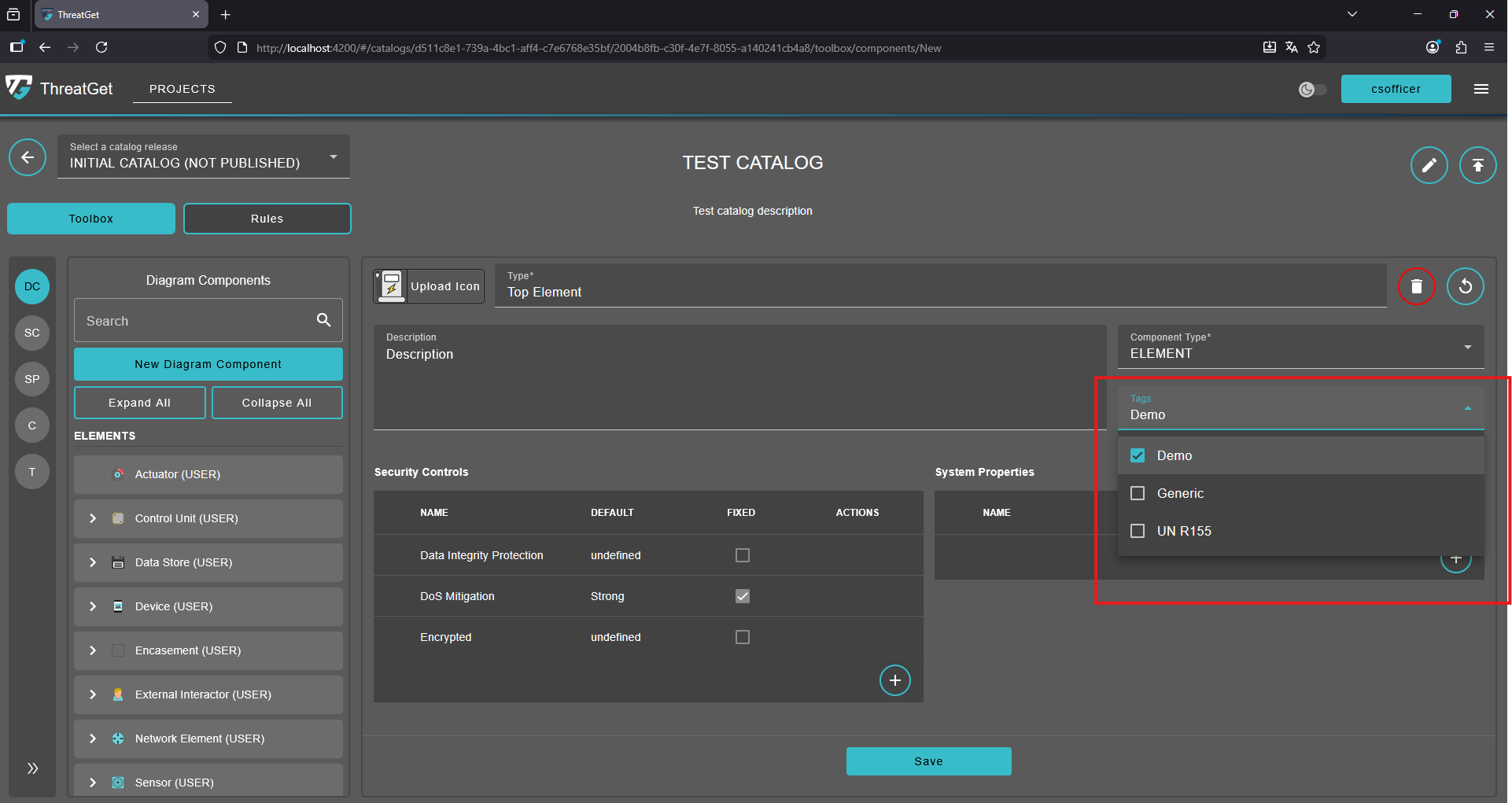
You can select as many predefined Tags as you want. To learn how to create new Tags please check the Tags section.
On the top-right corner of the diagram comonent details view, you can see two buttons ("Circular Arrow", "Trash Can") and a Save button in the middle, below the input area.
Circular Arrow: Undo any changes.

Trash Can: Cancel the creation of the new element or delete an element, click on the Trash Can.

Save Button: Save your newly defined component, click on the Save button.
For now please save your new Top Element.
Create a Sub Element
After creating the Top Element, we will now proceed to create a Sub Element. Locate the newly created element by scrolling up or down the components list, or use the Search Field to quickly find it.
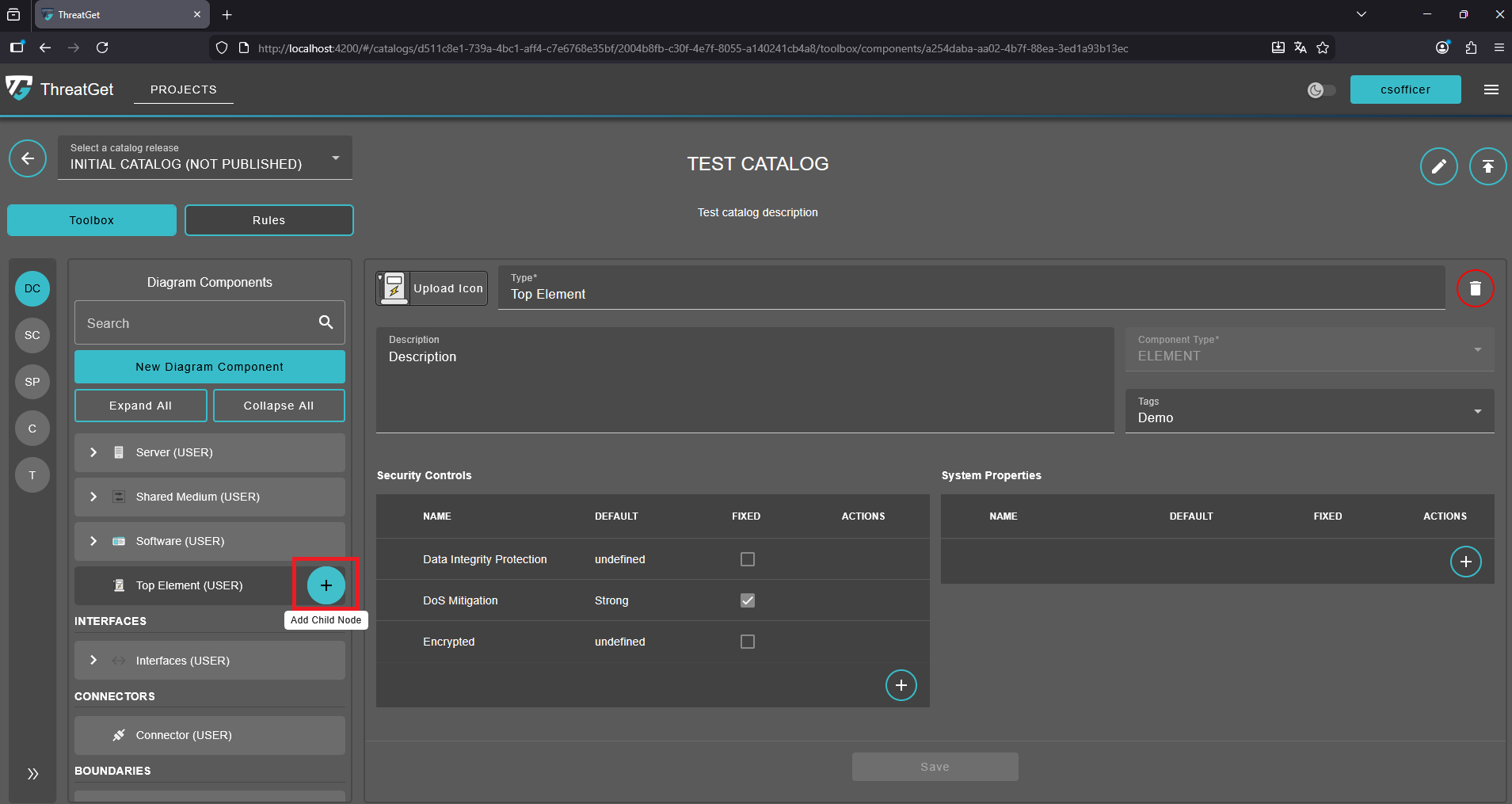
Move your mouse cursor over the newly created element, and a green "+" button will appear. Click this button to start creating a new Sub-Element that inherits all associated information from its parent element (i.e., Top Element).
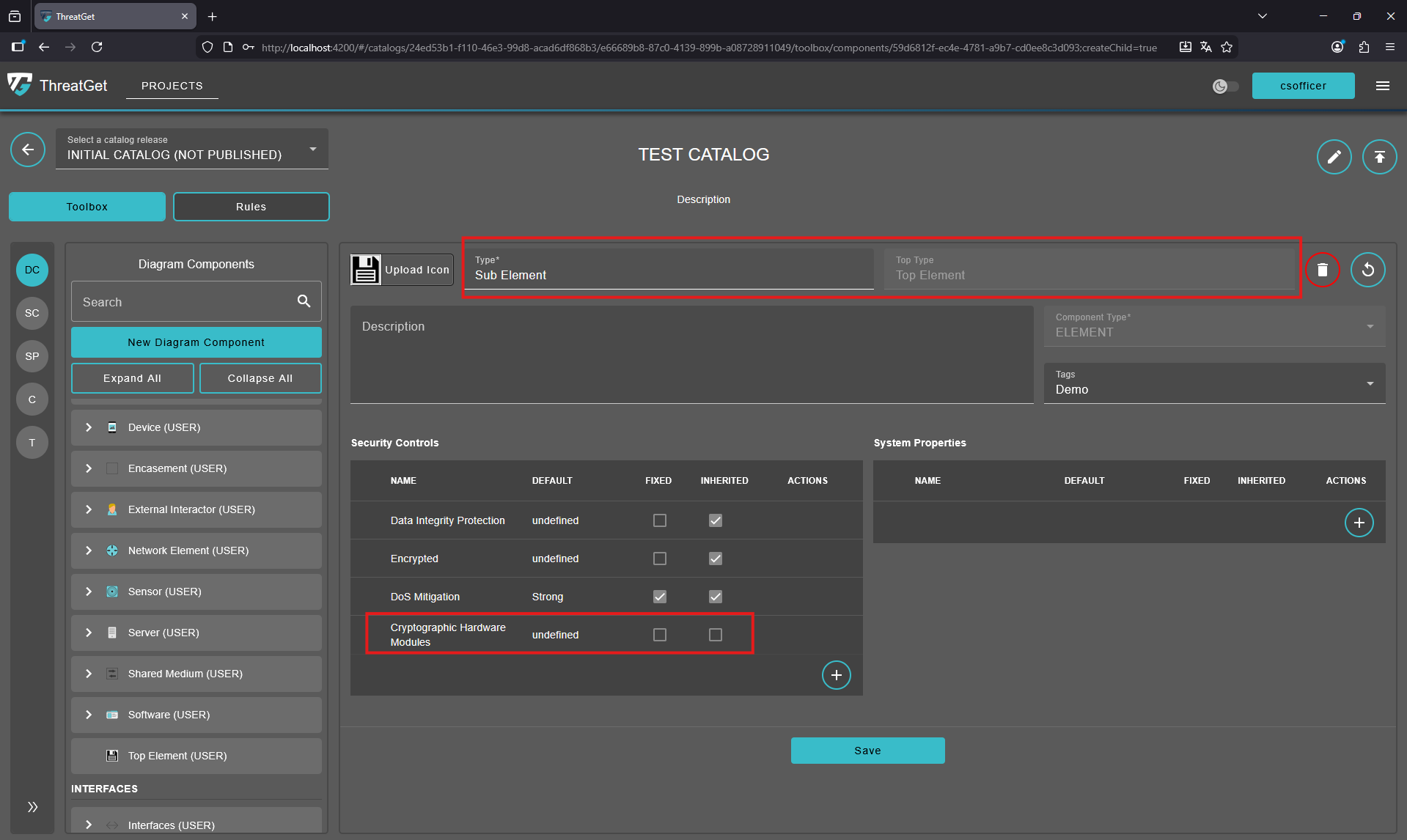
A window will be displayed, similar to the one used for creating new elements. The Top Type field shows the name of its parent element (i.e., Top Element).
In the Security Controls section, you’ll notice that Data Integrity Protection, DoS Mitigation, and Enrypted are automatically inherited from the Parent Element.
Additional security controls can be added as a new set for the sub-element. The image and icon are also inherited from the parent but can be adjusted if needed. In this example, we added the value Cryptograpgic Hardware Modules.
Creating a Connector, Boundary, or Interface
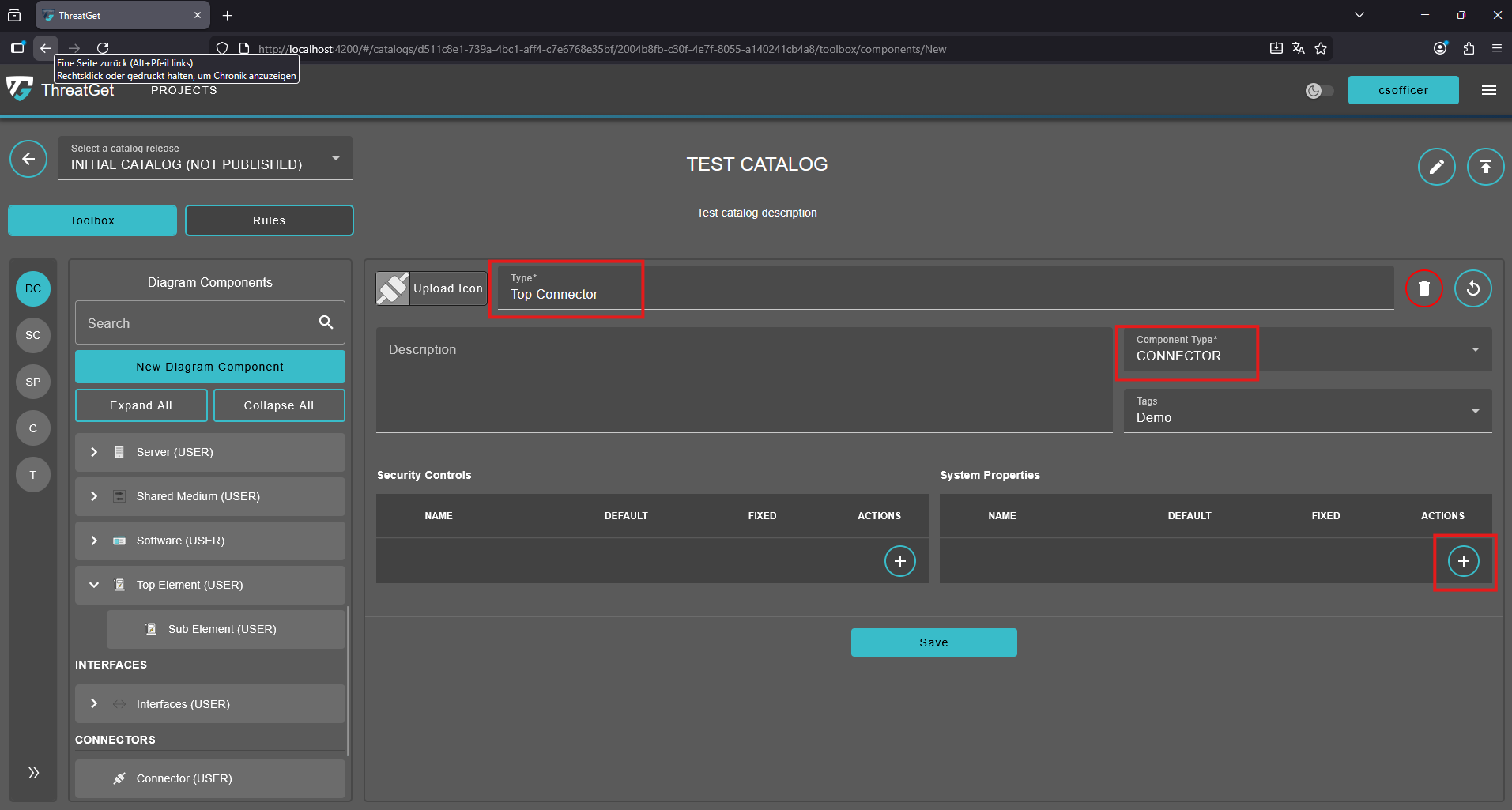
Creating another diagram component, such as a Connector, Boundary, or Interface, follows a similar process to creating an Element or Sub-Element.
Click the "New Diagram Component" button. Select the desired component type (e.g., Connector, Boundary, or Interface) from the Component Type dropdown, then enter the necessary information (e.g., name, description, icon, tags, and suitable security controls).
If you want to add new Security Controls, you can follow the same steps we followed in creating a new element.
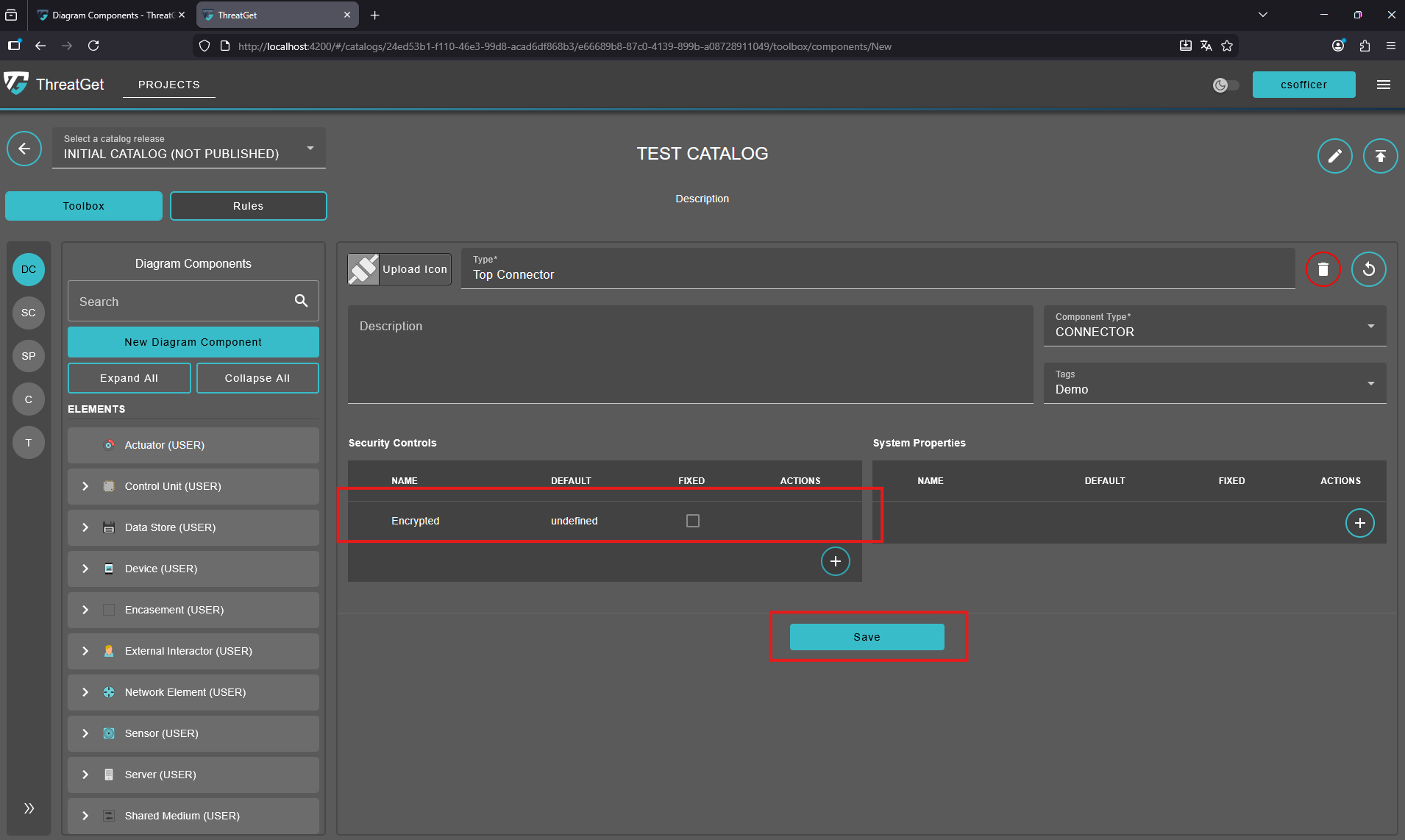
Once you have finished selecting the required security controls for your customized connector, press Save to ensure all changes are stored.